
Sync
Syncing your library lets you copy all your Lexicon tracks and playlists into your favorite DJ app.
Sync and Import are one window with three tabs at the top: Sync, Import and Mobile App. You open it from the bottom of the sidebar: the Sync to DJ app button opens the Sync tab, and the Import and Mobile App links above that button open the other two tabs. You can also use File ➡ Sync to… in the top menu bar and pick a DJ app there.
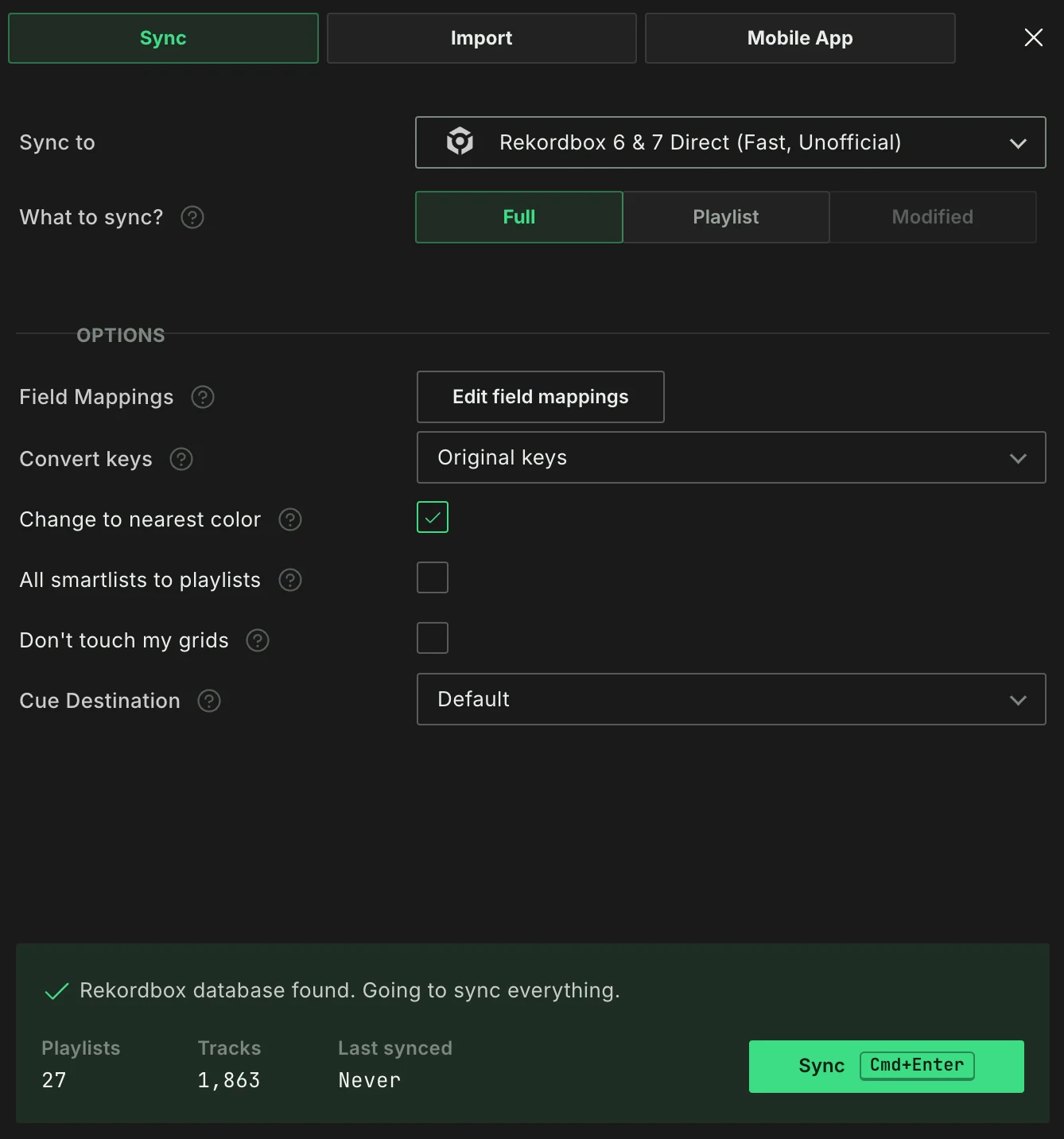
Syncing is very easy. Most DJ apps require no extra work:
- Click
Sync to DJ appat the bottom of the sidebar, or useFile➡Sync to…in the top menu bar. - Choose the DJ app in the
Sync todropdown. - Choose
What to sync?:Full,PlaylistorModified(see below). - Press the button at the bottom, next to the summary of what is about to be synced:
Syncfor most DJ apps. For the XML methods the button is calledSave Rekordbox XMLorSave iTunes XML.
When the sync is done and you have closed the completion message, the Sync window closes by itself. If you cancel a sync or it fails, the window stays open so you can change something and try again.
The first time you open the Sync window with the Sync to DJ app button, a short How Sync works explainer appears. It is shown only once.
Once you have synced, the Sync to DJ app button also shows the DJ app you sync to and how long ago you last synced to it.
For Rekordbox, please refer to the Rekordbox page in the manual. To sync with the Lexicon mobile app, see Mobile App.
On Linux, you can sync to a Pioneer USB drive, to Engine DJ on a USB drive, and save a Rekordbox XML or iTunes XML. The other DJ apps have no Linux version, so they only work when Lexicon finds their library in a Wine prefix or in a folder you select on the Import tab.
DJ Library Trends
On the Free plan, syncing adds your library metadata to the anonymous DJ Library Trends on the Dashboard. Your music files never leave your computer. Lexicon asks you about this when you start a sync, until you agree: Sync & share continues the sync, and cancelling stops it. Your library is then sent right before the sync, at most once a day. On a paid plan Lexicon does not ask, and sharing stays off unless you turn it on yourself. See Dashboard for what is shared.
Conversion
Sync is also what you use when converting your library. See Convert Library in the manual.
Full or Playlist or Modified
You can perform a Full Sync, a Playlist Sync or a Modified Sync. With a Full Sync, any track that does not exist in Lexicon will be removed from your DJ app. A Full Sync makes it so that your DJ app is the same as Lexicon.
Rekordbox XML (not Rekordbox 6/7 Direct) is the exception to this rule because of the extra XML import step. Rekordbox does not delete anything when importing.
With a Playlist Sync, your existing library in your DJ app is preserved and tracks and playlists are only added or updated. Nothing is removed.
For a Playlist Sync, you select the playlists in your normal playlist tree on the left. It is highlighted and stays usable while the Sync window is open, including its search box. Hold Cmd (Mac), Ctrl (Windows and Linux) or Shift to select more than one. Selecting a folder selects all playlists inside it, and deselecting the folder deselects them again. The summary at the bottom of the Sync window shows how many playlists and tracks will be synced.
Full Sync, Playlist Sync and Modified Sync are available on every plan.
A Modified Sync is similar to Playlist Sync but instead of choosing a playlist, Lexicon will automatically pick the playlists and tracks that were changed since your last sync. Modified Sync becomes available after your first Full or Playlist sync. Modified Sync is tracked per DJ app.
Tracks disappeared from my DJ app after a Full Sync
A Full Sync removes every track and playlist from your DJ app that is not in Lexicon. If you added tracks or playlists in your DJ app that were never imported into Lexicon, they are removed. Before your first Full Sync, import from your DJ app so Lexicon has everything.
If it already happened, Lexicon made a backup of your DJ app database before the sync. See How to restore a Lexicon or DJ app backup.
Field Mappings
To get your specialized fields like Energy or your Tags from Lexicon into your DJ app, you have to use field mappings. See the Field Mappings page in the manual.
Key Conversion
See the Key Conversion manual page.
Don't Touch My Grids
When this option is enabled, Lexicon will not change your existing beatgrids in your DJ app. Enable this if you have sensitive beatgrids that are never allowed to change. New tracks that don't exist in your DJ app yet will still get the beatgrid from Lexicon, even when this option is enabled.
Colors
Lexicon has many more colors than the DJ apps. You can tell Lexicon to change your colors to the nearest matching color when syncing. For example, if the DJ app you've chosen does not support the color orange, then all your orange colors from Lexicon will be changed to red in the DJ app.
To avoid this, set Color palette in the Lexicon settings to your DJ app. The color pickers in Lexicon then only offer the colors that DJ app has, so what you pick looks the same there. While a palette is set, the Change to nearest color option is hidden and always on.
Leaving the option off will set no color if the DJ app has no directly matching color.
Excluded From Sync
Any playlist, smartlist or playlist folder that starts with "Excluded From Sync" will be skipped when syncing to any DJ app. You can also create a Custom Tag called "Excluded From Sync" and assign it to any track so these tracks do not get synced.