
Import Options
These options are available when you import a library from a DJ app.
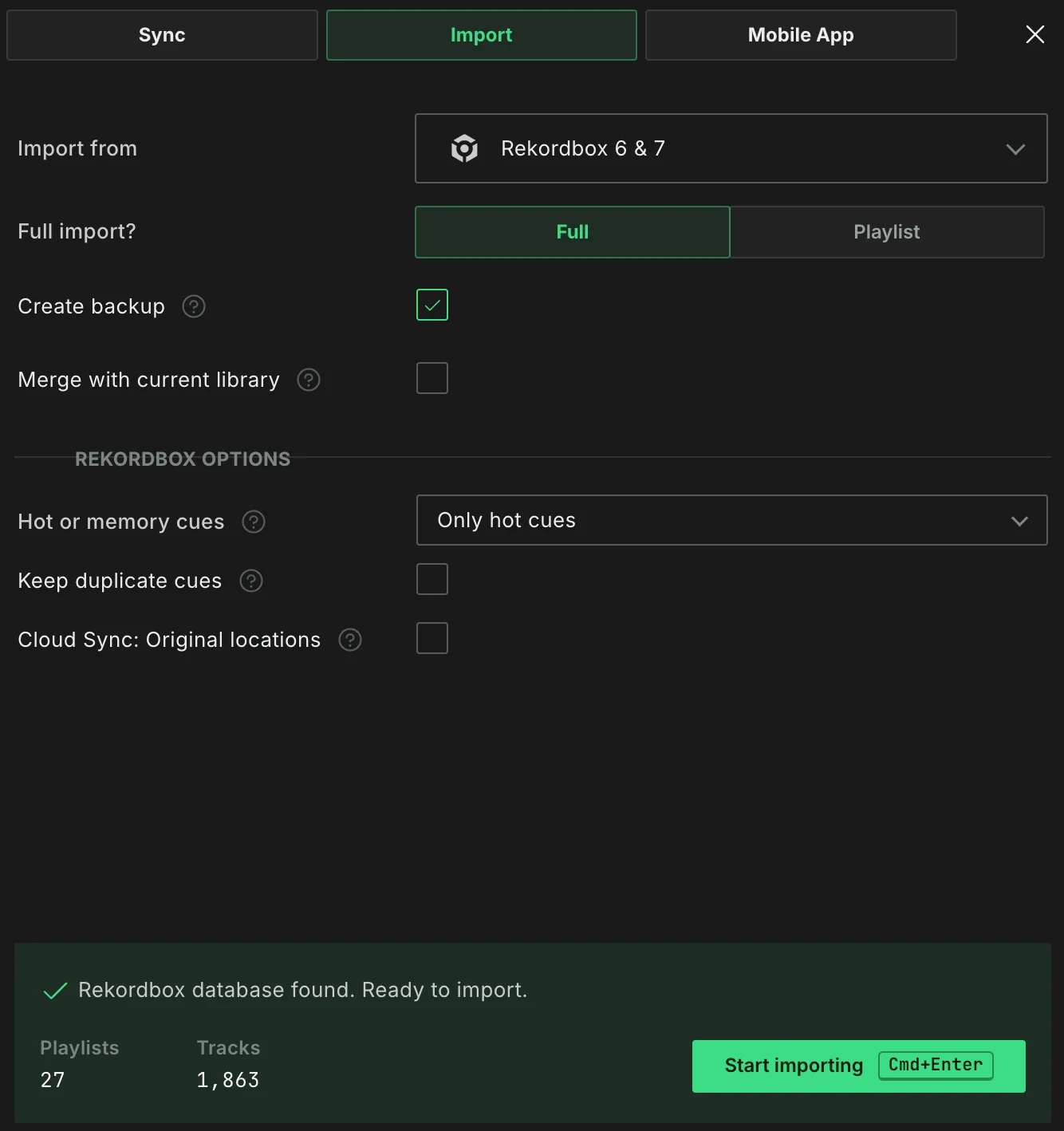
To import, click Import at the bottom of the sidebar, just above the Sync to DJ app button, or use File ➡ Import from… in the top menu bar. This opens the Import tab of the Sync window. Choose your DJ app under Import from, set the options below and click Start importing. When the import is done and you have closed the completion message, the window closes and your tracks are shown.
Full or Playlist
With Full, your entire library from the DJ app is imported. With Playlist, only the playlists you select and their tracks are imported. This choice is separate from the Merge option below: both work with Merge on or off.
With Playlist, the playlists of your DJ app appear in a list on the right side of the window. Selecting a folder selects all playlists inside it. Smartlists can only be imported with a Full import. The next time you do a Playlist import from the same DJ app, Lexicon selects the playlists from your previous playlist import again.
Before you import, Lexicon shows what the import brings in, on the card with the Start importing button. With Full, that is how many Playlists and Tracks your DJ app library holds, read from the DJ app itself. With Playlist, it is the playlists you selected and the tracks in them. A track that is in two selected playlists is counted twice there. For some DJ apps, like Rekordbox 5, Serato DJ Pro 3 and a Pioneer USB drive, Lexicon can only count the playlists, so no track count is shown.
When your Lexicon library is still empty, the first import is always a Full import and this choice is not shown.
For a Pioneer USB drive there is a third type, Modified, which imports only the changes made on the players since Lexicon last synced the drive. See Import from Pioneer USB.
Playlist import is available on the Essential and Ultimate plans.
Merge with current library
Merging allows you to merge multiple libraries from (different) DJ apps into Lexicon. Tracks and playlists that already exist in Lexicon are updated, new tracks and playlists are added, and no tracks or playlists are deleted. Tracks that already exist will be updated with the fields from the imported track. If the DJ app has no BPM for a track, the BPM that Lexicon already has is kept.
A playlist that has the same name (and is in the same folder) as a playlist in Lexicon is updated to the contents from your DJ app. Changes you made to that playlist in Lexicon are replaced. If you changed playlists in Lexicon, sync them to your DJ app first before you import again. A playlist that you moved to a different folder in your DJ app is seen as a new playlist, so it can show up twice.
New playlists are added at the bottom of your playlist tree (or of their folder), in the same order as in your DJ app.
Merge is available on the Essential and Ultimate plans.
Importing without Merge
On the Free plan, Merge is not available, so every import replaces your Lexicon library.
Import specific fields only
Only available when the Merge option is enabled.
This allows you to select the fields you want to import into your existing tracks. This is especially useful if you want to use a DJ app for only the beatgrid it generates, or any other field you are interested in. BPM and the beatgrid are separate fields, so select both if you want both. By default, all fields are selected.
This option only limits which track fields are updated. Playlists are still updated as described under Merge above. If you only want to import cues or grids for some tracks, put those tracks in a new playlist with a unique name in your DJ app and do a Playlist import of just that playlist.
History and Last Played
When your DJ app keeps a play history, the import also brings in its history sessions, see History. A track in your Lexicon library that is in an imported session gets the date of the newest session it is in as Last Played. This way tracks from Serato and Rekordbox, which keep no last played date in their library, get one too.
Last Played only moves forward. If a track already has a later date, from your DJ app or from Lexicon, that date stays.
A Pioneer USB drive dates its history in its own way, see Import from Pioneer USB.
Create backup
Lexicon can create a backup of your Lexicon library before the import. This is always recommended, especially when Merge is off.