
Analyzer
Lexicon has a state of the art audio analyzer packed with features that DJs need.
To analyze tracks, select them, right click and choose Analyze. In the Analyze popup, check what you want to analyze (BPM & Beatgrid, Waveform, Energy, Key) and start. The analyzer is available on the Essential and Ultimate plans.
Tracks shorter than 10 seconds or longer than 30 minutes are skipped for BPM & Beatgrid, Energy and Key. Longer tracks such as DJ mixes still get a waveform, up to 2 hours long.
If you start another analysis while one is still running, the new one waits until the earlier one is done. Its tracks show a clock icon in the track browser until it is their turn.
BPM & Beatgrid
The analyzer has a very accurate BPM and beatgrid analyzer, below is a result summary of the current first beat accuracy:
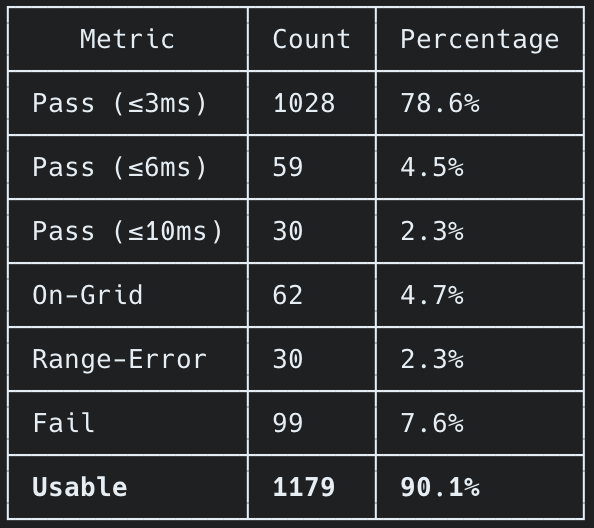
On our current testing dataset, it analyzes by far the most within 3ms accuracy of the precisely correct result. The On-Grid results are also acceptable results on the beatgrid but may be offset by 4 or 16 beats or so but still fine for DJing. Range-Error tracks are analyzed properly but require the user to specifically set the BPM range, e.g. for extremely low or high BPM tracks.
Beatgrid Type
When BPM & Beatgrid is checked, choose the Beatgrid Type in the Analyze popup:
Static: one BPM for the whole track. Best for most electronic music, which has a constant tempo. This is the default.Fluid: a BPM marker on every beat, so the grid follows tempo changes and drifting tempo exactly. Use it for old vinyl recordings, live drummers or tracks with tempo changes.Auto: detects whether a track has a constant tempo. Constant-tempo tracks get a static beatgrid, tracks with tempo changes or drifting tempo get a fluid beatgrid.
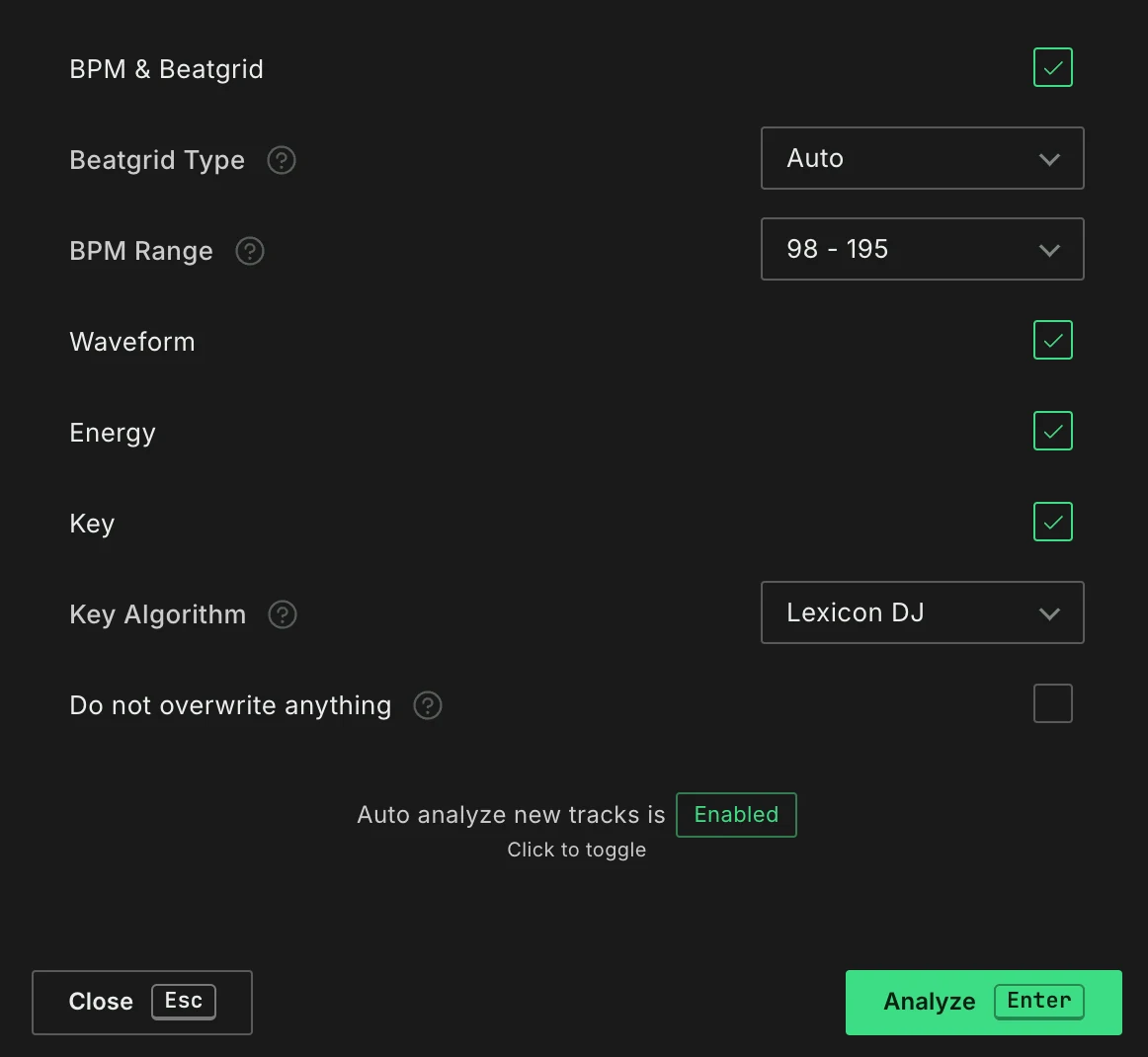
The BPM Range also applies to fluid beatgrids, but there it only chooses between half and double tempo. A section that reads at half or double the tempo of the music around it gets the BPM inside your range. A real tempo change keeps its own BPM, even when that BPM falls outside the range. For example, with a range of 128 - 255 a drum & bass track with a half-time breakdown stays at 174 the whole way through, while a track that slows down from 160 to 120 BPM keeps 120 for that part.
The Beatgrid Type you pick is remembered. It is also used when Lexicon analyzes a track by itself, for example when you play a track that has no beatgrid yet or when new tracks are auto analyzed.
Tracks with a fluid beatgrid show a green Fluid label in the beatgrid controls of the music player, see Beatgrid. In the Preview (mini waveform) column of the track browser, a thin wavy line marks where the tempo of a fluid beatgrid changes.
Fluid beatgrids are imported from and synced to djay Pro and VirtualDJ. You can also still add as many beatgrid markers as you want manually, and they are imported from any DJ app as well.
Waveform
Waveform analysis is required to show a waveform for your tracks. This happens on demand as well but is faster to do in bulk.
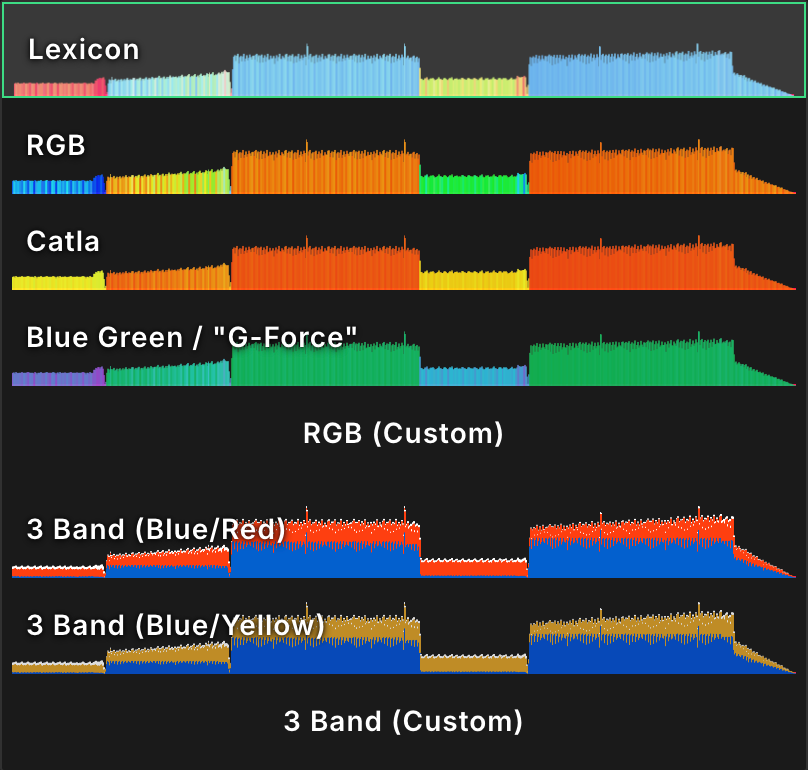
You can choose your waveform in the Lexicon settings under Music Player ➡ Waveform: Lexicon (the default), RGB, Catla, Blue Green / "G-Force", two 3 Band presets, or RGB (Custom) and 3 Band (Custom) with your own colors (Edit Colors).
Changing the waveform type or its colors does not require re-analyzing your tracks. The waveforms are redrawn in the new look right away. If an older track still shows its waveform in the previous type, analyze it for Waveform once more.
You can safely keep Waveform checked in the Analyze popup: tracks that already have a waveform are not analyzed again.
Energy
Energy analysis can fill the Energy field on your tracks. Check Energy in the Analyze popup. This works for any track as it scans your audio files. If the Energy field stays empty, check that Energy was checked, that the track is between 10 seconds and 30 minutes long, and that the file can be read.
You can also use the Find Tags utility for energy. This pulls data from Lexicon's online music database, so the track must be known there and it will not work for unknown remixes or bootlegs. It also uses a different algorithm so you will get different energy results than from analyzing.
The analyzer does not fill Danceability, Happiness or Popularity. Those fields come from Find Tags.
The energy analyzer uses an absolute based energy system which means that it tries to ensure that the more chill tracks are on the lower end and the more powerful, faster tracks are on the higher end. However this does not always work due to how music can be structured so your mileage may vary.
Key
Key analysis is essential for DJs to make harmonically compatible sets. Lexicon has two analysis algorithms for this. The built-in Lexicon analyzer performs adequately, it's fast and requires no extra setup.
We also offer the free OpenKeyScan integration for results that match industry leading paid analysis software.
You can see both Lexicon and OpenKeyScan (using MusicalKeyCNN) in this community benchmark
OpenKeyScan
OpenKeyScan is a standalone application, you can download it for free on the website. OpenKeyScan is made by the same developer as Lexicon.
In short, OpenKeyScan is a 100% free application that delivers key results similar to the industry leading key analysis software. It integrates seamlessly into Lexicon, all you need to do is leave OpenKeyScan running in the background and Lexicon can use it for its key analysis. You can also use OpenKeyScan without Lexicon by writing to ID3 tags or updating your DJ app with it.
When you load a track without a key into the music player, or when new tracks are auto analyzed, Lexicon finds the key with the algorithm you chose in the Analyze popup, as long as Key is ticked there. If you chose OpenKeyScan and it is not running, the key is skipped instead of using the built-in analyzer, and Lexicon reminds you to start OpenKeyScan (at most once an hour).
Cues
The analyzer also includes a cue generator in a separate utility inside Lexicon, see Cue Point Generator.
Auto analysis
Auto-analysis is enabled by default so new tracks get the missing info as they are added to Lexicon. You can turn this off in the Analyze popup or in the Lexicon settings. This only applies to tracks added by dragging into Lexicon or through the Watch Folder. Tracks imported from a DJ app do not get auto analyzed.
When a beatgrid has tempo changes, the Track BPM after analysis setting decides which tempo becomes the track's BPM. See Lexicon Settings.