
History
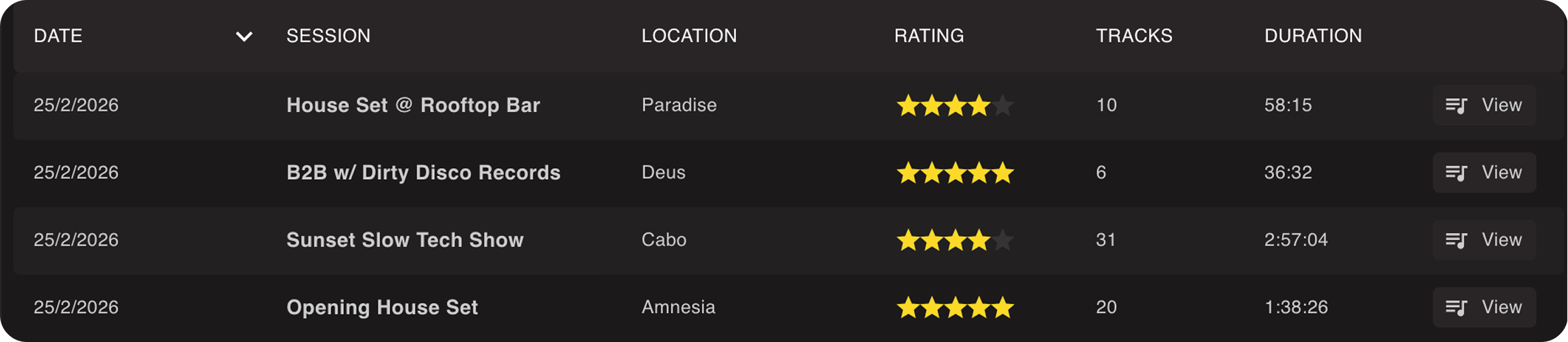
Lexicon shows all the history of your DJ app in one convenient place. You can reach History from the sidebar or from the top menu bar under Go ➡ History. Viewing History is free on every plan. The actions "Copy as text", "Delete session" and "Save as playlist" need the Ultimate plan.
Searching
Use the search box above the list of history sets to find a set. Type part of a set name, or the title or artist of a track you played. A set matches when every word you type is in its name, or when one of its tracks has every word in its title or artist.
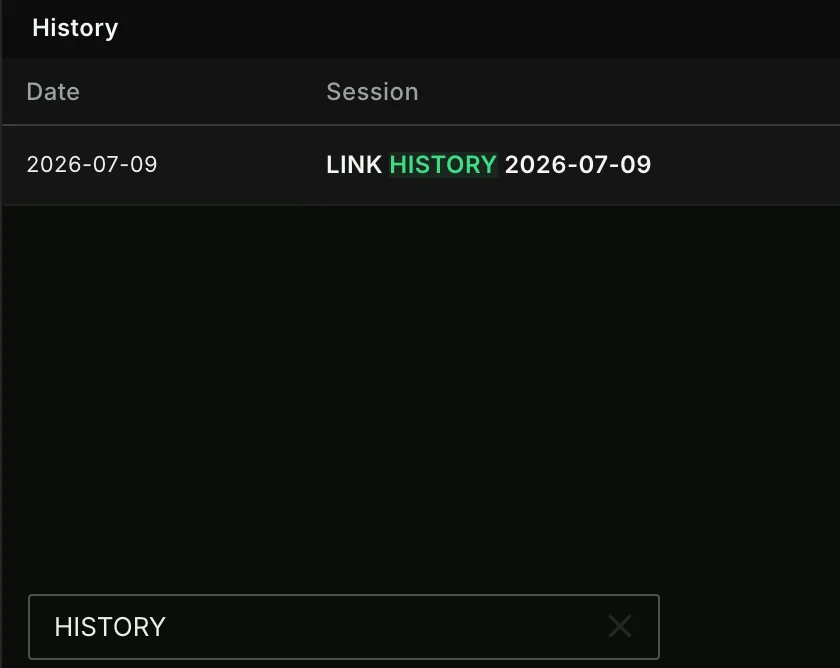
Matching words in the set name are highlighted. When tracks match, a line under the set name shows how many tracks match and which ones, for example 2 matching tracks: Daft Punk - One More Time, Daft Punk - Aerodynamic.
Metadata
You can add a rating and location to each history set to keep track of them.
Columns
Both the list of history sets and the track list of a set remember their columns: which columns are visible, their order, width and sorting. Drag a column header to move it. In the track list, right click a column header to show or hide columns.
The track list of a history set can show the Preview column with the waveform preview, for tracks that Lexicon can match to a track in your library (see below). Album art is not available in history.
Snapshot
Lexicon makes a snapshot of your tracks for the history sets. This means that the information for those tracks is de-coupled from your library, so updating a track in your library will not update it in the history. So your history is a true historic snapshot of when the tracks were played.
Using history
You can save a history set as regular playlist to work on it further with Save as playlist. Since original tracks may have been deleted, Lexicon intelligently matches your tracks by filename and location with a priority system for best matches. This does mean it relies on the filename of the history track and your current tracks to still be the same.
You can also copy a full history set to your clipboard with Copy as text.
Automatically imported
History is automatically imported from any DJ app when you run an import from that DJ app. It doesn't matter if you do a full or playlist import, it always pulls in all history sets. History sets are not duplicated when importing. History sets are not shown in the import preview, you will find them on the History page after the import.
When you import a Pioneer USB drive, the history sessions from the CDJs are imported too.
Importing history also updates Last Played of the tracks in your library: it moves up to the date of the newest set a track was played in. It never moves back to an older date. This way tracks from DJ apps like Serato and Rekordbox, whose library has no last played date of its own, get one too.
Deleting history
Since DJ apps sometimes have bad history or from practice sessions, you can delete history sets easily. Lexicon remembers what you have deleted so when importing from your DJ app, it will not import those deleted history sets again.
You can also delete individual tracks from any history set.