
Find Tags & Album Art
You can find tags & album art by right clicking tracks ➡ Track tools ➡ Find tags & album art
With the Find Tag & Album Art utility you can let Lexicon scan your tracks to find missing information. Lexicon will update the tags of your tracks to match the best release found.
Currently supports the following tags:
- Genre
- Year
- Label
- Album
- Album art image
- Energy
- Danceability
- Popularity
- Happiness
Tick the fields you want Lexicon to look up. Lexicon remembers your choice for next time.
The album art image is downloaded and added to your music files.
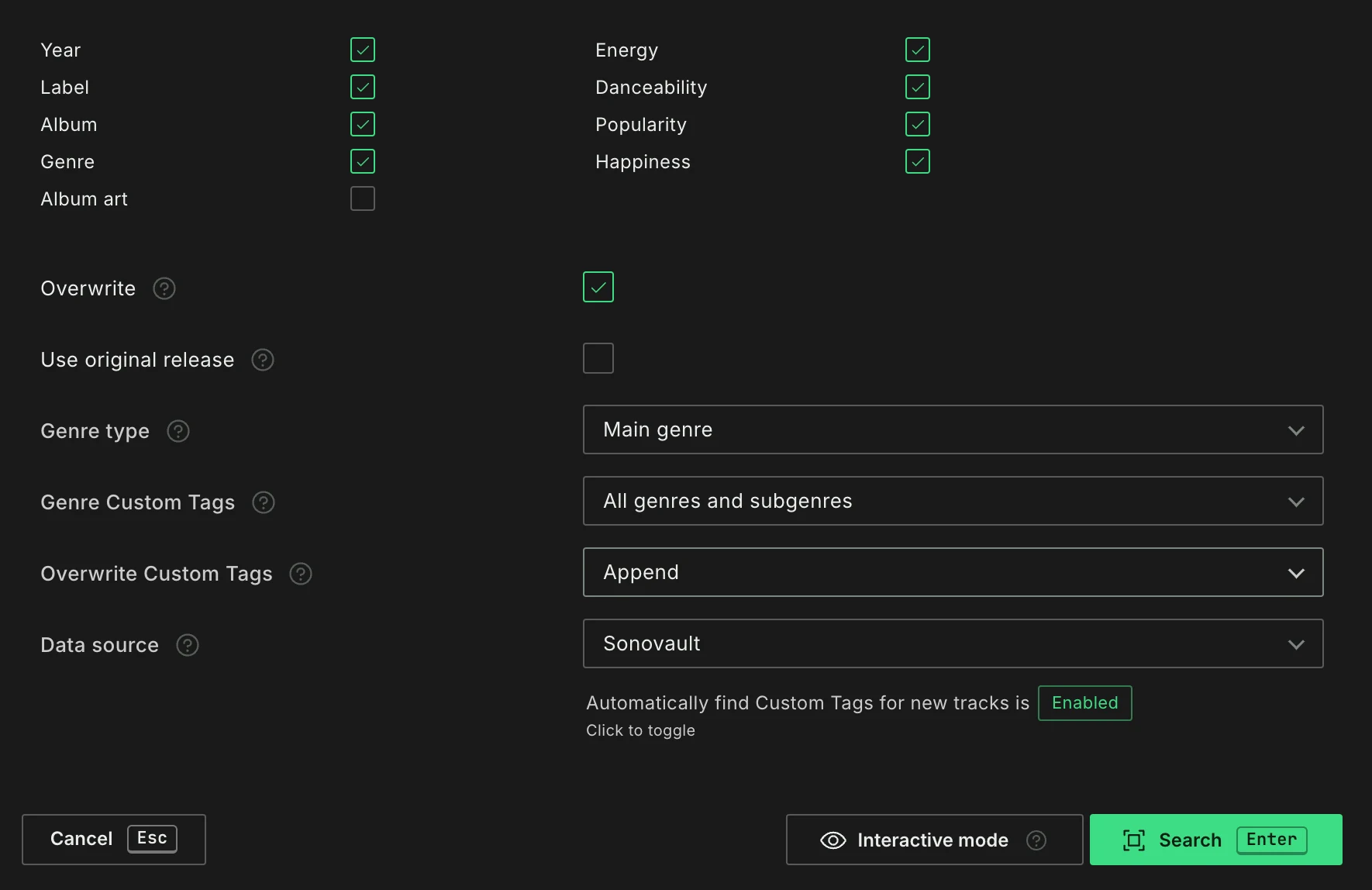
Search or Interactive mode
There are two ways to start a lookup:
Searchlooks up the tags and writes them to your tracks right away, as a background task.Interactive modelooks up the tags first and lets you check them per track before anything is written. See Interactive mode below.
Overwrite
With Overwrite enabled (the default), Lexicon replaces fields that already have a value with what it finds. With Overwrite disabled, only empty fields are filled.
This one switch applies to all fields you selected. In Interactive mode it is only the starting point, see below.
Accuracy
Lexicon does its best to find the correct matching track but has to work with your existing artist and title tags. If these are not clean then it will be harder to find the correct, or any, match. You can use Smart Fixes to clean your tags.
Tracks without an artist or title are skipped. The dialog warns you when your selection contains such tracks.
Data source
With the Data source option you choose where Lexicon looks up the tags:
- Sonovault (default): Sonovault is Lexicon's own music database. It is the only source that also finds Energy, Danceability, Popularity and Happiness.
- Beatport: searches only the Beatport catalog. It is slower and does not have Energy, Danceability, Popularity or Happiness, so those options are disabled while Beatport is selected.
The automatic custom tag lookup for new tracks (see below) uses the same data source.
Energy, Danceability, Happiness and Popularity are filled on a scale of 0 to 10, where a higher number means more energy, more danceable, happier or more popular.
Lexicon can also analyze your tracks for Energy, see Analyzer. That is a different algorithm so it will give different results. Which to use is up to your preference.
Original release
If you enable Use original release, Lexicon will strip away any remix text from your track titles and search for the original version.
Album art
To display your album art, you may need to reload tags in the DJ app you use.
Rekordbox WAV files: keep in mind that Rekordbox does not support album art on WAV files so even reloading tags in Rekordbox will not work for it.
Genre & Custom Tags
With Genre type you choose what Lexicon writes into the Genre field:
- Main genre (default): only the main genre (e.g. House, Rock, Pop).
- All subgenres: all subgenres that were found.
- First subgenre: only the first subgenre.
When no subgenre is found, the Genre field is left as it is. An existing genre is only replaced when Overwrite is enabled.
With Genre Custom Tags you can also let Lexicon add the genres and subgenres as Custom Tags, in the Genre and Subgenre tag categories. Choose which ones: all genres and subgenres, only the first genre and first subgenre, and so on. This works independently of the Genre checkbox and the Genre type option, so you can get genre custom tags without touching the Genre field.
When custom tags are added, Overwrite Custom Tags decides what happens to the custom tags a track already has:
- Overwrite: clears all custom tags from the track before adding the newly found ones.
- Append (default): keeps the existing custom tags and adds the newly found ones.
- Ignore: leaves the track unchanged if it already has any custom tags.
You can let Lexicon automatically add genre custom tags to new tracks by enabling Automatically find Custom Tags for new tracks. This can also be toggled in the global Lexicon settings.
Interactive mode
In Interactive mode, Lexicon looks up the tags without writing anything and opens the Review found tags page. Tracks are shown in batches of 100. Every field you selected is a column:
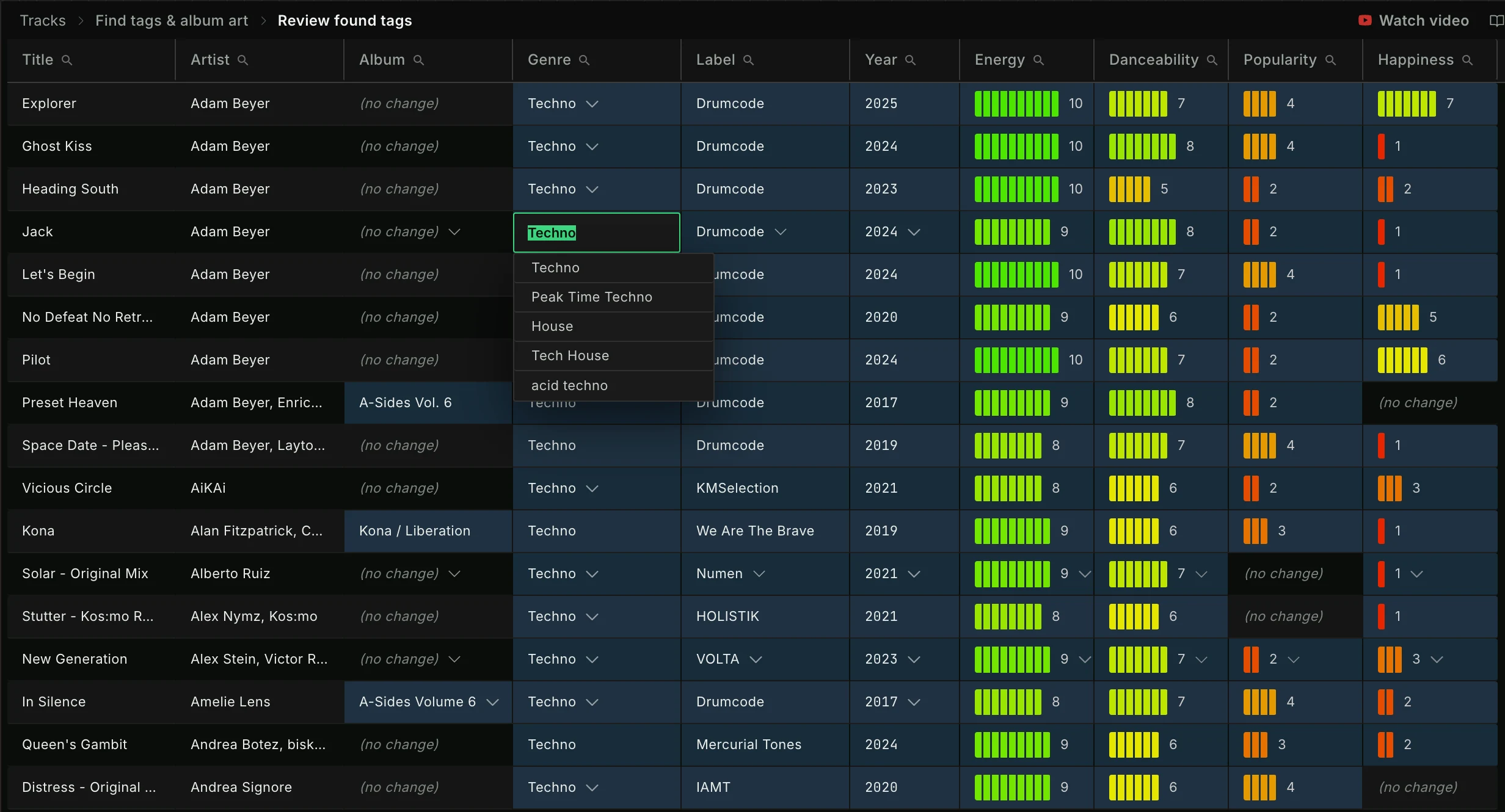
- Blue cells hold a value Lexicon found.
- Green cells hold a value you changed.
(no change)means nothing will be written to that cell.
Click a cell to edit it or to pick another match from the suggestions. Right click a cell for more options. You can also hover a cell and press a hotkey:
I: ignore this cellR: restore the found valueX: ignore the whole rowEnter: play the track
Use Toggle all... to switch a whole column between the found values and (no change).
The Overwrite option decides the starting point: when it is disabled, found values for fields that already have a value start as (no change) and are only written when you accept them. Album art is shown on the page and only written when you keep it.
When you are done with a batch, press Save & Load More to save it and continue with the next batch, or Save & Stop to save and stop. On the last batch, press Save & Finish. Each saved batch can be undone as one step. Cancel discards the batch without saving.
Helping improve genres
When you save a batch with the Sonovault data source and Genre looked up, Lexicon sends the genres you keep back to Sonovault: the genre field and the tags in your genre tag categories. This way a wrong genre can be fixed at the source for everyone. Only genres are sent, other custom tags (like "Wedding") never leave your computer. Rows you ignored as a whole send nothing.
Best practice
For older tracks that may be re-released (either as remix on Beatport or remaster/compilation on the other platforms), you can enable the above mentioned Use original release option to ensure you will get the oldest known information (such as Year) for those tracks.
If you are not sure about the results, use Interactive mode on a small selection of tracks first.