
Importing Your Serato Library
Lexicon has direct integration into the Serato database. Serato DJ Pro and Serato DJ Lite are both supported. Serato 3, 4 and 5 are all supported.
Importing is easy, follow these steps:
- Make sure Serato is closed
- Open Lexicon
- Click
Importat the bottom of the sidebar, just above theSync to DJ appbutton, or useFile➡Import from…in the top menu bar - Select
Serato DJ Pro 3orSerato DJ Pro 4 & 5, depending on your Serato version (also for Serato DJ Lite) - Leave the other settings at their default
- Click
Start importing - Start using Lexicon!
Importing only some crates (Playlist import) is available on the Essential and Ultimate plans, see Import Options.
Your Serato history is imported too. Serato keeps no last played date in its library, so Lexicon sets Last Played from the newest history session a track is in, see Import Options.
Serato 3 or Serato 4 / 5
Serato 4 / 5 stores your library and crates in a new, more modern, database, in a different place than Serato 3. Serato 5 uses the same library as Serato 4. Choose the importer that matches the Serato version you use:
Serato DJ Pro 4 & 5reads the modern Serato library. Old Serato 3 crate files in the_Serato_/Subcratesfolder are not used, so crates that only exist there are not imported.Serato DJ Pro 3reads the_Serato_folder with its crate files.
If your Serato 4 / 5 library has no crates but your _Serato_ folder does, the Import tab warns you. If Serato shows your crates, open and close Serato, then try again. Otherwise choose Serato DJ Pro 3.
Serato 5 cue loops and beatgrids
Serato DJ 5 can put a loop on a hot cue slot (a cue loop). Lexicon imports these as loops on the same hot cue slot. Your saved loops are imported too, numbered after your hot cues. A saved loop with the same start and end as a cue loop is imported as one loop.
Serato DJ 5 stores its beatgrids in a new tag. Lexicon reads that tag from a Serato 5 library, so beatgrids with tempo changes are imported with all their markers.
iTunes playlists
If you are using iTunes playlists inside Serato, then these will not be imported when importing from Serato. You can recreate the playlists in Serato and drag the tracks into each crate, or import directly from iTunes after importing from Serato. Make sure to keep the Merge option enabled.
Serato Options
Streaming Service
Serato only supports one enabled streaming service at the same time. Lexicon follows your Serato streaming settings: if streaming is turned off in Serato, no streaming tracks are imported. If it is on, only tracks from the streaming service selected in Serato (Beatport, Tidal, etc) are imported.
Tracks in parent crates/folders
Serato lets you drag tracks into a "parent" crate, like the one highlighted below.
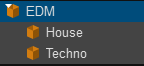
Lexicon does not support tracks inside a parent folder so during import Lexicon will create special playlists called _FolderTracks containing the parent crate tracks.
Why doesn't Lexicon support tracks inside a parent folder? Because it is a bad organizational practice. Your parent folder would become an unorganized mess and it's impossible to know which tracks belong there and which belong in a sub-playlist. It's always better to create a new playlist, even if you're going to use it as a messy/unorganized playlist on purpose.