
Charts
You can find Charts in the left sidebar menu
If you want to stay up to date, you need a quick and easy way to see what is popular right now. With Charts you can see which chart tracks you already have and save those to a playlist. You can also drag any chart track into a playlist, even when you don't have it yet: it is added as a streaming track.
Chart sources
There are several chart sources to choose from. MixID DJ charts is the default source, and Lexicon remembers the source you picked last.
MixID DJ charts
The MixID charts show what DJs are actually playing in their mixes, based on the DJ mixes collected by MixID. Choose a category:
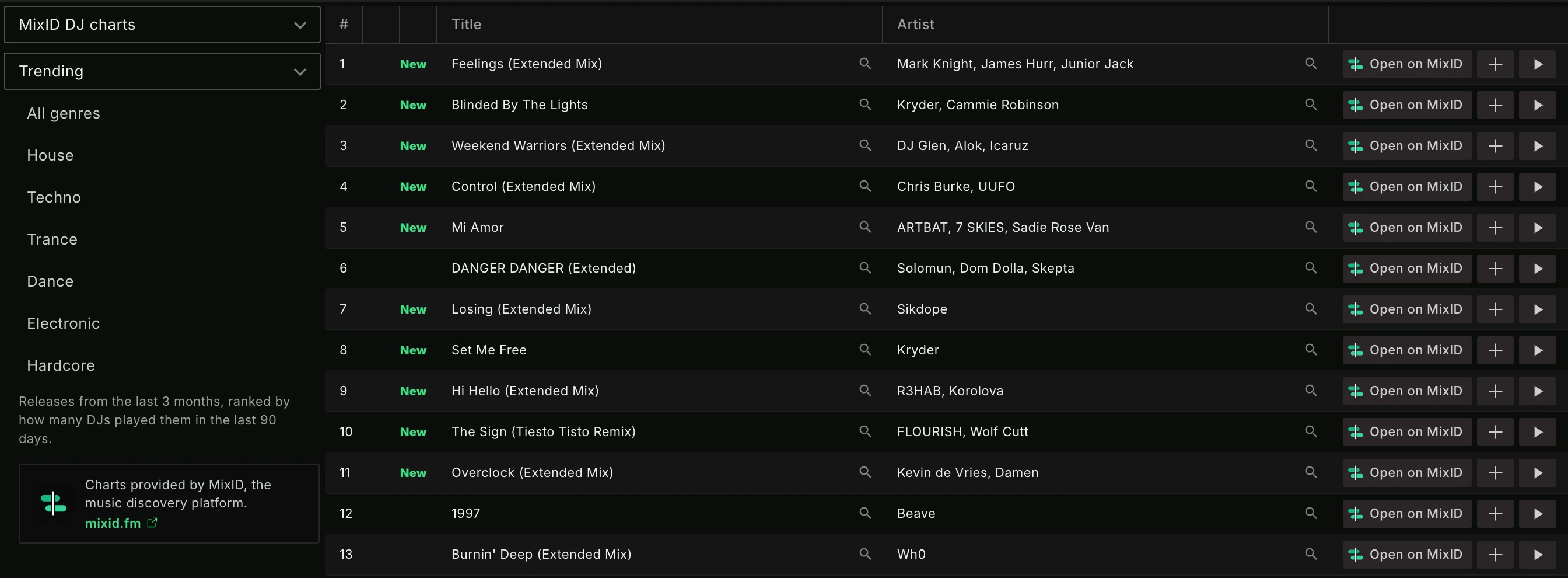
TrendingNew arrivalsMost played
Below the category you can pick a genre, or All genres. Under the genre list, a short line explains what the chosen category covers: how old the releases can be and over how many days the plays are counted. For example, Most played includes older releases than Trending, but the plays are counted over the same period.
Click Open on MixID on a row to open that track on MixID, where you can see the mixes that play it.
These charts are also shown on the Dashboard as DJ Mix Trends. See all charts on the Dashboard opens this chart on the same category and genre.
Apple Music / iTunes
Set the chart source to Apple Music to see the top 100 in the most popular genres on Apple Music. This chart source is good for pop music.
Not all music genres are represented on Apple Music, only the most active ones. For most EDM genres Apple Music does have popularity numbers but very outdated so that's why you can't see these.
Tracks are marked as NEW if they were added to Apple Music in the last 4 weeks. These charts are updated every day.
Shazam
Set the chart source to Shazam Local Charts and you can choose any country in the world, and optionally a city, to see the most "shazamed" tracks in that area. Choose (any city) in the City dropdown to go back to the chart for the whole country. This chart source is great if you have an event where you're not up to date on the hits.
Shazam Top 200 shows the Shazam top 200 per genre.
Historical
The historical charts will show you the top 100 tracks of every year since 1950. These tracks are Spotify tracks, so the button on each row says Open on Spotify.
Beatport
The Beatport charts will show you the top 100 of each genre that Beatport has. These charts are updated every day.
Beatport Hype shows the Beatport Hype charts per genre.
Billboard
The Billboard charts will show you the current Hot 100, R&B, Dance/Electronic and Country music.
Finding tracks
Any track that you already have in your library is marked with a double checkmark. This works by matching the track title and artist. If there is a mismatch then you can mark a track as such by right clicking it. You can also mark tracks manually and they will get a single checkmark.
Tracks with a single checkmark were not automatically found by Lexicon, so Save found to playlist won't add them. It only adds tracks with a double checkmark.
Protip: If your tracks aren't matching properly because your track titles are low quality, try using Smart Fixes to clean them up.
Dragging tracks into playlists
You can drag chart rows onto a playlist in the playlist tree, onto an open playlist or onto the favorites bar.
- Tracks you already have (double checkmark) are added as your own track.
- Tracks you don't have are added to your library as streaming tracks. Beatport charts add Beatport tracks. Apple Music, both Shazam charts and Billboard add Apple Music tracks. The historical charts add Spotify tracks. MixID rows add the track from Beatport where possible, otherwise from Spotify, Tidal, Apple Music or SoundCloud.
The streaming tracks are only created when you drop the rows on a playlist. A row that has no track on that streaming service can't be added this way.
Copying tracks
Select one or more rows and press Cmd+C (macOS) or Ctrl+C (Windows and Linux) to copy them to the clipboard as "Artist - Title" lines, one per track. You can also right click the rows and choose Copy to clipboard.
Only new tracks
You can choose to only show the newest tracks in charts that support this. How new a track needs to be depends on the chart.
- Apple Music / iTunes: this will only show tracks added to the chart in the last 4 weeks.
- Beatport: this will only show tracks added to the chart in the last week.
- MixID: this will only show tracks released in the last 4 weeks.