
Beatshift
The Beatshift Correction scan happens automatically during import and sync
Converting your library causes cue points and beatgrids to shift on some files that are encoded in a certain way. Every DJ software treats these uncommon files differently. This problem looks something like the below waveform.
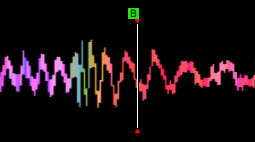
This problem may occur after importing from a DJ app or when converting to a DJ app.
Your tracks are automatically corrected if this problem is detected. If you still encounter this in any of your tracks, they are most likely missed by the scan. The Beatshift Fixer can help there.
Beatshift Fixer
Sometimes you may encounter tracks that are not properly corrected and you still notice a shift after import or syncing. Sadly, these tracks are not detected by the scanner so there is no automatic correction for them. The way to solve it for these (or any MP3) files is to use the Beatshift Fixer utility.
You'll find the Beatshift Fixer in the top menu bar under Utility
The Beatshift Fixer re-encodes your MP3 files at 320 kbps so they are no longer affected by the beatshift problem. The new file replaces the original. Other file types, like M4A, MP4 and lossless files, are skipped.
Select the tracks you want to fix in the track browser before you open the Beatshift Fixer. The button then reads Re-encode with the number of tracks. With no tracks selected, it reads Re-encode entire library and works on all your tracks. The re-encoding runs in the background.
Lexicon will know when your tracks have already been re-encoded by the Beatshift Fixer, so you can safely re-run the utility. Lexicon won't do the same work twice. If you still see a shift on tracks that were already re-encoded, turn on Force re-encode to re-encode them anyway.
Existing tracks with cues and beatgrids
When you run the Beatshift Fixer on tracks that already have cues and beatgrids, those cues and beatgrids will be what you see in your DJ apps as well. So if you had tracks that weren't quite right yet after importing, you can fix them in Lexicon. From that point on, they should always be good.
Another trick in Lexicon is to re-analyze your tracks (that will overwrite your beatgrids) and then run the Quantize Cues recipe. This will give your tracks a new beatgrid and the quantize recipe will put your cues exactly on the grid.
New tracks & automatic fixing
The Beatshift Fixer window has a switch, Auto re-encoding, to always re-encode newly added MP3 files. This is the easiest way to use this utility as it will be fully automatic when you drag tracks into Lexicon or when they are added with the Watch Folder. When you start adding cues or beatgrids, the tracks will already be re-encoded so there is no chance of a shift occurring.