
Action Center
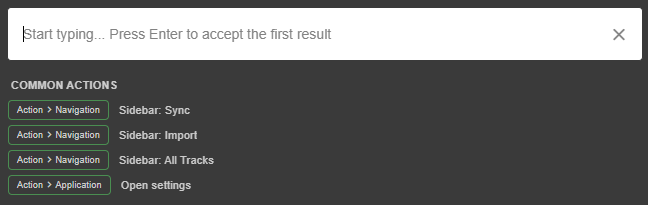
The action center lets you execute any command or go to any screen instantly.
By default, the hotkey to open the action center is the backtick key (`, left of the 1 key). If you installed Lexicon a long time ago, it may still be CTRL+Spacebar (Windows) or CMD+Spacebar (macOS). You can see and change the hotkey in the Hotkeys settings. You can also open it from the top menu bar with Edit ➡ Action Center.
When it opens, the action center shows your Last used actions and a few Common actions, like Sync and Import.
You can navigate the results with the Up & Down arrow keys. Press Enter to execute the highlighted result. Pressing Enter when no result is highlighted yet will execute the first result.
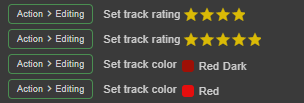
You can do anything that can be bound to a hotkey in the action center, just start typing:
Press Tab to search your tracks and playlists instead, the same way as the Find popup below. If the Beatport integration is enabled, press Tab again to search the Beatport catalog.
Find Popup

The Find popup lets you look through your playlists, smartlists and tracks instantly. Just start typing and Lexicon will know what you are looking for.
You can open it with:
- The hotkey, by default
CTRL+F(Windows) orCMD+F(macOS) Edit➡Findin the top menu bar- The
Searchicon at the bottom of the sidebar
What to search in
The dropdown next to the search box chooses what you search in. Lexicon remembers your choice for the next time.
Tracks & Playlists(default): playlists, smartlists and folders first, then artists, then track titlesTracks: tracks, matched on title and artistArtists: artists onlyAlbums,GenreandComment: tracks, matched on that fieldCustom Tags: your custom tags
While the dropdown is on Tracks & Playlists, you can also type a shortcut at the start of your search: t: searches tracks only and a: searches artists only. For example, a:daft punk.
The Find popup shows at most 100 results.
Using the results
You can navigate the results with the Up & Down arrow keys. Press Enter or click a result to open it:
- A track is selected in the track browser.
- A playlist is opened.
- An artist filters the track browser on that artist.
- A custom tag filters the track browser on that tag.
Pressing Enter when no result is highlighted yet will open the first result.
There are some useful features in the search popup.
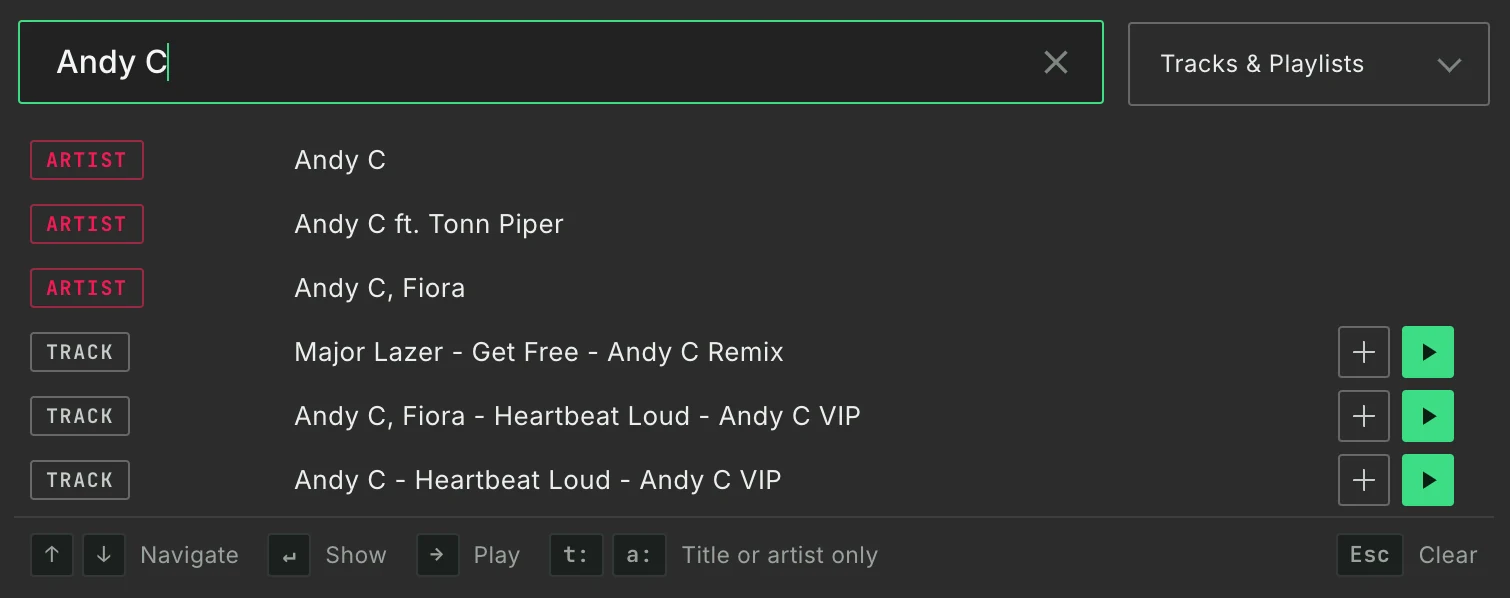
The first button (playlist-plus) will add any of your selected tracks to that playlist. The hotkey for this is the period key (.).
The second button (plus) will add tracks or playlists to your Play Queue.
The third button (play) will play the track or playlist. The hotkey for this is the Right arrow key.
When the deck bar shows decks, from your players with DeckConnect or from the DJ app Ghost Curator follows, a track result also shows a numbered button for each deck. Click it, or press that number on your keyboard, to load the track on that deck.