
Genre Cleanup
You can find the Genre Cleanup in the sidebar menu under Quick Fixes
The Genre Cleanup scans your entire library for every unique genre. You can then select the genres you wish to rename and very quickly create order in your genres.
This is especially useful when you're using Mixable Tracks where you can choose to stay within a certain genre. Or if you just want a nice and tidy library.
You can use SHIFT+Click on any genre to auto-fill that genre as new genre.
You can select all unlocked genres with CTRL/CMD+A and unselect all with Escape.
While genres are selected, the New genre label changes to how many you selected and how many tracks they are on, for example 3 selected / 188 tracks. So you know how many tracks a rename or delete will change.
ALT+Click (OPTION+Click on macOS) any genre to see its tracks in the Sidepanel. The sidepanel opens if it is closed.
After a rename or delete, the notification has an Undo button that reverts it, and Details shows what changed. See Undo History.
Main genres
The genres are grouped under main genres, like House, Techno or Drum & Bass. Each main genre has its own column with the total number of tracks in it, and its genres are sorted by track count, most first.
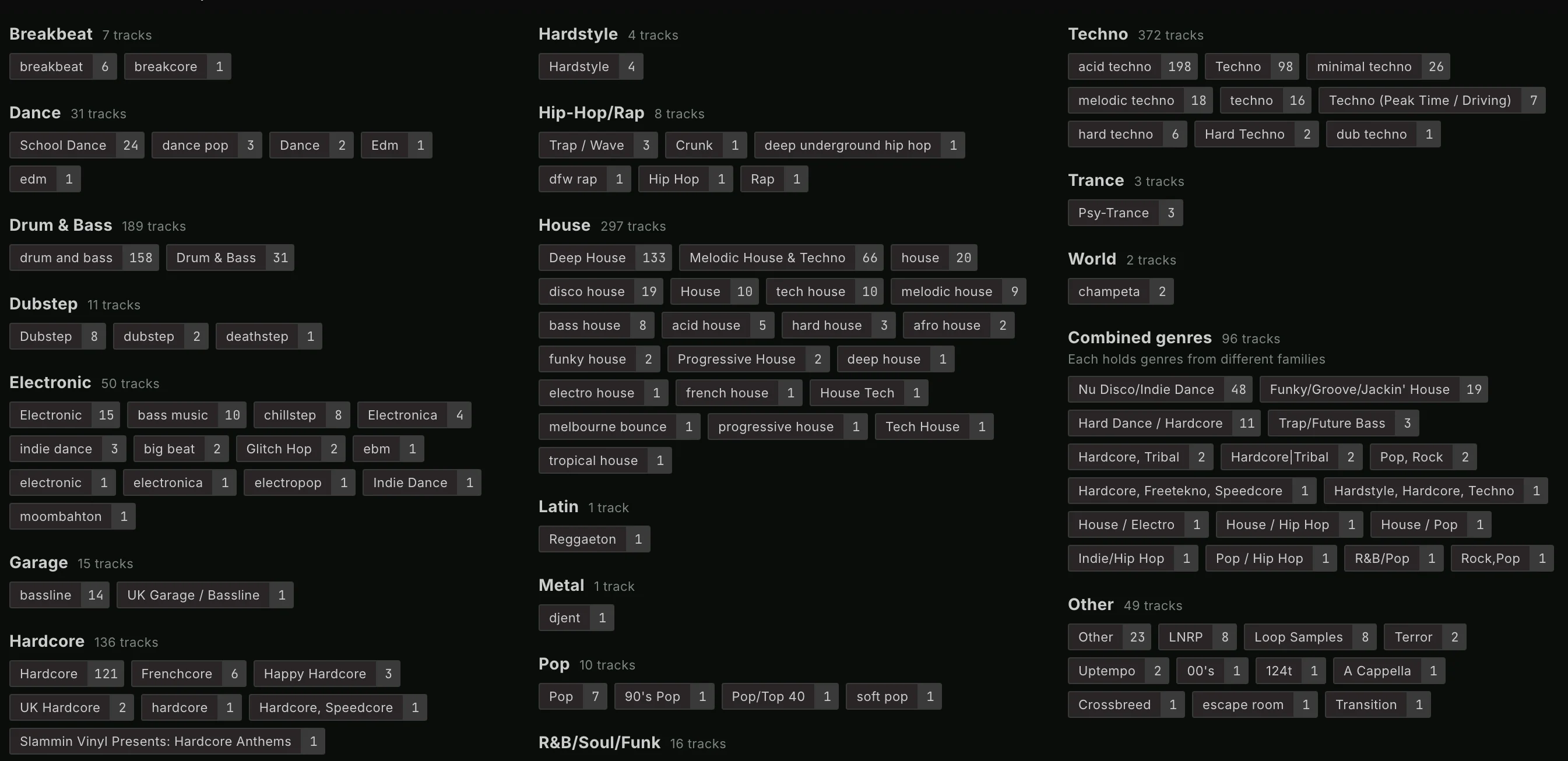
Typos and other ways of writing a genre land under the right main genre too. For example Tehcno goes under Techno and Deep Hosue under House. That makes the genres you want to merge easy to spot.
Two columns are special:
Combined genres: genres that mix more than one main genre, likeHouse, TechnoOther: genres Lexicon cannot place under a main genre
The grouping only changes how this page shows your genres. It does not change your tracks.
Moving genres to another main genre
Drag a genre to another main genre's column to move it there. When you drag a selected genre, all selected genres move along. You cannot drop genres on Combined genres. Lexicon remembers where you put them.
While you drag, a strip with Empty main genres shows at the bottom of the page. These are the main genres that have no genres yet. Drop on one of them to move the genres there, and it gets its own column.
Edit genres
Press Edit genres to choose which main genres you use. The main genres in use are on the right under Main genres, the others on the left under Not used. Move a main genre to the other side with its arrow, a double-click or by dragging it. When you stop using a main genre, its genres show under Other.
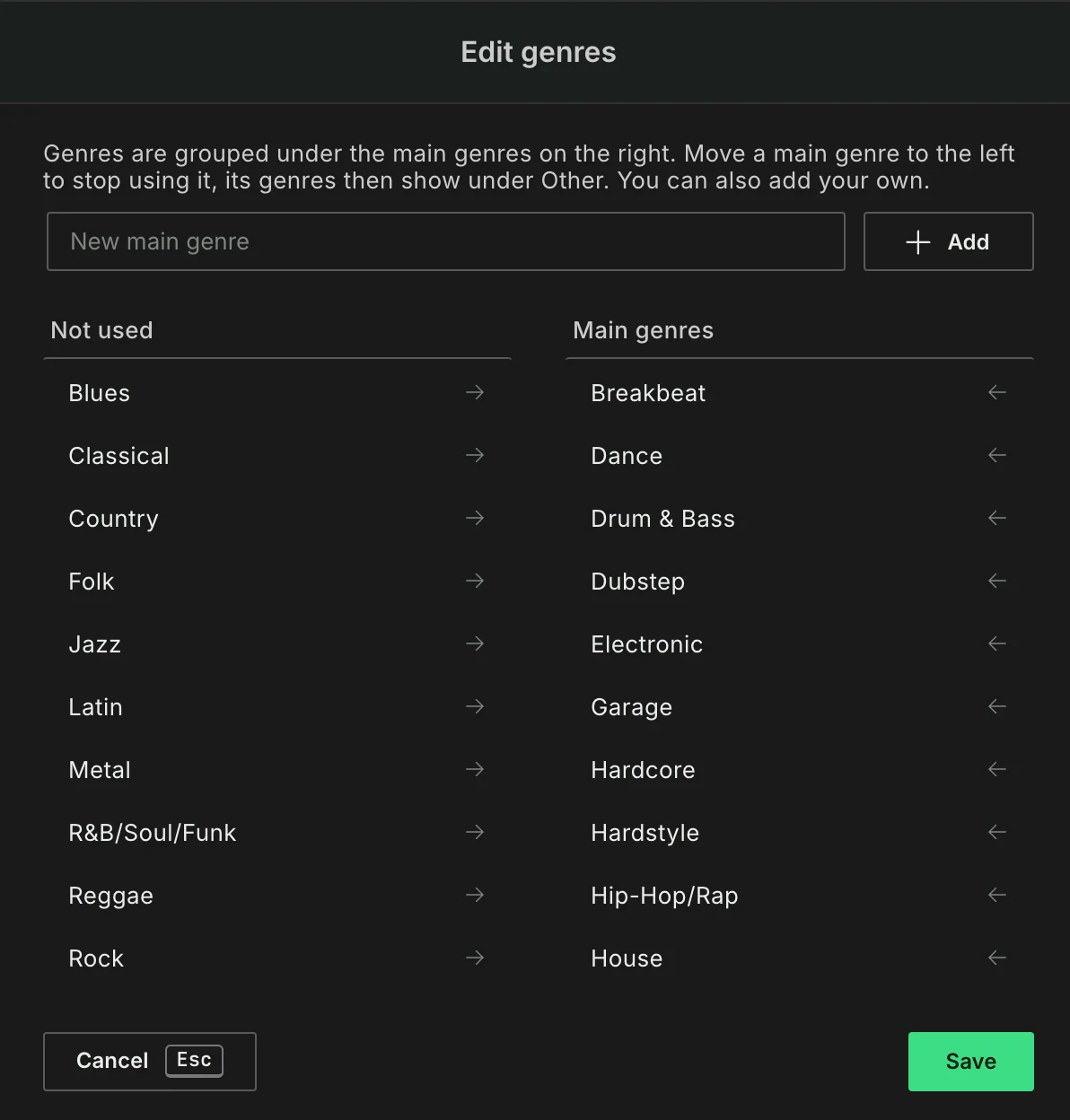
To add a main genre of your own, type it in New main genre and press Add. Your own main genres always have a column, with Drag genres here until you move genres into it. Press Save to apply your changes.
Locking genres
You can right-click on any genre to lock that genre so you can no longer change it in the genre cleanup.
Import to tags
You can import all your genres to tags. Lexicon will create a tag for each genre found in your library and apply it to each track that had that genre. You can safely re-run this each time you add new tracks to your library to keep your genre tags up to date.
Important: Only use this after you clean up your genres or you may import a mess of genres into your tags.