
Playlists
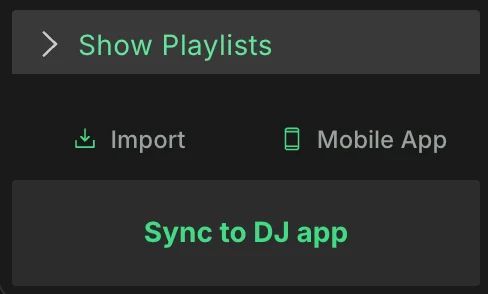
To find your playlists in Lexicon, first press the Show Playlists button at the bottom of the sidebar on the left.
If you've imported from a DJ app, you'll find your playlists here.
If you don't have any playlists yet, create your first by right clicking Playlists at the top. You can also right click an empty part of the playlist tree to create a new playlist, smartlist or folder.
Selected Tracks
If you have tracks selected that you want to add to a new playlist, you can do that without losing your selection. Right click the selected tracks and choose Send to ➡ New playlist.
Finding Playlists
Type in the search box above the playlist tree to show only the playlists whose name contains your text.
Next to the search box is a filter button with a funnel icon. Use it to show only the playlists you recently created or worked with:
New (24h)andNew (7d): playlists created in the last 24 hours or 7 daysUsed (session): playlists you used since you started LexiconUsed (24h)andUsed (7d): playlists you used in the last 24 hours or 7 days
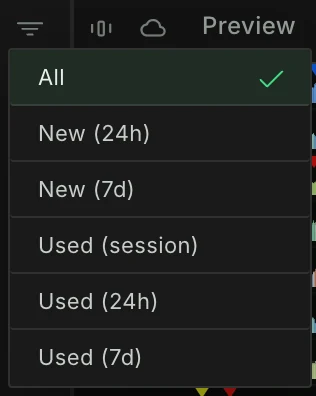
A playlist counts as used when you open it or drop tracks into it. This is remembered on this computer only. The funnel icon lights up while a filter is active, choose All to show all playlists again. The filter and the search box work together, so you can search within the filtered playlists.
Share
You can share your playlists in a few ways, see Share.
Playlist Tools
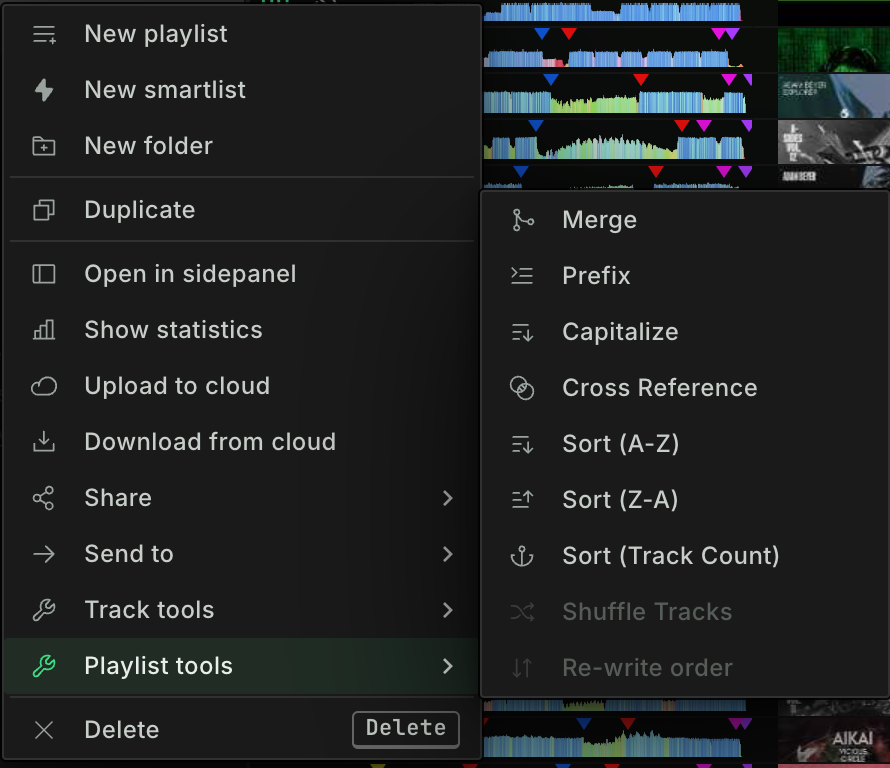
Lexicon has many useful tools to manage your playlists. Right click your selected playlists and open Playlist tools. More on them under Playlist Tools in the manual sidebar.
You can give each playlist tool its own hotkey in the Lexicon settings under Hotkeys ➡ Playlists. The hotkey works on the playlists selected in the playlist tree. If the selection doesn't fit the tool, for example when Merge needs at least two playlists, Lexicon tells you what to select.
Tracks In Playlists
You can drag tracks from one playlist to another by dragging them over the playlist tree on the left. You can also drag files from your computer directly into a playlist, this will add them to your library if they weren't added already and add them to a playlist. If the tracks are already in your library, they will not be added again but they will get added to your playlist.
You can also favorite a playlist and drag your tracks over there, see Favorite Playlists.
Changing The Track Order
You can change the order of the tracks in a playlist by dragging them up or down. This works when:
- exactly one normal playlist is selected (not a folder or smartlist)
- the tracks are sorted by the
#column (the default order) - no column filters are active
Removing Tracks From A Playlist
Select the tracks in the playlist and press Delete. In the Delete Track? popup, leave Also delete from Lexicon unticked to only remove them from this playlist. Tick it to delete them from your library and from all playlists.
Tracks can't be removed from a smartlist directly. Change the smartlist rules instead.
Deleting Playlists
After you delete a playlist, a notification names what was deleted. Click Undo in it to open the Undo History and bring the playlist back. Click Hide these messages if you don't want these notifications; Reset hidden popups in the settings brings them back.
Picking Playlists For A Sync
When you do a Playlist or Modified sync, or sync playlists to the mobile app, you pick the playlists in the playlist tree while the Sync window is open. During that time the playlist tree is only for selecting: you can't rename, drag or right click playlists until the window is closed. See Sync.
Playlists From Filesystem
By dragging a folder from your computer or an M3U(8) file on top of your playlist tree, it will automatically turn that into one or more playlists. You can also choose File ➡ Add Folder… in the top menu bar.
If you drag a folder with subfolders, then Lexicon will turn that into the same playlist folder structure.
Playlists are an Essential and Ultimate feature, so this does not work on the Free plan.