
Smartlists
Smart playlists are an essential tool to organize your DJ library. These have different names; Intelligent Playlists, Smartlists, Filter Folders, Smart Crates and more. In Lexicon they are called Smartlists.
You can create a smartlist by right clicking any playlist to add a new playlist or smartlist there.
To change the rules of an existing smartlist, right click it and choose Edit smartlist, or select it and click the sliders icon next to its name in the playlist tree.
When you duplicate a single smartlist, the smartlist editor opens on the copy right away, so you can change its rules.
To create many smartlists at once (for example one per genre or artist), see Smartlist Generator.
You can also turn the column filters of the track browser into a smartlist, see Save Filters as a Smartlist below.
Rules
You can set any number of rules, there is no limit. A smartlist needs at least one rule, without rules it stays empty.
The contents of your smartlist are based on the rules. If you add new tracks to your library, they get added to the smartlist automatically, if they match the rules.
You can select Any Rule or All Rules to decide if the tracks in your library should match any of the rules or all of them.
Archived tracks are not visible in your smartlists unless you add a rule to show them.
The In playlist rule matches the exact tracks in that playlist. Other versions of the same track, like a different file or remix, are not matched.
The Match regular expression rule lets you use a regular expression. Add flags after a closing slash, for example /techno|house/i to ignore upper and lower case. Expressions longer than 100 characters don't match anything.
Date rules
Date fields like Date Added have the This week, This month and This year rules. They need no date: they always match the current week, month or year. For example, a smartlist with Date Added This year always shows the tracks you added this year and moves on to the new year by itself. Check the Compatibility icons to see which DJ apps support these rules.
Removing tracks
You can't delete or remove tracks from within a smartlist, because its contents come from the rules, so Delete is greyed out in the right click menu. Change the rules, or right click the smartlist and choose Duplicate as playlist to get a normal playlist that you can edit. To remove a track from your library, archive or delete it from a normal playlist or the track browser.
OR Rules
You can link rules together with an OR clause to create smartlists with more flexibility. The OR clause only works if your smartlist is set to "All Rules".
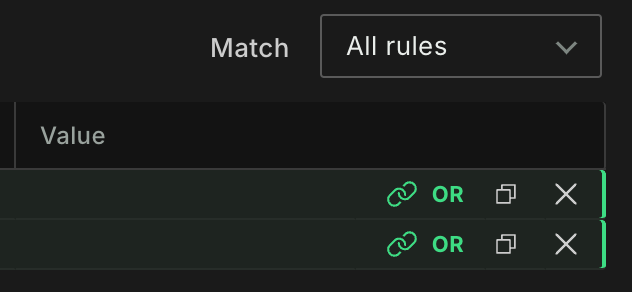
This allows you to create smartlists like these: (Genre = "House" OR Genre = "Techno) AND (Rating = 3).
Save Filters as a Smartlist
When you have set column filters in the track browser, click Save as smartlist in the Filtered by bar above the tracks, see Track Browser. Lexicon turns each filter into a rule that finds the same tracks and sets the smartlist to All Rules. The name is made from the filters, for example BPM 120-128, Genre House. You can change it before you save. The smartlist is saved in the Lexicon playlist folder.
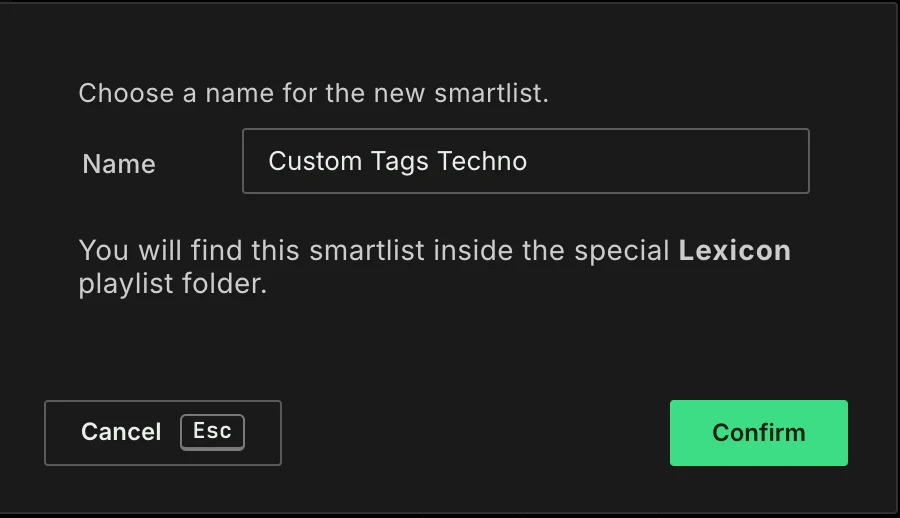
These filters are turned into rules:
- Text, for example
Housein Genre, becomes acontainsrule. - Numbers, also with
>,<,>=,<=,-,~and!. A whole BPM like128also finds 128.5, just like the filter. None, for tracks without a value in that field.- Dates, also with
>and<. - Size in MB.
- Key, in the key notation you see in the track browser.
- Custom tags, also with
~and!. - Color, when the filter matches exactly one color.
A filter that has no matching rule is left out, for example a tag that doesn't exist or a color filter that matches more than one color. The save window lists the filters that are left out. When none of the filters can be turned into a rule, nothing is saved and Lexicon tells you so.
Importing
Smartlists are imported from the DJ apps automatically. Their rules are converted into Lexicon smartlist rules, so you can see and change them with Edit smartlist.
Smartlists can only be imported during a Full Import. The reason is that a smartlist has no actual track list so during a partial import there is no way to know which tracks belong to that smartlist.
DJ App Limitations
Rekordbox 5 does not support intelligent playlists through the XML. Getting your intelligent playlists in and out of Rekordbox 5 is not possible. Lexicon smartlists are converted to normal playlists when syncing to Rekordbox 5.
Rekordbox 6/7 only supports 2 MyTag smartlist rules, see below.
Not all DJ apps support all smartlist rules, so smartlists may be converted to normal playlists on sync, see below.
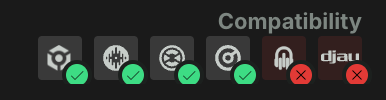
At the top of the smartlist editor, next to Compatibility, you see the logo of each DJ app: Rekordbox, Serato DJ, Traktor Pro, VirtualDJ, Engine DJ and djay Pro. Each logo has a badge that updates while you change the rules:
- Check mark: the smartlist works in that DJ app and is synced as a smart playlist.
- Cross: that DJ app can't do one of your rules. The smartlist is synced as a normal playlist with the matching tracks, so you still get the right tracks, but it won't update itself in the DJ app.
Hover over a logo to see why. It names the rule the DJ app has no equivalent for, or the limit you ran into, for example that the DJ app can't mix OR rules into a smartlist that matches all rules, or that Rekordbox can match only one My Tag per rule.
Location and File Name
Location matches the full path of a track, folders included. Rekordbox has no rule for this, so a smartlist with a Location rule is synced to Rekordbox (and Serato) as a normal playlist.
To match only the file name, use the File Name field. It is converted to the file name rule of Rekordbox, Serato, Traktor and VirtualDJ, on import and on sync.
Conversion
Lexicon lets you convert your smart playlists from one DJ app to another. Almost all rules are supported in Lexicon but not every DJ app supports every rule. Most basic rules (e.g. number equals, text contains) will convert as expected. If a rule does not exist in a DJ app then the smartlist will be converted to a normal playlist in the DJ app. This way, you will still keep the right tracks inside that playlist even if that rule doesn't exist.
Lexicon tag rules are converted to Rekordbox 6/7 MyTag rules. The only Lexicon rules that are supported here are Has all these tags and Has none of these tags. These are mapped in Rekordbox 6/7 to contains and does not contain.
Performance
Because smartlists are dynamic, their contents are updated each time you select a smartlist. The bigger the library, the longer this takes. This only happens once every 30 seconds at most, so you can keep switching between smartlists without it taking time to load every time. This does mean that if you added a track to your library, it may take up to 30 seconds before it appears in the smartlist. You'll see the smartlist loading to indicate that it has updated.
The bar under the track browser shows when the smartlist was last refreshed. Click the refresh button there to update it right away.