
Sync to Pioneer USB drives (OneLibrary)
Lexicon can sync your music and playlists to Pioneer / AlphaTheta compatible USB drives, the same that Rekordbox creates.
Lexicon supports both the new OneLibrary database and the old DeviceLibrary on the same USB drive. That means it will work on the newer devices like a CDJ3000 or XDJ-AZ and also on the older devices like a CDJ2000, CDJ900, XDJ-XZ, etc.
You don't need Rekordbox for this. Lexicon creates the USB database itself, so this also works if you use Serato, Traktor or another DJ app on your computer. It also works on Linux.
Preparing at home with your own players? DeckConnect loads tracks from Lexicon straight onto your CDJs and XDJs over the network, without a USB drive.
To sync, click Sync to DJ app at the bottom of the sidebar, choose Pioneer USB under Sync to, select your drive under Target USB drive, pick your options below and click Sync.
Fair warning: Use at your own risk. Always carry a USB drive made by Rekordbox as your backup, no matter how many times a USB sync from Lexicon has worked. You don't want to risk it.
Target USB Drive
You need to select a USB drive to sync to. This drive needs to be FAT32, exFAT or HFS+. This is the same as what Rekordbox supports so if it works there, it will work here. It's best to initialize your USB drive in Rekordbox so it copies your user settings to the drive. If you want to change user/CDJ settings, you need to do it in Rekordbox.
When the drive is exFAT, Lexicon warns you before the sync. The CDJ-3000 can read exFAT, but older players (including the CDJ-2000NXS2 and earlier, and most XDJ models) only support FAT32 or HFS+ and won't load an exFAT drive. If you use older gear, cancel, reformat the USB as FAT32 (this erases it) and sync again. If you only use a CDJ-3000, you can continue, and tick Don't show again so you are not asked every time.
What is copied to the USB
Lexicon copies your music files into the Contents folder on the USB drive. This also happens when your music already lives on that drive, so make sure there is enough free space for a copy.
Lexicon also creates the waveforms for the CDJ screen and writes them to the USB. The first sync to a USB drive takes longer because of this. Later syncs reuse what is already on the drive.
Before copying, Lexicon checks that the export fits on the drive, and keeps 2% of the drive free on top of that. If it does not fit, choose fewer or smaller playlists, or enable Clean up unused files (see below).
A Modified sync also copies every track you changed since the last sync, even when it is not in the playlists you selected. When there are many of those tracks, or they don't fit on the drive, Lexicon asks first: Sync all changes, or Selected playlists only. With Selected playlists only, the other changes stay waiting for your next Modified sync.
If the drive is unplugged during the sync, Lexicon stops right away. A track that was only partly copied is never left on the USB.
If some of your tracks are on a drive that is not connected, Lexicon names that drive and how many tracks are on it before the sync starts. Reconnect the drive to include them. If you continue with Sync without them, those tracks are not copied to the USB and not added to its database.
Playlists on the USB
With a Playlist or Modified sync, the playlists already on the USB stay there, also ones you renamed or deleted in Lexicon. A Full sync replaces them all.
If the database on the USB is damaged, Lexicon tells you and writes a new one during the sync. Playlists on the USB that are not part of that sync may be lost then. If this keeps happening, the USB drive itself may be failing.
Cue Destination
This is the same setting when syncing to Rekordbox and decides if your cues go to the hot cue bank, memory cue bank or both.
Clean up unused files
Check this setting and Lexicon will delete the music files from your USB that are not part of this sync. Not normally needed but useful if you want a lean USB or if your USB is filling up. Lexicon shows how many files it found and how much space they take, and asks you to confirm before anything is deleted.
- With a
Fullsync, the tracks that are no longer in your library are removed. - With a
Playlistsync, only files that are not in the USB's track list are removed, such as leftovers from an interrupted sync. Tracks from earlier syncs stay on the USB, so you can still find them in the player's track list. Run a Full sync to remove those. - This option is not available for a
Modifiedsync.
If Lexicon cannot reliably tell which files on the USB belong to your export, it skips the cleanup, tells you so, and continues the sync without deleting anything.
Lost & found file
Enable Lost & found file to write a text file with your contact details to the root of the USB, so whoever finds your USB can get it back to you. The file is called LOST AND FOUND.txt. The CDJs ignore it and it is not part of your library.
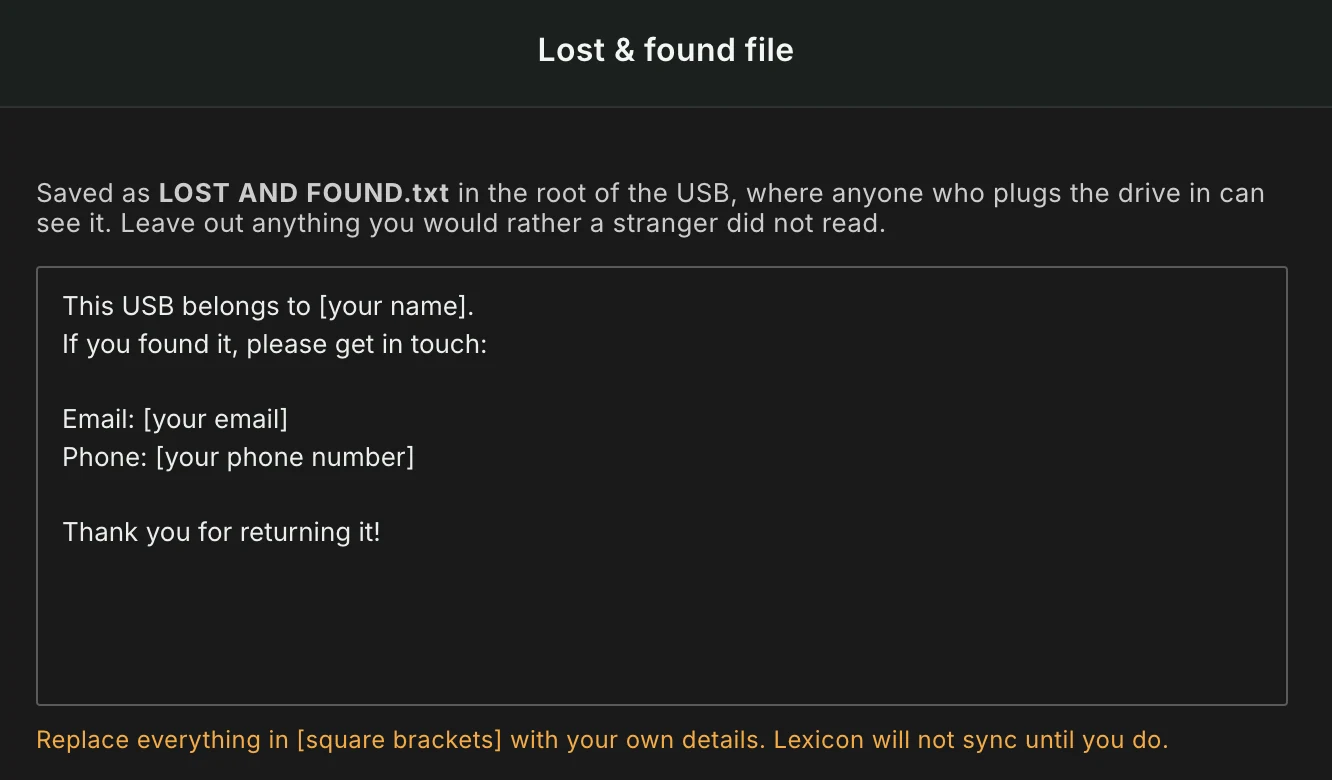
When you enable the option, Lexicon opens an editor with a starting text. Replace everything in [square brackets] with your own details. Anyone who plugs in the drive can read this file, so leave out anything you would rather a stranger did not read. Use Edit contact details to change the text later.
As long as the text still contains [square brackets], Lexicon does not sync and tells you to fill in your details first. Turning the option off removes the file from the USB on the next sync.
CDJ Compatibility
When syncing to a Pioneer USB drive, Lexicon can scan every audio file for issues that would cause playback failures on CDJ hardware. Pioneer CDJs are notoriously strict about what they accept, and the E-8305 "Unsupported File Format" error gives you zero information about what's wrong. Lexicon detects these issues by reading the binary file headers of each track during export, and for many common problems can automatically patch the file on the USB copy without re-encoding or any quality loss. Your original music files are never modified.
Issues detected and auto-fixed
These issues are automatically repaired on the USB copy. The original file on your computer is never touched.
| Issue | What it means | How Lexicon fixes it |
|---|---|---|
| WAV_EXTENSIBLE header (format tag 65534) | Common in Bandcamp downloads and ffmpeg exports. The WAV file uses an extended format flag that CDJs don't understand, even though the audio itself is standard stereo PCM. | Patches the format tag to standard PCM (1). A tiny binary change, no re-encoding, zero quality loss. |
| 32-bit float WAV | Standard export format in Ableton, Logic, FL Studio, and Bitwig. No Pioneer CDJ supports 32-bit float audio. | Re-encodes to 24-bit PCM WAV. |
| Sample rate too high (above 48kHz, e.g. 96kHz) | Hi-res audio files that most CDJ models cannot play. | Resamples to 48kHz. |
| Sample rate too low (below 32kHz) | Low-quality files that trigger E-8305. | Resamples to 44.1kHz. |
| VBR MP3 missing Xing header | Variable bitrate MP3 without the header that CDJs need for accurate seeking and duration display. Causes tracks to jump to the wrong position when you seek. | Adds a proper Xing header. |
| Multichannel audio (more than 2 channels) | Surround sound or multi-track files. CDJs only support mono and stereo. | Downmixes to stereo. |
| AIFF-C (compressed AIFF) | A compressed variant of AIFF that no CDJ supports. | Converts to standard uncompressed AIFF. |
Issues detected and warned about
These issues cannot be automatically fixed. Lexicon flags them in the compatibility report so you can address them before your set.
| Issue | What it means | What you should do |
|---|---|---|
| OGG Vorbis (.ogg) | Not supported by any Pioneer CDJ. | Convert to WAV, AIFF, or MP3. |
| WMA (.wma) | Windows Media Audio, not supported by any CDJ. | Convert to WAV, AIFF, or MP3. |
| ALAC (Apple Lossless in .m4a) on older models | ALAC is only supported on the CDJ-3000X, CDJ-3000, CDJ-2000NXS2, CDJ-TOUR1, XDJ-AZ, XDJ-RZ and XDJ-1000MK2. Older models will reject it. | Convert to WAV or AIFF, or make sure you're playing on a compatible model. |
| FLAC on older models | FLAC is only supported on the CDJ-3000X, CDJ-3000, CDJ-2000NXS2, CDJ-TOUR1, XDJ-AZ, XDJ-RZ, XDJ-1000MK2 and XDJ-RX3. Older models will reject it. | Convert to WAV or AIFF, or make sure you're playing on a compatible model. |
| DRM-protected AAC (.m4p) | Copy-protected files from the iTunes Store cannot be played on any CDJ. | Replace with a DRM-free version of the track. |
| VBR MP3 | Variable bitrate MP3s work on CDJs but seeking (fast forward/rewind) is noticeably slower than with constant bitrate files. | For best performance, convert to CBR 320kbps. |
| Corrupted WAV header | The WAV file has an invalid or damaged header (missing chunks, wrong sizes). | Re-export or re-download the file. |
| Corrupted AIFF header | The AIFF file has an invalid or damaged header. | Re-export or re-download the file. |
| File path too long (over 255 characters) | CDJs have a 255-character limit on the full file path. | Shorten your folder or file names. |
Modes
The CDJ Compatibility option in the sync settings has four modes:
- No detection (default): no scanning or fixing. Files are exported as-is and nothing is reported.
- Warnings (Modern CDJs): scans all files and reports issues for the CDJ-3000, CDJ-2000NXS2 and similar players. It skips warnings for older model limitations, like FLAC support. Nothing on the USB is changed.
- Warnings (All CDJs): scans all files and reports every issue, including compatibility with older CDJ models. Nothing on the USB is changed.
- Auto fix: fixes what can be fixed on the USB copy and reports the rest. Your original files are never changed.
If you play on older players such as a CDJ-2000NXS, use Warnings (All CDJs) so you are warned about files they can't play.
FLAC and ALAC files are always reported and never converted, because Lexicon can't know which player you use. If you play on older models, convert them to MP3, WAV or AIFF yourself before syncing.
When a mode other than No detection is used, Lexicon shows a summary after the sync that lists the affected tracks, errors first, and saves a full compatibility report in your Documents/Lexicon/Reports folder. Problems found by the scan don't mean the sync failed: the summary says the sync completed. If some issues can be fixed automatically, it tells you to use Auto fix.