
Your library, straight on your CDJs
DeckConnect links Lexicon to your Pioneer DJ CDJs and XDJs over the network. Browse, load and cue your tracks on the players without exporting a USB first.
Included in the Essential and Ultimate plans. Works on macOS, Windows and Linux.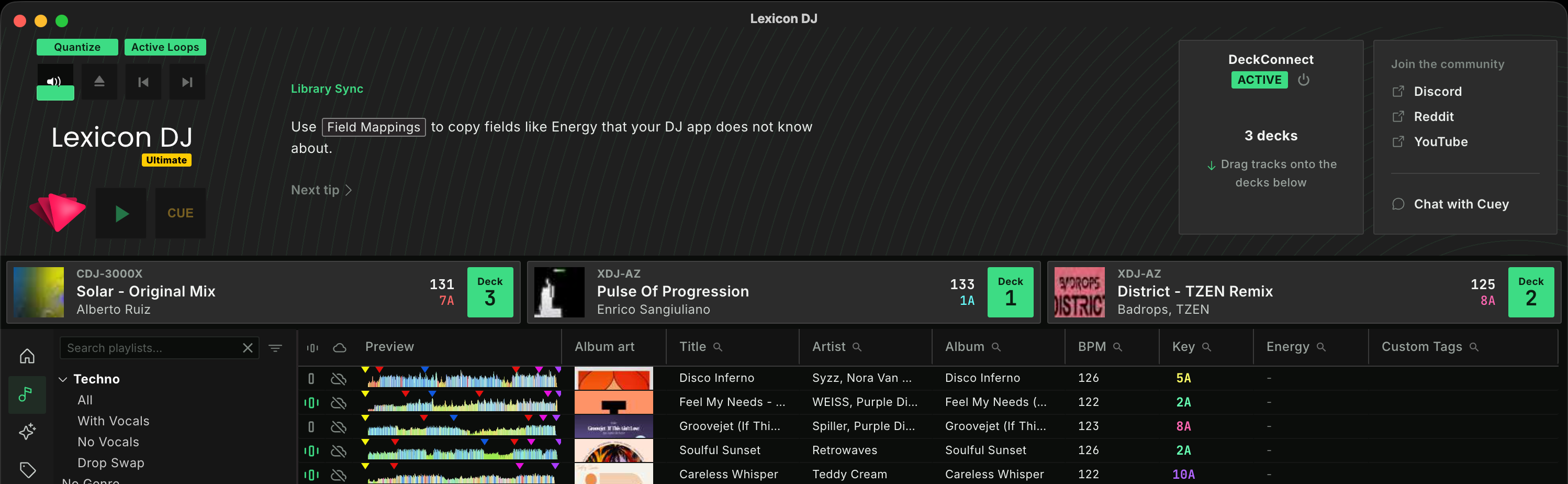
What is DeckConnect?
DeckConnect makes your computer show up on your players the way Rekordbox does. Lexicon speaks Pro DJ Link, the network protocol Rekordbox uses to talk to CDJs, so your players list your Lexicon library as a source, next to their own USB and SD slots.
Nothing is copied to a stick. When you load a track, the player reads it straight from your computer, together with its cues, beatgrid, waveforms and album art. It is the quickest way to try new tracks on real gear and set your cues where your hands will be on the night.
What you can do with it
Browse your library on the player
Your playlists and folders show up on the player, with an All Tracks list on top. The player's search keyboard works, and on players with a filter screen you can filter by BPM, key, rating, colour and MY TAG, which shows your Lexicon tags.
Load tracks from Lexicon
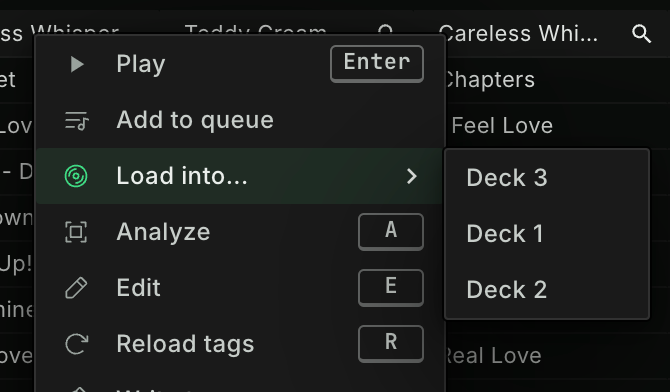
Drag a track from the track browser onto a deck in the deck bar, right click it and choose Load into..., or press a deck number on a search result. You can also give each deck a hotkey.

Everything comes with the track
Hot cues, memory cues and loops, the beatgrid (Dynamic grids too), colour waveforms, keys, ratings, colours and album art all load with the track, the same as from a USB made with Lexicon.
Set cues on real gear
Add or delete a cue on the player and it shows up in Lexicon right away. Set your cues with the jog wheel and pads you play on, and skip the export, eject and re-import round trip.
See what is on every deck
The deck bar under the music player shows each player with its model name and the track it has loaded, also when you loaded that track on the player itself.
Suggestions that follow your decks
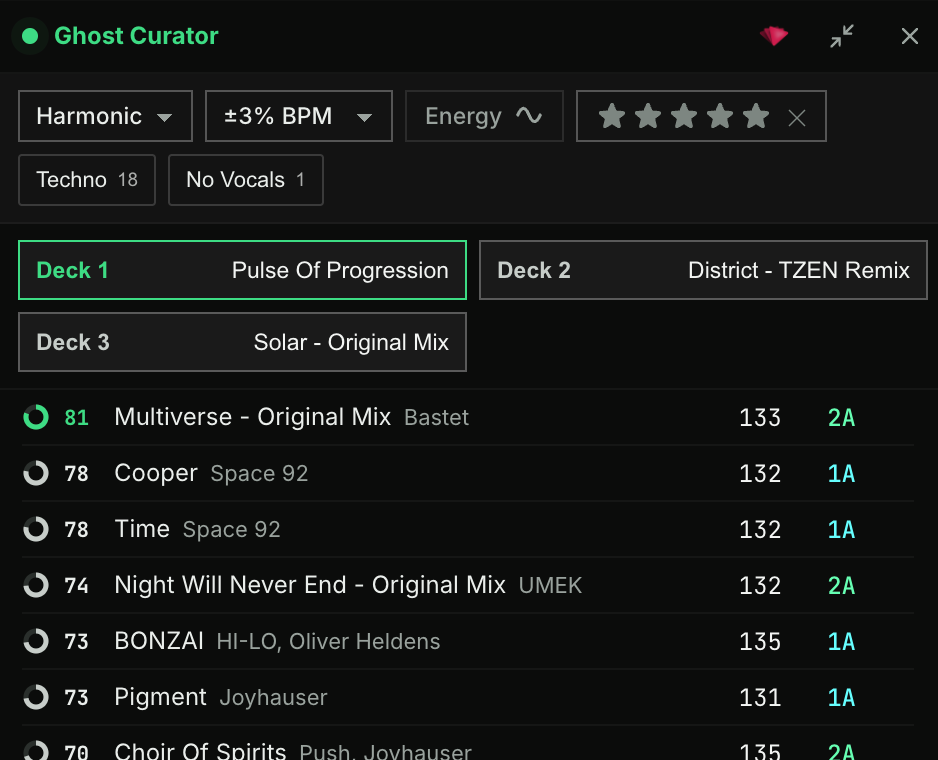
Ghost Curator can follow your connected players and suggest what to play next for the track on the deck. Drop a suggestion on a deck and it loads on the player.
How it works
Your computer and your players join the same network. Lexicon announces itself there as a Pro DJ Link device, the players list it as a source, and when you load a track the player streams the audio file from your computer. Your music stays where it is, and Lexicon sees what every deck has loaded.
How to start DeckConnect
Setting it up takes a few minutes, and you only do most of it once.
Connect your players to your network
Plug each player into the same network as your computer with an Ethernet cable: into your router, a network switch, or the LINK hub of your mixer. With a single player, a cable straight from the player to your computer works too.
Turn on DeckConnect
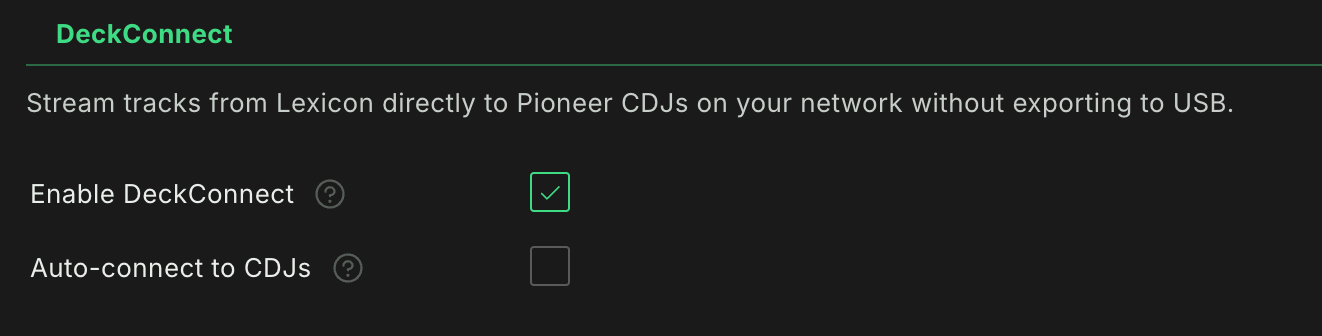
In Lexicon, open Settings, go to Integrations and turn on Enable DeckConnect. Lexicon restarts, and the DeckConnect panel appears in the music player. You can show or hide it later with View > Toggle DeckConnect.
Quit Rekordbox
Rekordbox uses the same network ports, so only one of the two can talk to your players. If Rekordbox is still running, the DeckConnect panel tells you and offers to quit it.
Click Connect
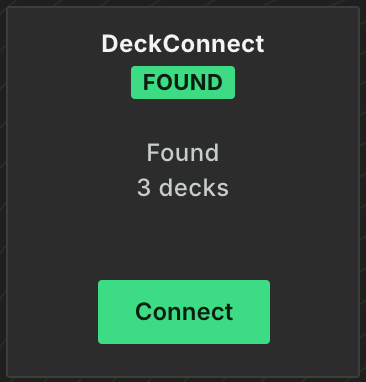
Lexicon looks for players on your network and shows the ones it finds. Click Connect. The first time, allow Lexicon through the Windows Firewall, or give it Local Network access on macOS, when Lexicon asks. Turn on Auto-connect to CDJs in the same settings to connect by itself whenever your players are on.
Load a track
Your players appear in the deck bar. Drag a track onto a deck, or choose your computer as the source on the player and browse your Lexicon library there. To stop, click the power button next to the DeckConnect status.

Supported players
DeckConnect works with network-capable Pioneer DJ and AlphaTheta CDJ and XDJ players: players that connect to Rekordbox over Pro DJ Link with a network cable. It has been used with these players, among others:
Not supported
The XDJ-RX3, which uses Pro DJ Link over USB instead of the network. Players and controllers without a network port. Players from other brands, such as Denon DJ.
Older players cannot play every file. FLAC and ALAC need a recent model such as the CDJ-3000X, CDJ-3000, CDJ-2000NXS2, XDJ-AZ or XDJ-1000MK2, and some players reject WAV files above 48 kHz. When a player cannot open a track, Lexicon tells you why. To check your library before a gig, see CDJ Compatibility.
Good to know
Made for prep, not for gigs
DeckConnect is meant for quick prep with your own players at home or in the studio. For a gig, bring a USB made with Sync to Pioneer USB.
Same options as your USB sync
Field mappings, key conversion, nearest colour and cue destination are shared with Sync to Pioneer USB, so your tracks look the same on the player either way.
Player settings come from Rekordbox
Lexicon sends the player settings you saved in Rekordbox (My Settings) to your players. To change them, change them in Rekordbox. Keys always show in Camelot notation.
macOS, Windows and Linux
DeckConnect runs on all three. On Linux, allow the ports listed in the Linux manual page through your firewall.
Common questions
Do I need Rekordbox?
No. Lexicon talks to the players itself. Rekordbox has to be closed while DeckConnect is connected. If Rekordbox is installed, Lexicon uses the player settings you saved there.
Is DeckConnect the same as Direct2CDJ?
Yes. Direct2CDJ was renamed to DeckConnect in Lexicon 1.12. Your settings carry over.
Can I use DeckConnect at a gig?
We do not recommend it. DeckConnect is built for prep with your own gear. In a club, play from a USB made with Sync to Pioneer USB, and keep a second one in your bag.
Do cues I set on the player end up in my DJ app?
They are saved in your Lexicon library straight away. From there, your next sync sends them to Rekordbox, Serato, Engine DJ, Traktor or any other DJ app you use.
Which plan do I need?
DeckConnect is part of the Essential and Ultimate plans. On the Free plan the DeckConnect panel shows an upgrade button instead.
Bring your library to your decks
Download Lexicon, turn on DeckConnect, and load your first track onto your CDJ in a few minutes.