
Convert your Serato DJ library to VirtualDJ with Lexicon. Crates become playlists, hot cues transfer, Smart Crates become Filter Folders. Free, Windows and macOS.
Supports Serato DJ Pro and Lite (versions 3 and 4) → any recent VirtualDJ.
Requirements
You need to have these installed:
- Serato DJ Pro or Lite (3 or 4)
- VirtualDJ, launched at least once
- Lexicon - free for library conversion
Lexicon runs on Windows and macOS.
Steps to convert Serato to VirtualDJ
The process has two parts: import your Serato library into Lexicon, then sync it to VirtualDJ.
Part 1 - Import from Serato
- Close both Serato and VirtualDJ completely. Background processes must terminate for the databases to be readable.
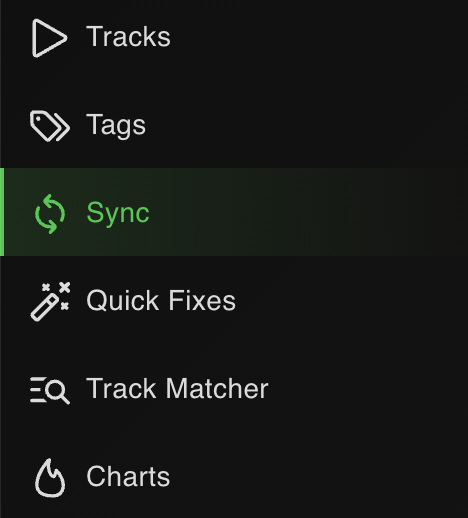
- Open Lexicon and go to the Sync page.
- Click
Import tracks & playlistsat the bottom.

- Choose Serato from the dropdown. Lexicon auto-detects the database.

- Leave
Fullselected to import your entire library.

- Click
Start importing. Your Serato library now lives in Lexicon.

Part 2 - Sync to VirtualDJ
- Go back to the Sync page (don't click Import again).
- Choose VirtualDJ from the dropdown. Lexicon auto-detects the VirtualDJ database.

- Leave
Fullselected. Leave the other options on their defaults.

- Click
Sync to VirtualDJ. Wait for it to finish.
When it completes, open VirtualDJ and your full library is there - playlists, cues, beatgrids and tags intact.
What transfers from Serato to VirtualDJ
| Item | Transfers | Notes |
|---|---|---|
| Crates & folder structure | Yes | Serato crates sync to VirtualDJ under Lists & Advice ➡ Playlists with folder hierarchy preserved. |
| Smart Crates | As Filter Folders | Serato Smart Crates come into Lexicon as smartlists, which sync to VirtualDJ Filter Folders (under the Filters menu). |
| Tracks in parent folders | As _FolderTracks playlist |
Both Serato and VirtualDJ allow tracks directly in folders, but Lexicon normalizes this into _FolderTracks playlists for consistent sync across apps. |
| Hot cues | Yes | Hot cues transfer into VirtualDJ's POI system. |
| Cue colors | Stored, not shown by default | VirtualDJ stores cue colors in the POI editor but doesn't display them by default. |
| Beatgrids | Yes | Beatgrid markers and BPM transfer. |
| Loops | Yes | Loops carry across. |
| Track metadata | Yes | Title, artist, album, genre, BPM, key, comments, ratings, custom tags. |
| Album art | Yes | Embedded art transfers. |
| Serato FLIP | No | FLIP entries are not read or written by Lexicon. |
| Streaming tracks | Conditional | Both Serato and VirtualDJ support streaming tracks (Beatport, Tidal, etc.). The streaming service must be enabled in both apps for those tracks to appear after sync. Serato 3 does not support streaming tracks in crates at all - use Serato 4. |
Notes specific to Serato → VirtualDJ
Disable VirtualDJ auto-tag-read
VirtualDJ can auto-read ID3 tags from files. If that setting is enabled, it may overwrite tags Lexicon has just written. Disable auto-update in VirtualDJ settings before syncing.
Smart Crates → Filter Folders
Serato Smart Crates come across as Lexicon smartlists and sync to VirtualDJ's Filter Folders (found under the Filters menu). You can also turn on "Move smartlists" in Lexicon sync options to convert them into normal playlists instead.
FLIP is not carried across
Serato FLIP stays in Serato - Lexicon doesn't read or write it. If you rely on FLIP, don't clear your Serato database.
Virtual Folders
Your existing VirtualDJ Virtual Folders turn into normal playlists after a full Lexicon sync. If you need to keep them, back up the VirtualDJ database folder first.
Lexicon Ignore folder
For karaoke files, video files, or anything VirtualDJ should keep untouched during full sync, place them under VirtualDJ's Lexicon Ignore folder. Full sync preserves that folder.
Tracks placed directly in Serato folders
Serato and VirtualDJ both allow tracks directly in folders, but Lexicon normalizes this - those tracks land in a per-folder _FolderTracks playlist for consistent behavior across DJ apps.
Frequently asked questions
What happens to Serato Smart Crates in VirtualDJ?
They become Filter Folders (under the Filters menu). Serato Smart Crates pass through Lexicon as smartlists, which sync directly to VirtualDJ Filter Folders.
Will cue colors show in VirtualDJ?
Not by default - VirtualDJ's main UI doesn't render cue colors. They're stored in the POI editor where you can enable color display, or they'll come back if you sync to another app.
Will Serato FLIP edits appear in VirtualDJ?
No. FLIP is Serato-only and Lexicon does not read or write it.
Does VirtualDJ overwrite my tags after sync?
It can, if auto-tag-read is enabled. Disable it in VirtualDJ settings to preserve Lexicon's tag writes.
What about my existing VirtualDJ Virtual Folders?
They get replaced by normal playlists during full sync. Back up your VirtualDJ database folder first if you need to preserve them.
Does this work on macOS?
Yes. The process is identical on Windows and macOS.
Other conversion guides
Converting from a different app, or to a different app?
Thoughts? Questions? Share them on the forum or chat about them on Discord.