
Convert your VirtualDJ library to Engine DJ with Lexicon - and sync directly to USB or a Denon player. Free, Windows and macOS.
Applies to any recent VirtualDJ → any recent Engine DJ (desktop, Denon hardware, or Engine Cloud via Dropbox).
Requirements
You need to have these installed:
- VirtualDJ
- Engine DJ, launched at least once
- Lexicon - free for library conversion
Lexicon runs on Windows and macOS.
Steps to convert VirtualDJ to Engine DJ
The process has two parts: import your VirtualDJ library into Lexicon, then sync it to Engine DJ.
Part 1 - Import from VirtualDJ
- Close both VirtualDJ and Engine DJ completely. Background processes must terminate for the databases to be readable.
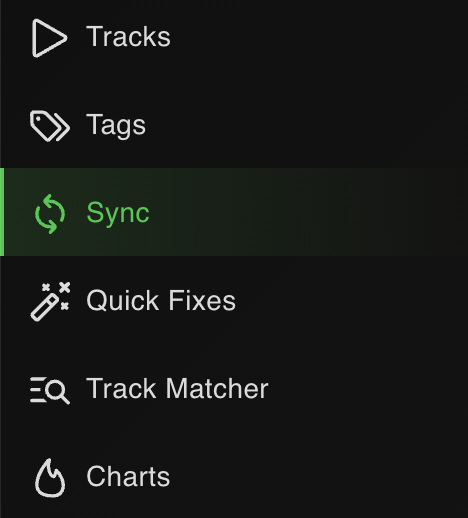
- Open Lexicon and go to the Sync page.
- Click
Import tracks & playlistsat the bottom.

- Choose VirtualDJ from the dropdown. Lexicon auto-detects the database.

- Leave
Fullselected to import your entire library.

- Click
Start importing. Your VirtualDJ library now lives in Lexicon.
Part 2 - Sync to Engine DJ
- Go back to the Sync page (don't click Import again).
- Choose Engine DJ from the dropdown. Lexicon auto-detects the Engine DJ database.

- Leave
Fullselected. Leave the other options on their defaults.

- Click
Sync to Engine DJ. Wait for it to finish.
When it completes, open Engine DJ and your full library is there - playlists, cues, beatgrids and tags intact.
What transfers from VirtualDJ to Engine DJ
| Item | Transfers | Notes |
|---|---|---|
| Playlists & folder structure | Yes | VirtualDJ playlists become Engine DJ playlists. Both apps allow tracks directly in folders - Lexicon normalizes via _FolderTracks playlists. |
| Filter Folders | As smart playlists | VirtualDJ Filter Folders pass through Lexicon as smartlists and sync to Engine DJ smart playlists. |
| Virtual Folders | As normal playlists | Engine DJ has no Virtual Folders concept. |
| Hot cues | Yes (up to 8) | Both apps support 8 hot cues. |
| Cue colors | Yes | VirtualDJ stores cue colors in its POI editor. Engine DJ displays them after sync. |
| Track colors | Via field mapping | Engine DJ has no native track color field. Use a Lexicon Field Mapping to write color names into a comment or custom tag. |
| Beatgrids | Yes | Beatgrid markers and BPM transfer. |
| Loops | Yes | Saved loops carry across. |
| Track metadata | Yes | Title, artist, album, genre, BPM, key, comments, ratings, custom tags. |
| Album art | Optional | Enable "write album art" in sync options for direct-to-USB/hardware sync. |
Notes specific to VirtualDJ → Engine DJ
Choose your target: desktop, USB, or Dropbox
When syncing you pick where the library gets written:
- Engine DJ Desktop - writes to the computer's Engine DJ library.
- USB / Denon hardware - direct sync. Device must be in Computer Mode.
- Engine Cloud / Dropbox - writes to your Dropbox Engine Cloud folder.
Track colors need a Field Mapping
Engine DJ has no native track-color field. To preserve VirtualDJ's color labels, set up a Lexicon Field Mapping that writes the color name (e.g. Red_Dark) into a comment or custom tag. See Field Mappings in the manual.
Disable VirtualDJ auto-tag-read before importing
VirtualDJ can auto-read ID3 tags from files. If that setting has been overwriting your tags, disable it and re-verify your tags in VirtualDJ before importing.
Filter Folders → smart playlists
VirtualDJ Filter Folders become Lexicon smartlists, which sync to Engine DJ smart playlists.
Album art on direct-to-hardware sync
If syncing direct to a Denon player or USB, enable "Write album art" in Lexicon's sync options - Engine DJ on the device can't reload art from files post-sync.
Beatgrid lock behavior
Engine DJ locks beatgrids that have been adjusted or fully analyzed. Lexicon respects locks by default. Flip to "lock all" or "unlock all" in sync options if you want Lexicon's grids to always win.
Tracks placed directly in VirtualDJ folders
Both apps allow tracks directly in parent folders, but Lexicon normalizes this into per-folder _FolderTracks playlists for consistency across DJ apps.
Frequently asked questions
Can I sync directly to my Denon player's USB?
Yes. Put the device or USB into Computer Mode, pick it as the Target Drive in Lexicon's sync options, then sync.
Will VirtualDJ track colors show in Engine DJ?
Not natively - Engine DJ has no track-color field. Use a Lexicon Field Mapping to write color names into a comment or custom tag.
Will cue colors appear in Engine DJ?
Yes. VirtualDJ stores cue colors in its POI editor; Engine DJ displays them after sync.
Do I need to enable "Write album art"?
Only for direct-to-USB or direct-to-hardware sync. For desktop Engine DJ, skip it and use "Re-import track information" afterwards.
What about Filter Folders?
They become Engine DJ smart playlists via Lexicon smartlists.
Does this work on macOS?
Yes. The process is identical on Windows and macOS.
Other conversion guides
Converting from a different app, or to a different app?
Thoughts? Questions? Share them on the forum or chat about them on Discord.