
Lexicon converts your full Rekordbox library to Serato DJ - playlists become crates, hot cues carry over, beatgrids stay locked, and your tags, ratings, and album art come with them. The process takes minutes and is free.
This guide covers Rekordbox 6 and 7. If you're still on Rekordbox 5, see the Rekordbox 5 XML import note.
Requirements
You need to have these installed:
- Rekordbox 6 or 7 (Rekordbox 5 supported via XML)
- Serato, launched at least once
- Lexicon - free for library conversion
Lexicon runs on Windows and macOS.
Steps to convert Rekordbox to Serato
The process has two parts: import your Rekordbox library into Lexicon, then sync it to Serato.
Part 1 - Import from Rekordbox
- Close both Rekordbox and Serato completely. Background processes must terminate for the databases to be readable.
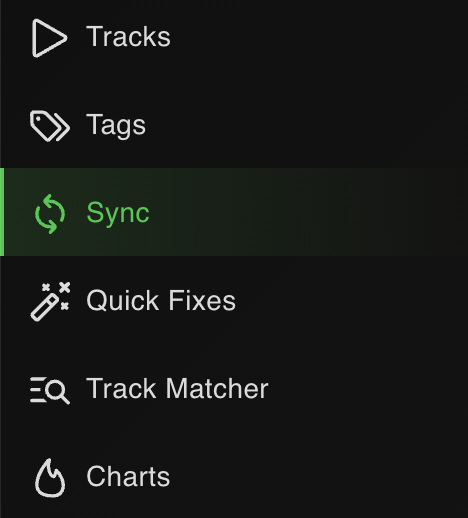
- Open Lexicon and go to the Sync page.
- Click
Import tracks & playlistsat the bottom.

- Choose Rekordbox from the dropdown. Lexicon auto-detects the database.

- Leave
Fullselected to import your entire library.

- Click
Start importing. Your Rekordbox library now lives in Lexicon.

Part 2 - Sync to Serato
- Go back to the Sync page (don't click Import again).
- Choose Serato from the dropdown. Lexicon auto-detects the Serato database.

- Leave
Fullselected. Leave the other options on their defaults.

- Click
Sync to Serato. Wait for it to finish.
When it completes, open Serato and your full library is there - playlists, cues, beatgrids and tags intact.
What transfers from Rekordbox to Serato
| Item | Transfers | Notes |
|---|---|---|
| Playlists & folder structure | Yes | Rekordbox playlists become Serato crates. Your folder hierarchy is preserved as Serato subcrates. |
| Intelligent playlists | As Smart Crates | Rekordbox intelligent playlists convert to Serato Smart Crates where the rules translate; complex rules may simplify. |
| Hot cues | Yes (up to 8) | Rekordbox supports 16 hot cues; Serato supports 8. Lexicon imports the first 8 from Rekordbox by default - reorder them in Lexicon first if you need specific cues prioritised. |
| Memory cues | Merged into hot cues | Serato has no memory cues. Rekordbox memory cues are merged into Lexicon's cue list. If you need to keep them separate, enable memory cues in Lexicon's DJ app features before importing. |
| Hot cue colors | Yes | Using the direct method (not XML). Memory cue colors are lost when importing via XML - use the direct method when possible. |
| Beatgrids (single) | Yes | Beatgrid markers and BPM carry over 1:1 via the direct method. |
| Beatgrids (multi-segment) | Conditional | Serato enforces stricter rules than Rekordbox. Each new grid must start exactly at the end of a full bar of the previous one, or Serato re-interprets or ignores it. See the note below - this is the most common surprise in this direction. |
| Loops | Yes (one active) | Rekordbox can have one active hot loop and one active memory loop. Serato supports one active loop per track - extras drop to inactive slots. If cues and loop cues together exceed Serato's maximum, loop cues are dropped first. |
| AAC files | No | AAC files are not supported when syncing to Serato. |
| OGG files | Partial | Only one beatgrid marker is supported in OGG files, so any multi-segment grid on an OGG track flattens to one. |
| Track metadata | Yes | Title, artist, album, genre, BPM, key, comments, ratings and custom tags all transfer. |
| Album art | Yes | Embedded album art transfers. WAV files carrying art may need a re-tag in Serato (Rekordbox does not read WAV art reliably). |
| Serato FLIP | No | Serato FLIP entries are not read or written by Lexicon. |
| Streaming tracks | Conditional | Serato 3 does not store streaming tracks in crates; Serato 4 does. Make sure the right streaming service is enabled in Serato before syncing or those tracks will not appear. |
Notes specific to Rekordbox → Serato
Close Rekordbox completely before importing
Rekordbox keeps background processes (rekordbox and rekordboxAgent) running after you close the window. Lexicon can't read the database while they're alive. If your import fails or hangs, open Task Manager (Windows) or Activity Monitor (macOS) and quit them manually.
Hot cues vs memory cues
Rekordbox is the only major DJ app with both hot cues and memory cues as separate concepts. Serato only has hot cues. Lexicon merges memory cues into the cue list by default. If you want to preserve them as a distinct set when you later sync back to Rekordbox, turn on the memory cues feature in Lexicon settings before you import, and choose a cue destination that keeps them separate.
Multi-segment beatgrids may not survive the trip
This is the single most common surprise going in this direction, and it is a Serato rule rather than a Lexicon bug. Rekordbox lets you place beatgrid markers wherever you like. Serato uses warp markers and requires that each new grid starts exactly at the end of a full bar of the previous grid. Grids that don't follow that rule get re-interpreted or ignored when Serato reads them.
The practical effect: a track you gridded carefully in Rekordbox across several tempo changes can arrive in Serato with a single flattened grid, or with segments in the wrong place. Lexicon writes the grid data in the correct Serato format either way - if your grids already obey Serato's bar rule they transfer intact, and if they don't, Serato is the component discarding them.
If you play live edits, disco, funk or anything with genuine tempo drift, check those tracks in Serato after the first sync rather than assuming.
AAC files are not supported
AAC files cannot be synced to Serato at all. OGG files sync, but Serato supports only a single beatgrid marker per OGG file, so multi-segment grids on OGG tracks flatten. If a meaningful chunk of your library is AAC, convert those files to MP3, WAV, AIFF or FLAC before syncing.
Serato 3 vs Serato 4
Both are supported. The main difference that affects conversion: Serato 3 ignores streaming tracks in crates, Serato 4 keeps them. If you're moving a library with Beatport or Tidal tracks, upgrade to Serato 4 before syncing.
FLIP is not carried across
Any Serato FLIP edits you had on tracks that round-trip through Lexicon will not appear. FLIP lives in a Serato-only data structure that Lexicon doesn't read or write. If you rely on FLIP, back up the Serato database folder before syncing.
Backups are automatic
Before Lexicon writes to Serato, it backs up your crate files and database to Music/_Serato_/Lexicon. If anything goes wrong, restore from there.
Frequently asked questions
Is converting Rekordbox to Serato free?
Yes. Library conversion in Lexicon is 100% free: it's part of the free plan, not a trial, and no credit card is required. You only pay if you choose to upgrade for Lexicon's library management tools.
Do my hot cues keep their colors?
Yes - with the direct database import (default in Lexicon for Rekordbox 6/7). If you import Rekordbox 5 via XML, memory cue colors are lost because Rekordbox doesn't write them to the XML; hot cue colors still transfer.
Will my Rekordbox intelligent playlists become Serato Smart Crates?
Yes. Lexicon converts Rekordbox intelligent playlists into Lexicon smartlists, which then become Smart Crates in Serato. Rules that don't map cleanly (for example, rules referencing Rekordbox-specific fields) are simplified or dropped.
Why does Serato only show 8 hot cues when Rekordbox had more?
Serato's maximum is 8. If your Rekordbox track had more, Lexicon keeps the first 8 by Rekordbox order. To pick which 8 survive, open the track in Lexicon and reorder the cues before syncing.
Why did my multi-tempo beatgrid collapse into a single grid in Serato?
Because Serato requires each new grid marker to start exactly at the end of a full bar of the previous grid, and Rekordbox has no such rule. Grids built freely in Rekordbox get re-interpreted or ignored when Serato reads them. Lexicon writes the data in the correct format; Serato decides what it will accept.
Are AAC files supported?
No. AAC files are not supported when syncing to Serato. OGG files sync but support only one beatgrid marker each, so multi-segment grids flatten. Convert AAC tracks to MP3, WAV, AIFF or FLAC first.
I have more cues and loops than Serato allows. What gets dropped?
Loop cues are dropped first. Regular cue points are kept ahead of loops when the combined total exceeds Serato's maximum, so if a particular loop matters, promote it or reduce the cue count on that track in Lexicon before syncing.
Does this work on macOS?
Yes. The process is identical on Windows and macOS. Make sure you have read/write access to both the Rekordbox database folder and the Music/_Serato_ folder.
I have streaming tracks in my Rekordbox playlists. Will they show in Serato?
Only on Serato 4, and only if you have the streaming service (Beatport, Tidal, etc.) enabled in Serato's settings before syncing. Serato 3 does not support streaming tracks in crates at all.
Can I go back to Rekordbox after converting?
Yes. Your Rekordbox library isn't deleted - Lexicon only reads it during import. You can also run Serato to Rekordbox later to sync changes the other direction.
Other conversion guides
Converting from a different app, or to a different app?
Thoughts? Questions? Share them on the forum or chat about them on Discord.