
Lexicon Settings
This page describes all available settings in Lexicon. To open the settings, click Lexicon DJ in the top menu bar and choose Settings.
The settings window has these tabs on the left: General, Hotkeys, Integrations, Local API, Account, Plans & Pricing, Invoicing and Cloud Storage. Most settings are on the General tab, in the sections described below, from Appearance to Reset hints and dismissals. The other tabs are described at the end of this page.
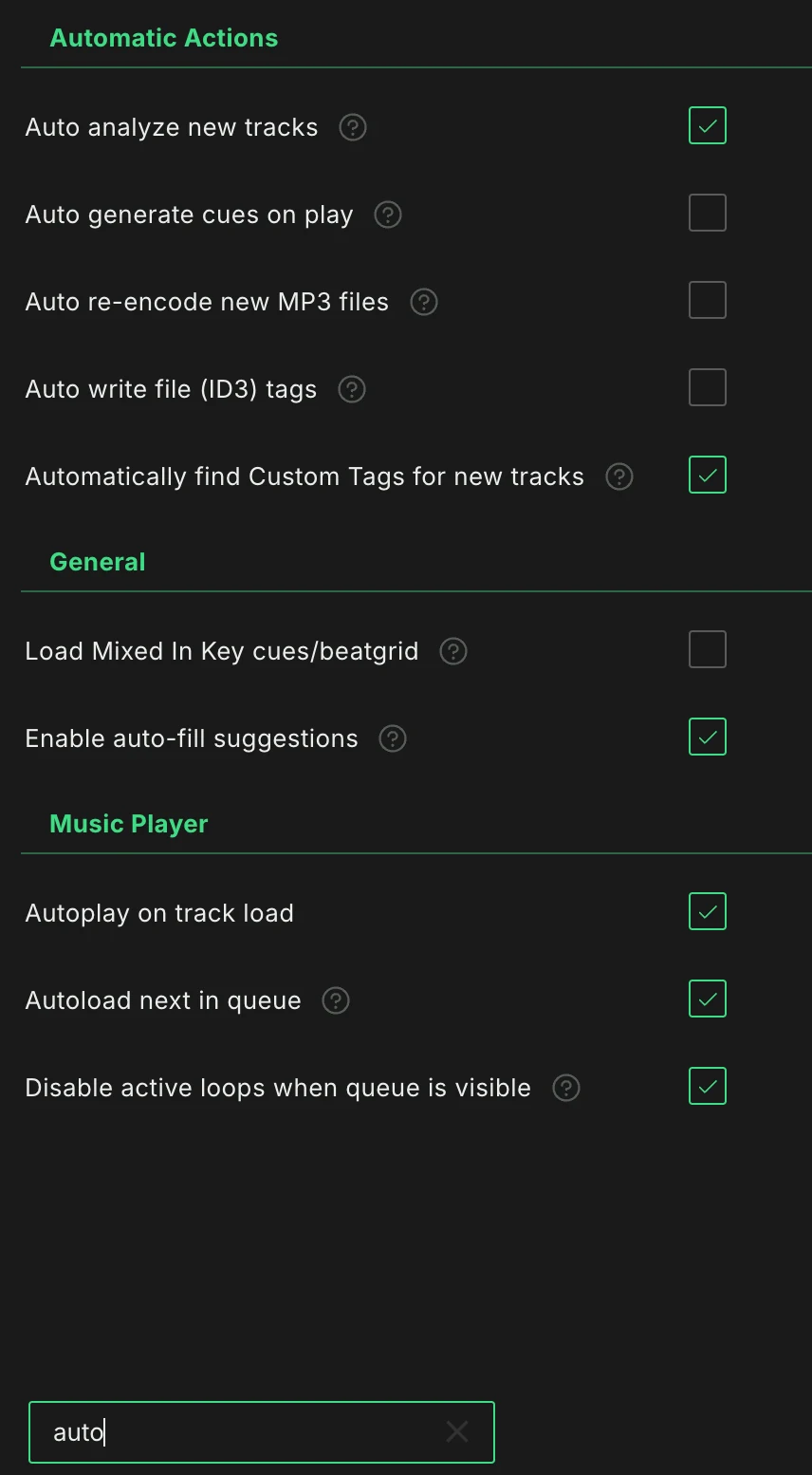
To find a setting quickly, type in the search box at the bottom of the General tab. It matches the names of the settings, their help text and the options you can choose, so searching for Semicolon finds the Field mapping Custom Tag format setting. Press Escape or the cross to clear the search.
Appearance
Theme
Choose between Dark, Light, or System theme. The System option automatically follows your operating system's theme preference. Dark is the default.
Options: Dark, Light, System
You can also switch between the dark and light theme with View ➡ Toggle Theme in the top menu bar.
Density
Adjust the row height of the playlist tree and the track list. Compact fits more on screen, Large is easier to read. Lexicon asks to restart to apply the change everywhere.
Options: Compact, Normal, Large
New installs start on Normal. If you used Lexicon before this setting existed, it is set to Compact, which is the row height you are used to.
Language
Choose the UI language. Requires restart.
Translations are AI-generated. If you find incorrect translations, please submit corrections on the Lexicon Discord.
Options: English, Deutsch, Ελληνικά, Español, Français, Italiano, 日本語, Nederlands, Polski, Português (Brasil), Русский, ไทย, Türkçe, Tiếng Việt, 简体中文, 繁體中文
Color palette
Choose which colors the color pickers show for tracks and cue points. With All colors (the default) you get every color. Choose your DJ app to only see the colors it supports, so a color you pick looks the same there. Requires restart.
Colors that are already set stay as they are, and are changed to the nearest color when you sync. While a DJ app is chosen here, the sync always changes colors to the nearest one the app has.
Show tips
Display helpful tips on the music player when no track is loaded. On by default. Requires restart.
Show hotkeys
Display keyboard shortcuts throughout the interface whenever they are available, for example in menus and on buttons. On by default. This works on every plan.
Automatic Actions
Auto analyze new tracks
Automatically analyze tracks added by dragging into Lexicon or via the Watch Folder. Does not apply to tracks imported from a DJ app. On by default.
Auto generate cues on play
Automatically generate cue points when playing a track without cues, using the current generator template. This option is ignored if Custom Cue Anchors are enabled. See Cue Point Generator.
Auto re-encode new MP3 files
Automatically re-encode tracks added to Lexicon (via drag & drop or Watch Folder) to fix potential beatshift issues, using the Beatshift Fixer. Does not apply to tracks imported from a DJ app; you can still run the Beatshift Fixer on those yourself. See Beatshift Fixer.
Auto write file (ID3) tags
Automatically write ID3 tags to your files whenever a change is detected. Uses your field mappings if configured. Large edits are written in small batches in the background, and above 10,000 tracks the progress is shown under Notifications in the sidebar.
Automatically find Custom Tags for new tracks (Ultimate only)
When new tracks are added, genre Custom Tags are looked up automatically. Only Custom Tags are added; the genre field itself is not changed. On by default for new installs.
General
Start screen
The screen Lexicon opens on when it starts.
Options: Dashboard (the default), Tracks, Charts, Statistics
Date format
Choose how dates are displayed throughout the application.
Options:
2021-06-25(YYYY-MM-DD, the default)25/6/2021(D/M/YYYY)Jun 6th 2021(MMM Do YYYY)2021-06-25 22:50(YYYY-MM-DD HH:mm)25/6/2021 10:50PM(D/M/YYYY h:mmA)Jun 6th 2021 10:50PM(MMMM Do YYYY h:mmA)
Key format
Choose how musical keys are displayed in Lexicon.
Options:
- Alphanumeric (for example
8A) - Alphanumeric with original key
- Open Key
- Original key
- Open Key with original key
- Musical key
- Musical key with original key
- Custom keys
- Custom keys with original key
Alphanumeric is the default for new installs. When you use Alphanumeric, the Key column sorts in Alphanumeric order.
When you choose Custom keys or Custom keys with original key, a Custom Keys row appears below. Click Edit Custom Keys to define your own key notation for each Open Key value.
Key mixing mode
Determine how key compatibility is calculated in the track browser. When a track is loaded in the music player, compatible keys are highlighted in the track browser with a soft background in their key color.
Options:
- Harmonically Compatible (the default): Traditional harmonic mixing rules (e.g., 10m ➡ 11m or 10m ➡ 10d)
- Fuzzy Key Mixing: Expanded compatibility based on adjacent open key numbers (e.g., 10m ➡ 9m/9d or 10m ➡ 11m/11d)
Track BPM after analysis
Which tempo of the analyzed beatgrid becomes the track's BPM. This only matters when the tempo changes during the track.
- First beatgrid marker (the default): the tempo at the start of the track.
- Most common BPM: the tempo the track plays at for the longest time. A track that starts at 100 BPM and then stays at 80 BPM gets 80.
Field mapping Custom Tag format
The text format used for field-mapped Custom Tags. See Field Mappings.
Options:
- Hashtag (the default):
#Techno #Vocals - Comma:
Techno, Vocals - Semicolon:
Techno;Vocals
Display currency
The currency in which third-party store prices are displayed. Prices are converted by Lexicon and may differ slightly from actual store prices.
Options: US dollar (US$, the default), Euro (€), Pound sterling (£), Australian dollar (A$), Canadian dollar (C$), Japanese yen (¥)
Minimize to tray (Windows and Linux)
Minimize Lexicon to the system tray when closing the window instead of fully closing the application. On by default on Windows. Off by default on Linux, because many Linux desktops show no tray icons. This row is not shown on macOS.
Daily backup on quit
Lexicon saves a backup of your library once per day when you quit. If you turn this off, you only have the backups you create yourself. You can also change this on the quit dialog. It is saved per computer. See Database Backup.
Load Mixed In Key cues/beatgrid
Automatically load Mixed In Key cue points and beatgrids from track ID3 tags when adding tracks via drag & drop or Watch Folder. Also applies when reloading tags on tracks without existing cues/beatgrids. Off by default.
Drag out of Lexicon
Allow dragging tracks out of Lexicon to other applications. Note: Dragging to DJ apps does NOT include cue points and beatgrids. Off by default. Requires restart.
Enable auto-fill suggestions
Show a list of suggestions when editing any of the fields in the track browser with recurring values, such as artists, albums and more. Affects Artist, Album, Genre, Composer, Producer, Lyricist, Grouping, Remixer, Mix, and Label. On by default. Requires restart.
Remember table state per playlist
Remember the table state (scroll position, sort order, filters, and selected tracks) when switching between playlists and the main track browser. On by default.
DJ app specific features
Click Configure to show or enable features that Lexicon hides by default because only certain DJ apps support them.
Currently available:
- Rekordbox memory cues: When enabled, shows the memory cue option where relevant. Memory cue options appear in the cue icon (M) on cues in the music player, the cue point generator, and the smartlist editor under the Cue Points field. Only functions for Rekordbox and does nothing for other DJ apps. Requires restart.
Music Player
Output device
The audio device the music player plays through. Changing it takes effect right away.
Waveform
Choose the waveform color scheme.
Options:
- Lexicon (the default)
- RGB
- Catla
- Blue Green / "G-Force"
- RGB (Custom)
- 3 Band (Blue/Red)
- 3 Band (Blue/Yellow)
- 3 Band (Custom)
The dropdown shows a preview of each option. When you choose one of the two custom options, a Custom Waveform Colors row appears below. Click Edit Colors there to pick your own Low, Mid and High colors.
Switching the waveform type or colors does not need a new analysis: the music player and the waveform previews in the track browser are redrawn in the new look. If you used RGB or Pink Blue in Lexicon 1.11 or older, you are switched to Catla, which looks closest to the old RGB waveform.
Cue colors
The default color scheme applied to new cue points. The dropdown shows the colors of each scheme.
Options:
- Basic (the default): Only colors available in any DJ app
- Grayscale: Gray tones
- Cold: Blue/cool tones
- Warm: Red/orange tones
- Random: Random unused color
- No colors: No color assigned
- First cue color: Match the color of the first cue point
Load position
Where the playhead starts when loading a track.
Options:
- Start at first beatgrid marker (the default)
- Start at zero
- Start at first cue point
Beatgrid numbering
Choose how beats are numbered in the beatgrid.
Options:
- Start at zero: Makes the entire beatgrid divisible by four with consistent positive/negative beat numbering
- Start at one (the default): Traditional DJ app behavior (recommended for familiarity)
Track reload required to see changes.
Overview markers
Marks in a strip below the overview waveform:
- No markers
- Minute markers (the default): the time at every minute.
- Bar markers (16, 32 or 64 bars) or Beat markers (64, 128 or 256 beats): a tick every so many bars or beats, labelled with how far it is ahead of or behind the playhead. These need a beatgrid.
Preview duration
Duration (in seconds) of the preview when clicking a waveform in the track browser. Range: 1-300 seconds. The default is 10 seconds.
Autoplay on track load
Automatically start playing when a track is loaded into the music player. On by default.
Autoload next in queue
When a track ends, the next track in the queue is loaded into the music player. Add tracks to the queue by right clicking them and choosing Add to queue. On by default.
Disable active loops when queue is visible
When enabled, active loops will not trigger while the track queue is visible. Useful when using Lexicon as a music player so listening is not interrupted by active loops triggering automatically. On by default.
Show milliseconds
Display time with millisecond precision in the music player.
Scratch audio while dragging
Hear the track speed up, slow down and play backwards while you drag the zoom waveform, like moving a record on a turntable. On by default. Changing it unloads the track in the music player. Load the track again to hear the change.
Overview cue bar numbers
Show the bar number next to each cue point in the overview waveform. Changing it unloads the track in the music player. Load the track again to see the change.
Highlight hovered cue on overview
Hovering a cue button colors the overview waveform from that cue to the next one, so you can see which part of the track it is. On by default. Loops always light up their own section, even with this turned off.
Enable keyboard media keys
Control the Lexicon music player with keyboard media keys. Off by default. Note: Media keys will not work in other applications while a track is loaded in Lexicon.
On macOS, media keys need Accessibility permission. If Lexicon does not have it yet, it shows a warning and opens the Accessibility settings. Allow Lexicon in System Settings ➡ Privacy & Security ➡ Accessibility, then restart Lexicon.
Metronome
Click Configure Metronome to adjust:
- Enable metronome: Toggle the metronome on/off (also available in the music player under Edit Grid)
- Volume: Adjust metronome volume (10%-500%)
- Pitch: Adjust metronome pitch/tone (10%-500%, lower or higher)
Use the Preview Metronome button in the dialog to audition your settings. While a track is playing, the dialog changes the metronome you hear right away instead. You can open this dialog with the Open metronome settings hotkey, which has no key by default; set one in the hotkey settings.
Playhead
The playhead is the line in the middle of the zoom waveform that marks the play position. Click Configure Playhead to adjust:
- Line height: how far the line reaches. At the maximum, the two halves meet and become one full line.
- Thickness
- Opacity
- Follow theme: white on the dark theme, black on the light theme. Turn it off to pick your own Color.
Use Reset to default in the dialog to go back to the default playhead.
File Management
Remove empty folders
Automatically remove empty folders after tracks have been moved via the Incoming screen or File Move utility. On by default. Important folders are never removed: drives and their top-level folders, system folders, your home folder and the folders directly in it, cloud sync folders, DJ app folders, and folders you set in Lexicon such as your Watch Folder. Common files like folder.jpg, cover.jpg, Thumbs.db, and .DS_Store are ignored when determining if a folder is empty.
Watch folder scan time limit (seconds)
When Lexicon starts, it scans your Watch Folder for new tracks. If the scan takes longer than this, it stops and skips the rest. Increase this if you have a large Watch Folder, for example on a slow or external drive. Range: 5-3600 seconds, in steps of 5. The default is 60 seconds. See Watch Folder & Incoming Tracks.
Backup & Cloud Storage
Cloud database backup reminder (Ultimate only)
Show a reminder notification if your last cloud database backup was more than a week ago. On by default. See Database Backup.
Cloud Storage connections (Essential and Ultimate)
Number of simultaneous upload/download connections for Cloud Storage. Increase this number for faster transfers if your network supports it. Range: 1-50. The default is 10. Requires restart. See Cloud Storage.
Accessibility
Display scaling
Adjust the overall interface size. Range: 50%-200% (step 10%). Changes apply immediately.
On a small screen (or with high Windows display scaling), Lexicon lowers this setting at startup so the whole window fits on the screen. Once you move the slider yourself, your choice stays.
Text size
Size of the text throughout Lexicon, from 50% to 150% (step 10%). Icons and the layout keep their size; use Display scaling to zoom everything. Changes apply immediately.
Increased waveform height
Double the height of the zoom waveform for better visibility. Requires restart.
Custom font (Google Fonts)
Use any font from Google Fonts. Enter the font name (e.g., "Open Sans", "Poppins", "Roboto") and click Load Font or press Enter. Leave empty to use the default font (Inter).
Browse available fonts at fonts.google.com.
Advanced
Enable Local Path mappings (Ultimate only)
Enable path mappings to override where Lexicon looks for your tracks. Use this when running Lexicon on multiple computers with the same music files. Path mappings are stored locally per computer. See Local Path Mappings.
While this is on, a Local Path mappings row appears below. Click Edit Path mappings to configure mappings between remote paths (from your primary computer) and local paths (on this computer). For example, map D:/Music/ to /Volumes/My External Drive/Music/ to use the same library on Windows and Mac.
Multiple libraries
Lets you keep several separate libraries and switch between them from File ➡ Library. Each library is its own database file with its own tracks and playlists. See Multiple Libraries. Requires restart.
Advanced overrides
The last part of the Advanced section is a list of low-level override settings, shown by their internal names. It is intended for advanced troubleshooting and development use. Each one shows (default) until you change it. Hover a name to see what it does.
seratoDatabaseFolder: Custom Serato database folder path (the Serato 3_Serato_folder)seratoExportDatabase: Which Serato library the Serato DJ sync writes to. By default it writes to the Serato 4/5 library when this computer has one, plus the Serato 3 library next to it. Without a Serato 4/5 library it writes to the Serato 3 library alone. Chooseserato4orserato3to write to that library only.traktorNmlPath: Custom Traktor NML file pathvirtualdjHomeFolder: Custom VirtualDJ home folder pathenginedjLibraryFolder,serato4LibraryFolder,rekordbox5DataFolder,rekordbox6DataFolder,traktorRootFolder,djayDatabaseFolder,itunesLibraryFolder: Custom DJ app library folders, for a library that is not in its usual place (for example a folder copied from another computer). Leave empty to detect it automatically.fluidBeatgridInterval: When importing a fluid beatgrid (djay, VirtualDJ), add a tempo marker every N beats. Default: 4 (one per bar). Range: 1-64.deckconnect_computerName: The name Lexicon uses on the DJ Link network for DeckConnect. Leave empty to use your computer name.trackDeleteDontAskAgain: Skip track delete confirmationtrackInPlaylistDeleteDontAskAgain: Skip track-in-playlist delete confirmationplaylistDeleteDontAskAgain: Skip playlist delete confirmationplaylistDeleteNotificationHidden: Hide the message (with its Undo button) that appears after you delete a playlist
Other
Reduced performance
Reduce the number of concurrent threads used by Lexicon. Only enable this if you experience crashes during heavy processing tasks like track analysis or duplicate scanning. Requires restart.
Send anonymous usage statistics
Help improve Lexicon by sending anonymous usage data. This data is not used for any other purpose. On by default.
Share library for DJ insights
Anonymously share your track and playlist info to power DJ Library Trends and the DJ picks in Ghost Curator. Your music files never leave your computer, and it's never linked to you.
On a paid plan this is off until you turn it on. On the Free plan this option is always on and can't be changed: your library is shared when you sync to a DJ app. See Dashboard.
DJ picks in Ghost Curator need this setting too. When you switch it off, Ghost Curator goes back to My rules.
Show lessons
Shows the lessons at the top of the screen: short guided tours of the main features of Lexicon. When it is off, tips show there instead. This row is only shown on a paid plan, when your Lexicon has lessons.
Reset hints and dismissals
Each of these rows has a Reset button. It shows Done for a moment when the reset is done.
Smart Fix ignore list
Tracks you told Smart Fix to ignore show up in its results again. Lexicon asks you to confirm first.
Tips and feature intros
Every tip and feature intro page you hid shows again. Restart Lexicon to see the tips. This does not open the guides you closed on feature pages: open those again with Guide in the page's bar (see Interface Overview).
Hidden popups
Popups you chose not to show again, such as sync instructions, warnings and delete confirmations, appear again.
Dismissed dashboard items
Everything you snoozed or dismissed in the Dashboard's Needs attention panel shows again.
Other tabs
Hotkeys
The Hotkeys tab lists all keyboard shortcuts. Every hotkey works on any plan. Changing, adding or removing a hotkey, and making a hotkey Global (so it also works outside Lexicon), needs the Essential or Ultimate plan. See Hotkeys.
Integrations
The Integrations tab connects Lexicon to other services:
- Spotify: log in with
Spotify loginto import and export Spotify playlists. - Beatport:
Enable Beatportputs the Beatport button in the sidebar, to browse, search and preview tracks from your Beatport account. Off by default. Requires restart. Log in withBeatport login. See Beatport. - Tidal: log in with
Tidal loginso Lexicon can save playlists to your Tidal library. - DeckConnect:
Enable DeckConnectadds the DeckConnect panel to the music player, to stream tracks to Pioneer CDJs on your network without a USB export. Requires restart.Auto-connect to CDJsconnects by itself when players are found on the network. Both are off by default. See DeckConnect. - Last.fm:
Scrobbling Enabledsends the tracks you play to your Last.fm profile. Log in withLast.fm login.
Local API (Essential and Ultimate)
The Local API tab turns the Local API on or off, sets its port, lists the apps that asked for access and holds your API token. See Local API.
Account
The Account tab shows your First Name, Last Name, Email and Country. Under Artist profile you can fill in your DJ name, City, Active since and links to your SoundCloud, Mixcloud, YouTube, Instagram and TikTok profiles. These are all optional, and they are filled in for you when you submit a mix on the Dashboard. Click Save to save your changes.
To change your email, click Change email, enter your new address and your current password, and click Send confirmation link. Your email only changes once you click the link we send to the new address. Lexicon picks up the new address by itself; you don't need to log in again.
The buttons at the bottom let you Change password, Log out or Delete account. Deleting your account also cancels any active subscription, and it cannot be undone.
Plans & Pricing
The Plans & Pricing tab shows the Lexicon plans, where you can subscribe, upgrade or cancel.
Invoicing
The Invoicing tab lists your invoices. Click Update payment info to change your payment details.
Cloud Storage
The Cloud Storage tab shows how much of your Cloud Storage you use. From there you can download missing tracks, manage tracks that are only in the cloud, and buy or cancel the unlimited add-on. See Cloud Storage.