
DeckConnect
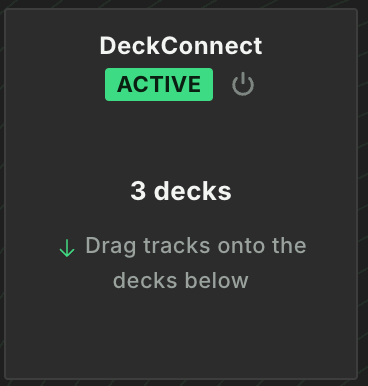
DeckConnect allows Lexicon to connect to a CDJ directly over the network. This uses Pioneer's Pro DJ Link and is what Rekordbox uses to connect to CDJs. Before Lexicon 1.12, DeckConnect was called DIRECT2CDJ. For an overview of what it does, how to start it and which players it supports, see the DeckConnect page.
This is intended for quick and easy prep with your CDJ or XDJ at home. Do not use it in a live situation.
DeckConnect is available on the Essential and Ultimate plans. On the Free plan the DeckConnect panel only shows Upgrade to connect directly to your CDJ or XDJ, and Lexicon does not look for players on your network.
You can show or hide the DeckConnect panel in the music player with View ➡ Toggle DeckConnect in the top menu bar. To stop DeckConnect, click the power button (Disconnect) next to its status.
Compatibility
DeckConnect works on any network capable Pioneer DJ / AlphaTheta CDJ or XDJ device. It does not connect to players from other brands, such as Denon DJ players.
The XDJ-RX3 uses Pro DJ Link over USB and is not supported.
DeckConnect also works on Linux, see Linux for the firewall ports to allow.
Decks
When DeckConnect is connected, your players appear as decks in the deck bar below the music player, with the player model above each deck. Each deck shows the track that is loaded on it.

To load a track onto a player, drag it from the track browser onto a deck in the deck bar, or right click a single track and choose Load into... and the deck. Streaming tracks cannot be loaded onto a player.
You can also load a track from the search dialog (Search at the bottom of the sidebar). While DeckConnect is connected, every local track in the results shows a numbered square for each deck. Click a square, or press that number with the result highlighted, to load the track onto that deck.
Players that can show album art show the art of your tracks, in the browse list and on the deck. Lexicon sends the album art that is stored in the audio file, so a track without album art in its file shows none. If you change a track's album art while connected, disconnect and connect again to see the new art on the player.
The deck bar is shared with Ghost Curator. Only one of the two can use it at a time: DeckConnect does not connect while Ghost Curator follows another DJ app. While your players are connected, Ghost Curator can follow them to suggest the next track.
Realtime
When you add or remove cues on the device, they will appear or update in Lexicon immediately so this can be a great way to set your cues on your real gear.
CDJ settings
Lexicon uses your setting files from Rekordbox when connecting to the CDJ/XDJ. So if you want to change settings, you need to do that in Rekordbox and Lexicon will pick that up.
DeckConnect settings
Settings for DeckConnect are shared with your Pioneer USB sync settings, in the Sync window (click Sync to DJ app at the bottom of the sidebar and choose Pioneer USB under Sync to).
Changing Field mappings, Convert keys, Change to nearest color or Cue Destination in the Sync window for Pioneer USB will also affect how DeckConnect handles that.