
Undo History
Lexicon allows you to undo changes, but it works a bit differently from the CTRL-Z you might be used to. Cmd/Ctrl+Z (the Undo last hotkey) asks you to confirm before it undoes your last change, and the undo history lets you undo earlier changes too.
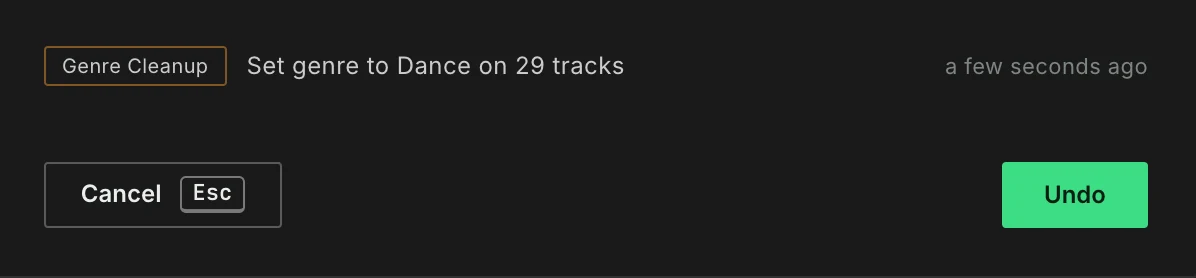
Undo events are available for 60 minutes or until you restart Lexicon.
Events
Undo History works on specific events, so it may not be available everywhere. You are able to undo things like:
- Smart Fixes
- Genre Cleanup and Artist Cleanup
- Recipes
- Tag Lookup
- The Cue Point Generator
- Playlist deletes
- Track deletes
- Edits, including the fields you change and save in the Track Editor
Undo from the notification
After a playlist delete, a Genre or Artist Cleanup, a recipe, a Tag Lookup, a Smart Fix or the Cue Point Generator, the notification that follows has an Undo button. It reverts exactly that action. The button is also on that notification in the Notifications list at the bottom of the sidebar.
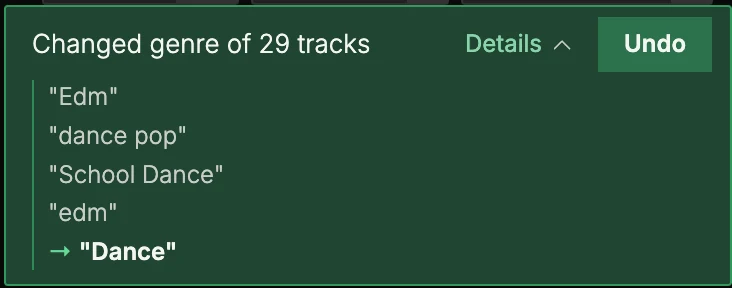
If the action was already undone, or is no longer in the undo history, the Undo button opens the undo history instead.
The notification after a playlist delete also has Don't show again, to stop these notifications. To get them back, use Hidden popups in the settings (see Lexicon Settings).
Order
When you want to undo multiple events, keep in mind that the order may be important when the events are related to each other.
An undo event might be a deleted playlist and Lexicon can restore it. But if the tracks inside that playlist have been deleted from Lexicon then they need to be restored first. In such a scenario, make sure to undo the track deletion first and then the playlist deletion.
Backups
Undo history is great to restore mistakes, but they are no replacement for a good backup strategy. Daily backups can save you a lot of work! See Database Backups for more information.