
Track Timeline
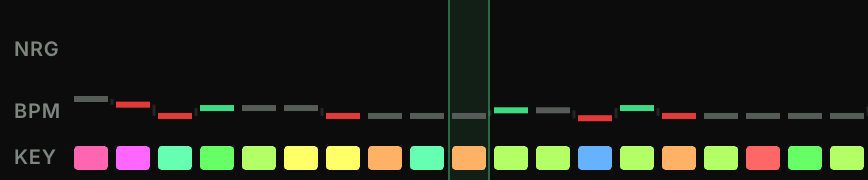
When you have a playlist selected, you will see the Track Timeline above the track browser. This gives you an overview of the flow of your playlist. It reads from left to right, with one column per track, in three lanes:
- Top lane: a stepped line for Energy, or another value of your choice (see below)
- BPM: a line that only steps up or down when the tempo changes by 10 BPM or more
- KEY: a row of blocks for the keys of your tracks
In the top lane, a mark turns green when the value goes up clearly compared to the track before it, and red when it goes down clearly. In the BPM lane, half and double tempos are not merged, so a track tagged 87 BPM in a 174 BPM set shows as a big drop. That makes a wrong BPM easy to spot.
Hover over a column to see the title, BPM, key and the top lane value of that track. Click a column to select the track in the track browser, and double-click it to load the track into the music player.
You can customize the timeline by clicking the small Customize button in the top right corner of the track timeline (it shows when you hover over the timeline). This opens the Track Timeline Settings.
You can always show or hide the Track Timeline from the View menu at the top.
Top lane
Choose what the Top lane shows: Energy (the default), Danceability, Popularity, Happiness or Rating.
Key lane color
Key lane color decides how the blocks in the KEY lane are colored:
Key color: the color of the key, the same color as keys in your track browser. This is the default.Compatibility: green when the key mixes with the track before it, grey when it does not. This is based on your Key Mixing Mode setting (Harmonically Compatible or Fuzzy Key Mixing), see Track Browser.Track color: the color you gave the track.
A track without a key (or without a color, with Track color) shows a flat dash instead of a block.
Density
Density sets how wide each column is: Small, Normal or Wide.
Large playlists
You can hide the track timeline for large playlists since you probably won't be using it for large collections that are not intended to be set lists. Enable Hide for large playlists in the Track Timeline Settings. The timeline is then hidden automatically for playlists with more tracks than fit on your screen.
You can still show it through the View menu at the top but the timeline will cut off if there are more tracks than can fit on the screen.
History
The Track Timeline also appears for your history sets when viewed through the History page from the sidebar.