
Hotkeys (Keyboard Shortcuts)
The music player is intended to be your primary music player, connected directly to your DJ library.
There are hotkeys for almost anything, you can change these in the settings.
Hotkeys work on every plan, also on Free. Changing, adding or removing a hotkey and making a hotkey Global needs the Essential or Ultimate plan.
By default, the following hotkeys are available:
SPACE: Play/pause
Z: Previous track in queue
X: Next track in queue
C: Cue
Cmd or Ctrl + Plus: Zoom in
Cmd or Ctrl + Minus: Zoom out
Cmd or Ctrl + 0: Reset zoom, back to 100% (or to the largest size that fits a small screen). You also find Reset Zoom in the View menu.
The zoom hotkeys make all of Lexicon bigger or smaller, like in a web browser. If you already use one of these keys for another hotkey, it keeps that hotkey. The exception is the waveform zoom, which used Ctrl + Plus and Ctrl + Minus by default on Windows and Linux: these keys now zoom Lexicon. To zoom the waveform with the keyboard, set your own keys for Zoom in and Zoom out under Music Player in the hotkey settings.
There are many more hotkeys, you can set them up in the settings. This includes hotkeys for the playlist tools (Merge, Prefix, Capitalize, Cross Reference, the sorts, Shuffle Tracks and Re-write order) under Playlists.
You can also display hotkeys inside Lexicon whenever they are available by turning the Show hotkeys setting on. This works on every plan.
Adding hotkeys
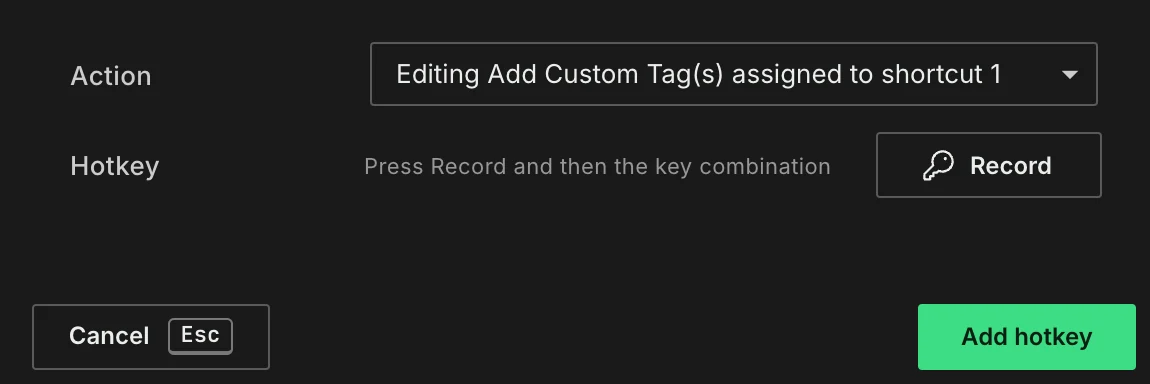
An action can have more than one hotkey. Click Add hotkey in the hotkey settings, pick the action (type to search the list), click Record and press the key combination. Extra hotkeys are shown below the action they belong to, with a cross to remove just that hotkey.
Media keys
You can control the music player with the play/pause, next and previous keys on your keyboard by turning on Enable keyboard media keys in the settings under Music Player. It is off by default. While a track is loaded in Lexicon, the media keys do not work in other applications.
On macOS, media keys only reach Lexicon when it has the Accessibility permission. When you turn the setting on without it, Lexicon opens the Accessibility settings for you. Allow Lexicon under Privacy & Security ➡ Accessibility in System Settings, then restart Lexicon.
Global Hotkeys
You can change hotkeys to be global (system wide) so they work anywhere, even if you can't see Lexicon. This is perfect to listen to your music while doing something else. You can even beat jump without seeing the track, perfect to go through tracks quickly.
Global hotkeys do not perform their original function anymore, so it's best to set up global hotkeys with modifiers that you don't use often.
Mouse shortcuts
You can double-click on the waveform to go there. This makes setting cues easier than dragging a waveform to that position.
You can SHIFT click on a cue to move that cue to the current (quantized) position.
You can CTRL click to delete a cue.
You can hold the SHIFT button to drag the waveform extra slow. This is useful if you need that extra precision.
While you drag the zoom waveform, you hear the track speed up, slow down and play backwards, like moving a record on a turntable. You can turn this off with Scratch audio while dragging in the settings under Music Player.