
Library Organization
Creating playlists and smartlists
Playlists live in the sidebar. Click Show Playlists in the bottom left corner to display them. If you imported your library from a DJ app, your existing playlists appear here automatically. You can create a new playlist by right-clicking the playlists panel and choosing New playlist, or create one while selecting tracks with New playlist & add tracks. Dragging tracks from one playlist to another or dragging files from your file manager will add them to that playlist without duplicating the file.
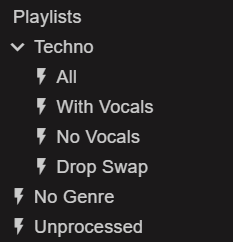
Smartlists (also called intelligent playlists or smart crates) let you build dynamic playlists based on rules. Right-click the playlist panel and choose New smartlist. Smartlists populate automatically whenever new tracks meet their rules. You can set as many rules as you like and link them with AND/OR clauses for flexibility. If a DJ app does not support certain smartlist rules, Lexicon will convert the smartlist to a normal playlist during sync.
Smartlists are dynamic, rule-based playlists in Lexicon that automatically keep themselves up to date as your library changes. Create one by right‑clicking any playlist and choosing to add a new playlist or smartlist. You can add any number of rules (no limit) and choose whether tracks must match Any Rule or All Rules. Note that archived tracks won’t appear in a smartlist unless you specifically add a rule to include them.
Smartlists support OR clauses (which only work when the smartlist is set to All Rules) to build flexible queries - for example (Genre = "House" OR Genre = "Techno") AND (Rating = 3). Smartlists import from DJ apps automatically but only during a Full Import. Because DJ apps differ in what rules they support, Lexicon will convert smartlists to normal playlists in target apps when needed.
Smartlists are evaluated when you open them and refresh at most once every 30 seconds, so newly added tracks can take up to ~30s to appear and you’ll see a loading indicator while the list updates.
Here are a few smartlist ideas to get started with:
Find tracks you've never played
Use Plays = 0 + Date Added - Not in the last to surface all tracks that haven't been played before a chosen date. Make sure to set Match - All Rules to have both rules followed.
Find tracks that need to be analyzed
Use Analyzed - Is false to find tracks that you haven't analyzed yet.
Keep tabs on new music
Use Date Added - In the last to auto-update a smartlist with the newest tracks in your collection based on a timeframe you choose.
Find tracks with missing cue points
Set Cue Points = 0 to create a list of tracks that still need to have cue points added.