
Adding tracks to Lexicon
There are three primary ways to add music to your Lexicon library:
Drag & drop: Simply drag files from your computer into the Lexicon interface and they are imported.
Import from DJ apps: If you already have playlists, cue points and other metadata in a DJ app, importing brings those tracks and playlists into Lexicon without your hard work. You can even merge multiple libraries from different DJ apps.
Watch folder: Set a folder (for example your downloads folder) as a watch folder and Lexicon will automatically import any new music placed there.
We recommend starting with the first two methods and focus on the Watch Folder and the powerful extras it has in a later lesson.
Preparing tracks
Lexicon's music player lets you prepare your music just like you would in a DJ app.

- Beatgrids: Use the Edit Grid button to create or adjust beatgrids. If a track doesn't have a beatgrid, Lexicon analyses it automatically and builds one.

- Cue points and loops: Add or delete cues while a track plays. Right-click a cue point to set a colour, name or convert it to a loop. Active loops engage automatically during playback and can be sent to DJ apps that support them.
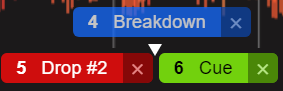
- Drag & move cues: You can drag cues to rearrange them or hold Shift and click to move a cue to the current play position.
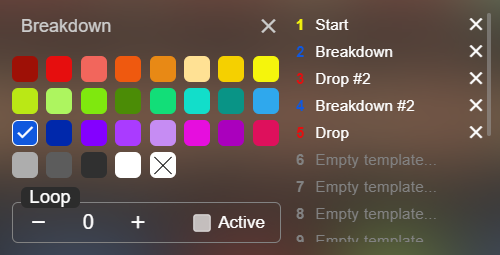
- Cue templates: Lexicon allows you to create cue templates with preset colours and names to speed up your workflow. You don't need to type the same thing for every track. Tip: Hotkeys can speed this up even further!
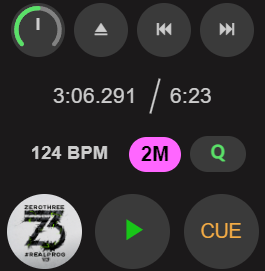
- Quantize: Quantize ensures your cues snap to the beatgrid, you can toggle it with the
Qbutton in the music player controls.