
Dashboard
The Dashboard is the first page you see when Lexicon starts. You can open it again with the home icon at the top of the left sidebar, or with
Go➡Dashboardin the top menu bar
The Dashboard gives you a quick overview of what needs doing in your library, what DJs are playing right now, and new videos and mixes from Lexicon. You can also give it a hotkey in the Hotkeys settings (Dashboard).
The left side has the Needs attention panel at the top, Tutorials below it, and at the bottom the Featured mix with the Earn free Lexicon card beside it. The right side is the Trends card, which runs the full height of the page. The panels adjust to the size of the window. In a smaller window the Featured mix and the Earn free Lexicon card each shrink to a single row. When only a few things need attention, the Needs attention panel gets smaller and the panels below it get more room.
Most panels are loaded from the internet. When you are offline, the Dashboard shows what it loaded last time. A panel that has nothing from an earlier visit says it could not reach the Lexicon server.
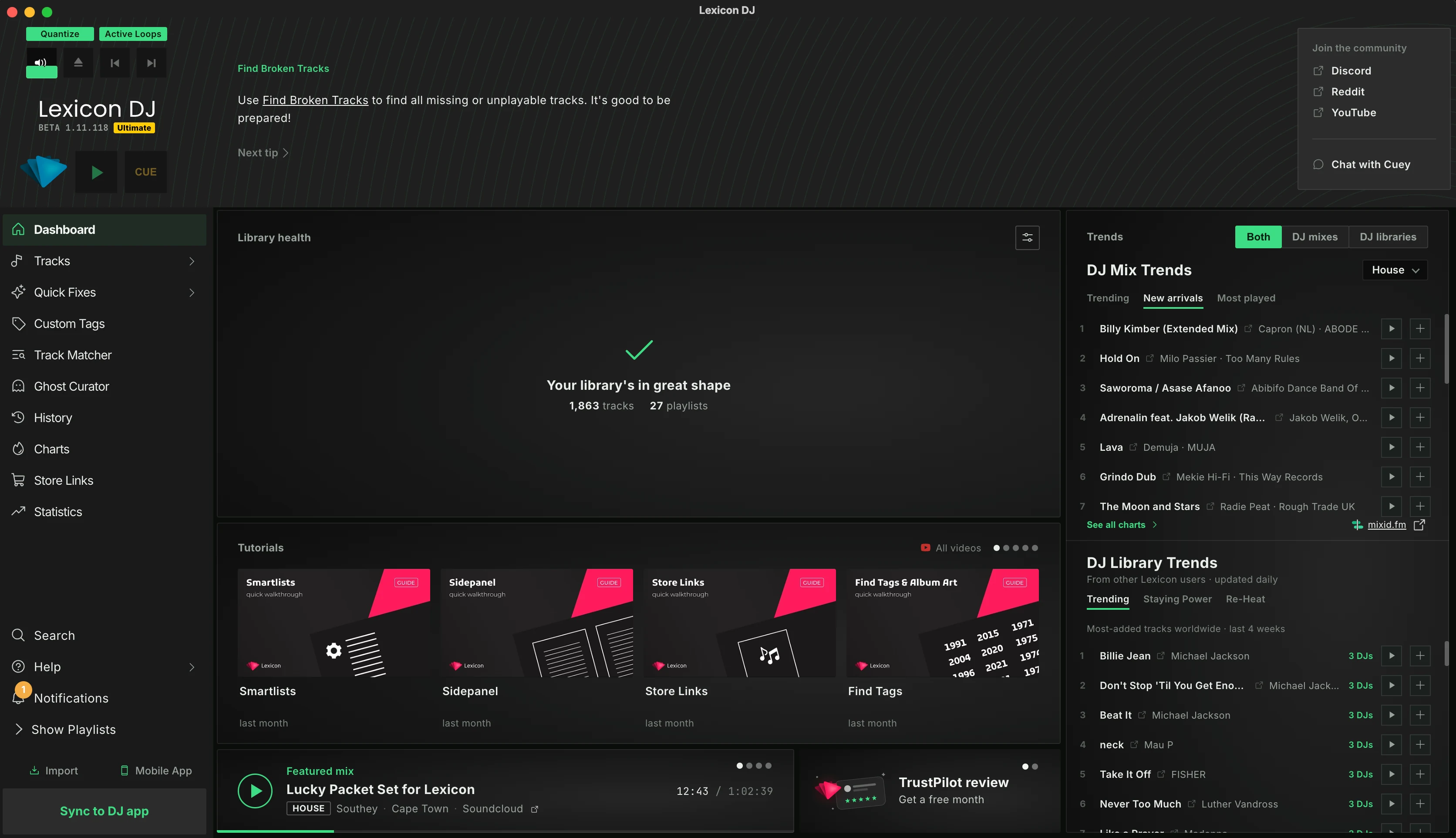
Needs attention
The top left panel checks your library and lists everything that could use your attention, one row per item. Each row has a button that fixes it or takes you to the right place. Once you have used that button, the row goes away.
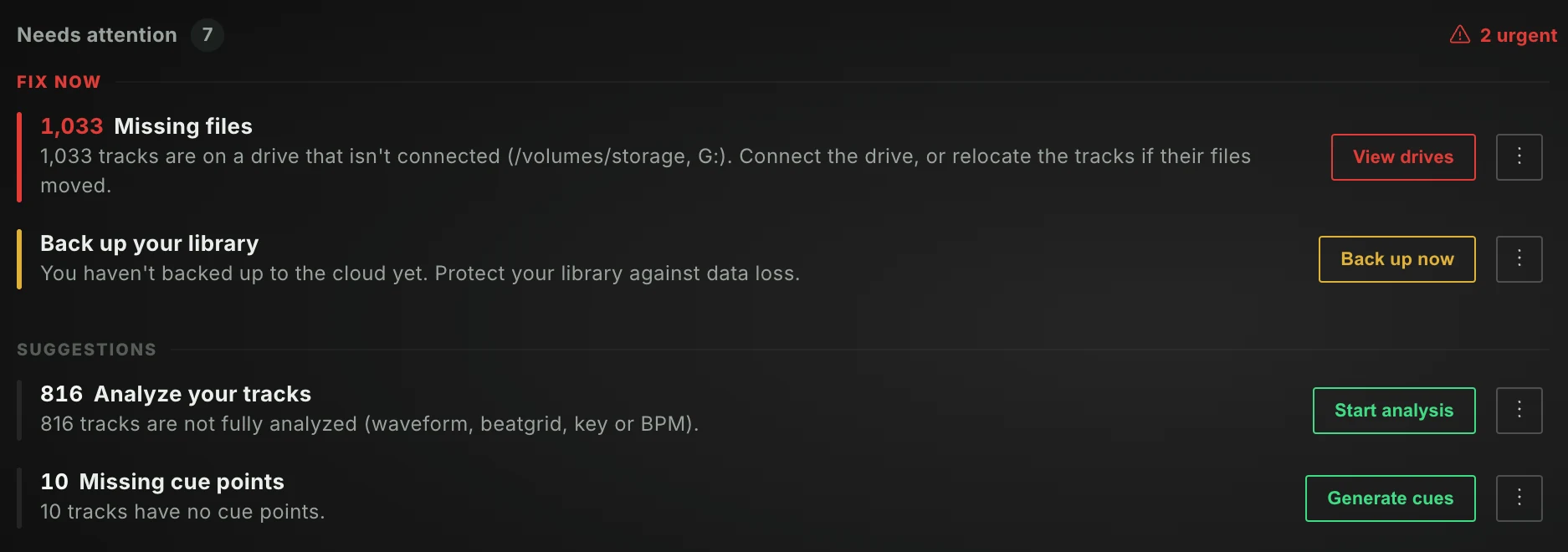
The rows are split into two groups:
Fix now: missing files and an overdue backup. The panel heading shows how many urgent items there are.Suggestions: everything else.
These are the rows Lexicon can show, in order of importance:
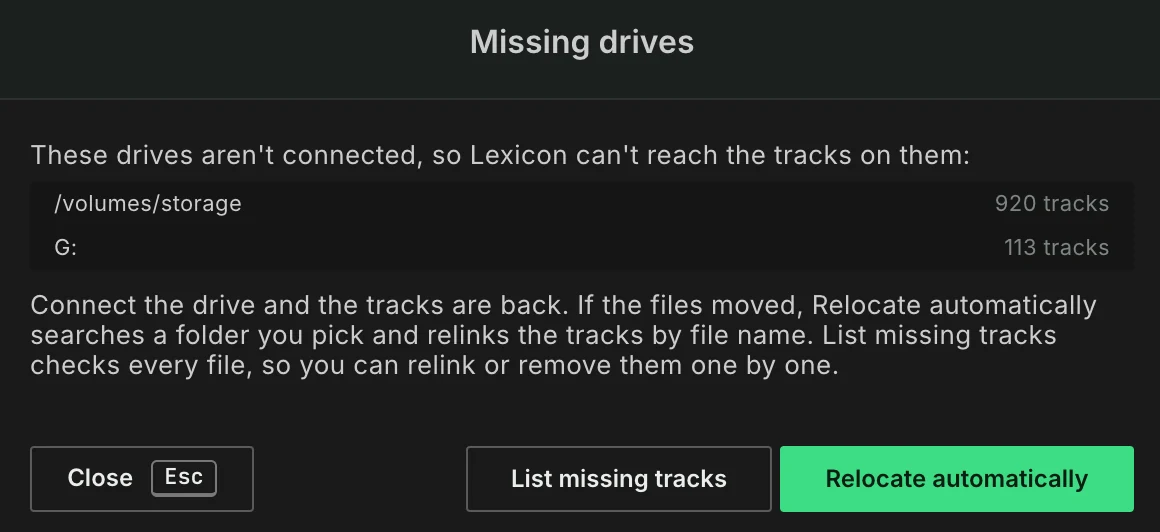
- Missing files: tracks on a drive that isn't connected.
View driveslists each missing drive with the number of tracks on it. Connect the drive and the tracks are back. If the files moved,Relocate automaticallysearches a folder you pick and relinks the tracks by file name, see Find Lost Tracks / Relocate.List missing tracksruns a scan for missing files so you can relink or remove them one by one, see Find Broken Tracks. - Back up your library: you have never made a cloud backup, or your last one is 7 days or older.
Back up nowopens the Cloud Database Backup, see Database Backup. - Analyze your tracks: tracks without a waveform, beatgrid, key or BPM.
Start analysisasks you to confirm first, see below. - Missing cue points: tracks without cue points.
Generate cuesasks you to confirm first, see below. - New tracks to import: new files waiting in your watch folder.
Review filesopens the Incoming page, see Watch Folder & Incoming Tracks. - Clean up track tags: Smart Fixes found tracks to fix.
Review fixesopens Smart Fixes. On libraries with more than 20,000 tracks this scan does not run by itself; clickRun scanto start it. - Empty playlists: playlists without tracks.
Reviewshows a list of them. ClickViewnext to a playlist to open it, orDeleteto delete all of them. - Tidy up genres: your library has 40 or more different genres.
Genre cleanupopens Genre Cleanup.
A row only shows up when your plan includes the tool it points to. The analysis and cue point rows only count tracks the Analyzer or Cue Point Generator can work on, so tracks on a drive that isn't connected are left out.
Click the three dots at the end of a row (More options) to hide it:
Snooze for 7 dayshides the row for 7 days.Don't show againhides the row for good.
To bring back everything you snoozed or dismissed, use Dismissed dashboard items in the settings, see Lexicon Settings.
Starting analysis or cue generation
Analysis and cue generation can run on thousands of tracks, so they never start with a single click. Lexicon first asks you to confirm:
Startruns it right away. Analysis uses your last used analysis settings and always keeps existing values (it won't overwrite a beatgrid or key you already have). Cue generation uses your last used cue point template.Openopens the full Analyzer or Cue Point Generator dialog, so you can check the settings first.- Cancel does nothing and leaves the row where it is.
Library health
When there is nothing to do, the panel is called Library health and says your library is in great shape. By default it shows how many tracks and playlists you have, and how many tracks you added this week.
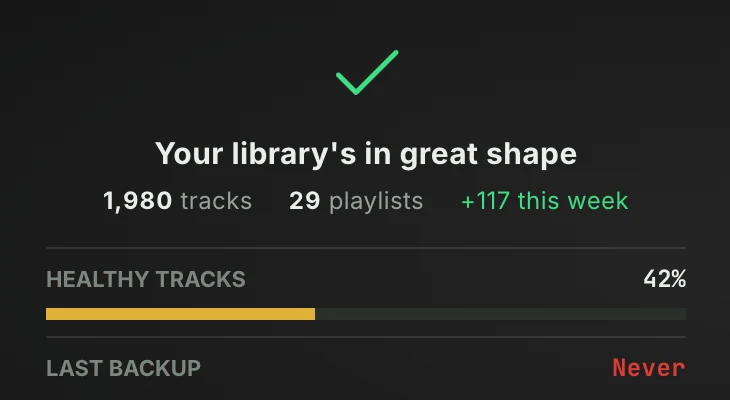
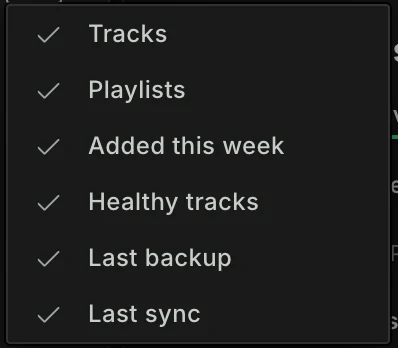
Click the sliders button next to the title (Choose what to show) to pick what the panel shows. Click an item to turn it on or off:
Tracks,PlaylistsandAdded this week.Healthy tracks: the share of tracks that have every field picked for Healthy Tracks on the Statistics page. Click it to open Statistics, where you can change those fields. Only available when your plan includes Statistics.Last backup: when you last made a cloud backup, orNever. It is green up to 3 days ago, orange up to 7 days ago and red after that.Last sync: the DJ app you last synced to, and when. Only shown once you have synced.
On the Free plan
On the Free plan the panel does not check your library. It is called Library health and explains what it does on a paid plan: it lists tracks that aren't analyzed or have no cue points, messy tags, new files to import and overdue backups, most with a one-click fix. Upgrade opens Plans & Pricing in the settings.
Trends
The right side of the Dashboard is the Trends card. Use the switch at the top to pick what it shows:
Both: DJ Mix Trends at the top and the chart below it. This is what you see the first time.DJ mixes: only DJ Mix Trends.DJ libraries: only the chart. When the chart is the Beatport Top 100, this option is calledBeatport Top 100.
Lexicon remembers your choice, and also the tab you last picked in each list, after a restart.
Track rows
DJ Mix Trends, DJ Library Trends and the Beatport Top 100 all list tracks the same way. Each row shows the track's position, title and artist, and has these buttons:
- The link icon next to the title opens the track's page on MixID or Beatport in your browser.
- The play button plays a preview in the music player, with the other rows queued after it. Previews you have played are greyed out, also when you played them on the Charts or Beatport page.
- The plus button saves the track to your library as a streaming track and adds it to a playlist in the Lexicon folder. A saved track shows a check mark. See Streaming Tracks.
A button is greyed out when a track has no preview or can't be saved. Saving needs a paid plan: on the Free plan the plus button is greyed out, but you can still play previews.
The first time you save a track, Lexicon tells you which playlist it went to. Click Jump to playlist to open it.
DJ Mix Trends
This list shows what DJs are actually playing in their mixes, based on the DJ mixes collected by MixID. It has three tabs:
TrendingNew arrivalsMost played
Use the genre button next to the title to show only one genre, or All genres. Lexicon remembers the genre you picked.
Saved tracks come from Beatport where possible, otherwise Spotify, Tidal, Apple Music or SoundCloud, and go into a MixID Trends playlist.
Click See all charts to open the full MixID chart on the Charts page, on the same tab and genre.
DJ Library Trends
The chart below DJ Mix Trends is either DJ Library Trends or the Beatport Top 100. Which one you see is decided by Lexicon. DJ Library Trends are charts built from the libraries of Lexicon users who share their library data. It has three tabs, each covering the last 4 weeks:
Trending: the tracks added the most worldwide.Staying Power: the most played tracks.Re-Heat: older tracks that DJs are adding again.
Each row shows how many DJs it is based on. Saved tracks are Beatport streaming tracks and go into a Real DJ Trends playlist. Only tracks that were found on Beatport can be saved.
On the Free plan the chart is always unlocked, because syncing on the Free plan shares your library. On a paid plan you need to share your own library data to see it. Until you do, the chart shows an Enable sharing button, which explains what is shared and asks you to confirm with Share & unlock. Turning on Share library for DJ insights in the settings unlocks it too. See Sharing your library for DJ Library Trends below.
Beatport Top 100
The Beatport Top 100 for a few genres, one tab per genre. Saved tracks are Beatport streaming tracks and go into a Beatport Top 100 playlist.
Featured mix
A DJ mix picked by the Lexicon team. The full card shows the mix title, the genre, the artist's name, location and since when they are active, a link to where the mix is posted (SoundCloud, Mixcloud or YouTube), links to the artist's profiles, a description and a waveform. A mix added in the last week has a New badge until you play it. Use the dots in the top right corner, or drag sideways with the mouse, to page through other recent mixes.
- Click the play button to play the mix inside Lexicon, in the music player. Click it again to pause. A mix that isn't hosted by Lexicon opens in your browser instead.
- Lexicon remembers how far you got. The part you have heard is shown in green on the waveform, and playing the mix again picks up where you left off.
In a smaller window the Featured mix is a single row with the play button, the title and the artist. The description, the artist's links and Submit your mix only show on the full card, so make the window larger to see them.
Submit your mix
Want your own mix featured? Click Submit your mix on the right of the full Featured mix card. Submitting a mix needs the Essential or Ultimate plan. Before you submit:
- Add "Lexicon DJ" to the title of your mix on SoundCloud, Mixcloud or YouTube.
- Provide at least one SoundCloud, Mixcloud or YouTube link to the mix, and the mix file itself. The mix must be at least 30 minutes long (WAV, MP3, FLAC or M4A).
The form also asks for the mix title, genre, your DJ / artist name and since when you are active, and optionally your city and your SoundCloud, Mixcloud, YouTube, Instagram and TikTok profiles. Your country comes from your account and can't be changed here. Your submission is reviewed by the Lexicon team.
The artist details you enter here are saved to your Lexicon artist profile. You can also change them later in the settings, on the Account tab under Artist profile.
Resources
A set of cards with links picked by the Lexicon team, shown above the Earn free Lexicon card. Click the button on a card to open it in your browser. Use the dots or drag sideways with the mouse to see the other cards. Resources only show when there are any and the window is wide enough for them next to the full Featured mix.
Tutorials
Video tutorials from the Lexicon YouTube channel. Each tutorial shows its length and how long ago it was published, and a tutorial added in the last week has a New badge. Click a tutorial to watch it in your browser. Use the dots next to the title (or drag sideways with the mouse) to see more, or click All videos to open the YouTube channel.
Earn free Lexicon
The card beside the Featured mix shows the ways you can earn free months of Lexicon, one at a time. Use the dots to switch. Each card has a button that opens the details. When the card is a single row, click the card itself.
TrustPilot review: clickWrite a review, leave a review on TrustPilot and earn a free month. This card goes away once you have received that month.Refer a friend: clickInvite Friendand enter your friend's email address. Your friend gets a discount, and you get a free month for every friend who buys Lexicon.
Tracks sent from MixID
On the MixID website you can send a tracklist to Lexicon with Load into Lexicon DJ. Lexicon then asks what you want to do with the tracks:
Create new playlist: adds the tracks to your library as streaming tracks (from Beatport where possible) and puts them in a new playlist in the Lexicon folder. Tracks that are already in your library as streaming tracks are reused. Tracks without a streaming version are skipped.Load into Track Matcher: finds the tracks in your library, useful when you already have them. See Track Matcher.Load into Store Links: useful when you don't have the tracks yet and want to buy them. See Store Links.
Sharing your library for DJ Library Trends
DJ Library Trends are built from library data shared by Lexicon users. Sharing is off by default.
What is shared: for each track in your library (archived tracks excluded) the artist and title, and where set the BPM, duration, key, energy, danceability, happiness, popularity, genre, date added, play count, last played date, and for streaming tracks the streaming service and its track id. Also your genre tags, which tracks are in each regular playlist and in what order, and the artist and title of the tracks in your history sessions.
What is not shared: your music files, file paths, playlist names, smartlists, cue points, beatgrids, waveforms, album art and tags that aren't genre tags.
When it is sent: at most once a day, and never while you are logged out or offline. Importing a library sends nothing.
- On the Free plan, Lexicon sends it right before you sync to a DJ app. If that can't happen at the time, for example because you sync to a USB drive without an internet connection, Lexicon sends it once you are back online.
- On a paid plan, Lexicon sends it in the background: right after you turn sharing on, and otherwise once a day while Lexicon is open.
Who is asked:
- On the Free plan, Lexicon asks when you start a sync to a DJ app, until you agree. Click
Sync & shareto share and sync. If you cancel, the sync doesn't start. - On a paid plan you are not asked when syncing, so sharing stays off unless you turn it on yourself.
- On a paid plan you can also turn it on with
Enable sharingon the Dashboard. On the Free plan that button is not shown.
Changing it: on a paid plan, open the settings (Lexicon DJ ➡ Settings in the top menu bar) and use Share library for DJ insights on the General tab, under Other. Turning it off stops Lexicon from sending your library data. On the Free plan this option is always on and can't be changed, because sharing comes with syncing. Agreeing on the Free plan doesn't carry over when you upgrade: on a paid plan nothing is shared until you turn the option on.