
Local API
Settings ➡
Local API(Essential and Ultimate)
The Local API lets other apps talk to Lexicon: the Stream Deck plugin, tools other people build, and your own scripts. They can read and change your library and run the same commands you can bind to a hotkey. Developers can find every endpoint in the developer documentation.
The Local API has its own page in the settings. In Lexicon 1.11 it was part of Integrations.
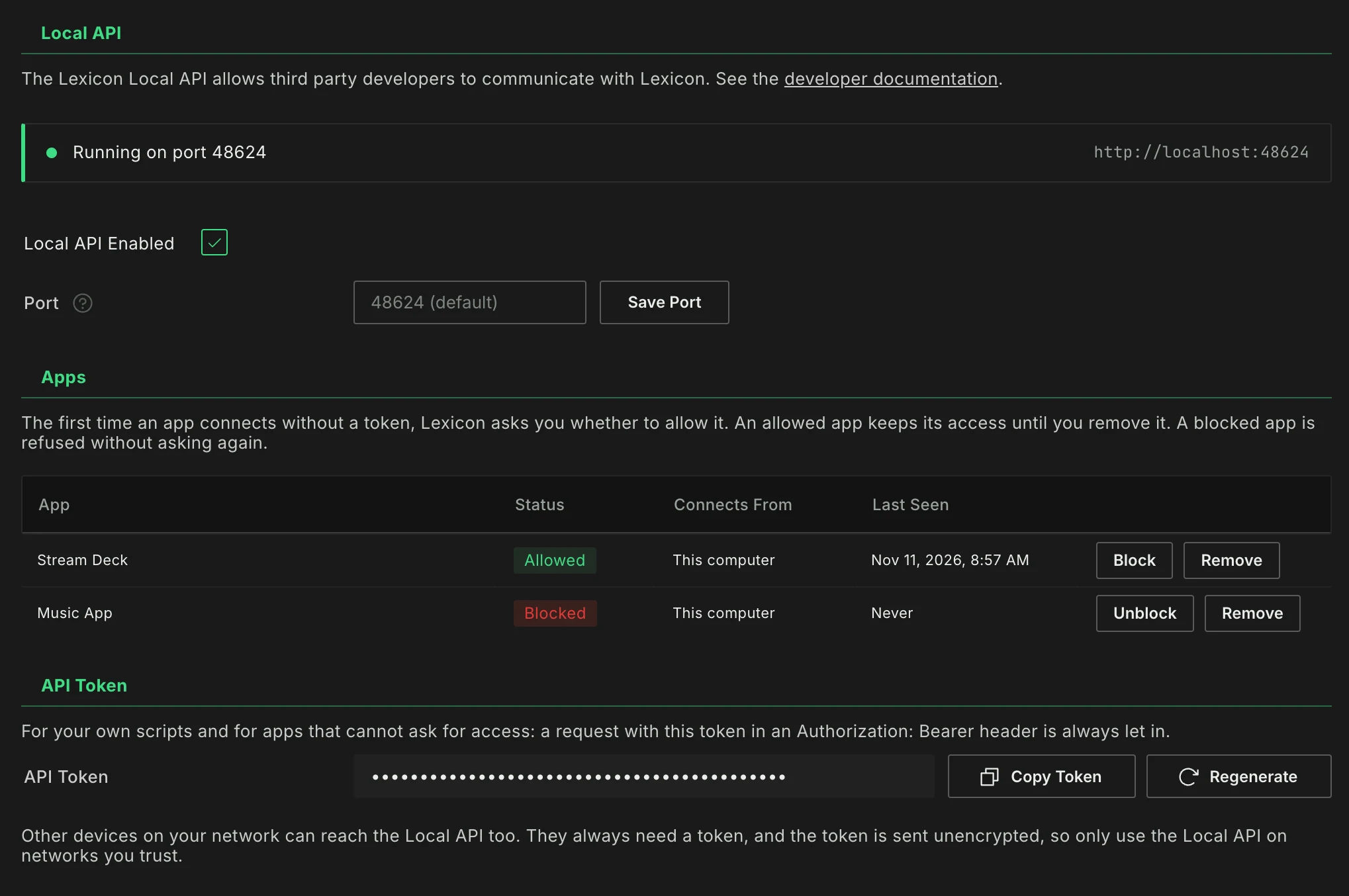
Status
The bar at the top of the page always shows what the Local API is doing:
- Running on port 48624: apps can connect. On this computer, the address is
http://localhost:48624. - Not running: the Local API is switched off. The bar shows the port apps will connect on once you switch it on.
- Could not start: another program is using port 48624: some other program on your computer already uses that port. Pick another port (see Port).
- Not included in your plan: the Local API needs Essential or Ultimate.
Turning it on
Tick Local API Enabled. It is off by default. The other settings on the page only show while it is on.
Allowing and blocking apps
The first time an app connects, Lexicon asks you whether it may use the Local API. The popup names the app and says whether it runs on this computer or on another device on your network, with that device's address.
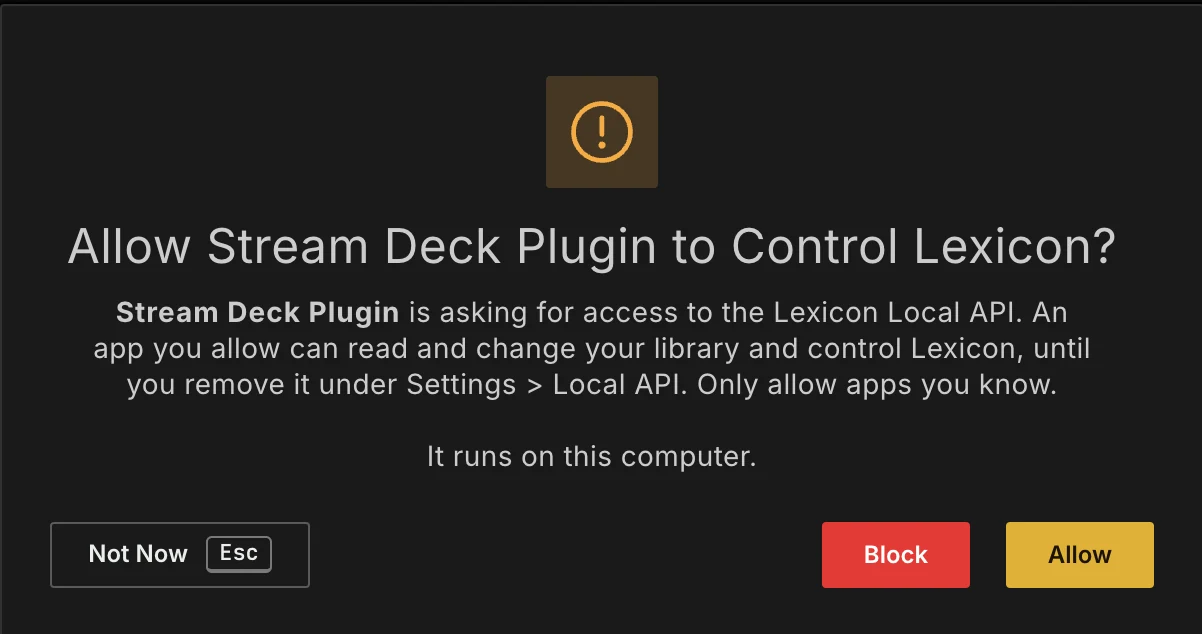
Allow: the app is let in, now and from then on. Lexicon gives it its own key (a token) to use from then on.Block: the app is refused, and Lexicon won't ask about it again.Not Now(or closing the popup): the app is refused this time. It can ask again after a minute.
Only allow apps you know. An app you allow can read and change your library and control Lexicon.
Lexicon shows one popup at a time. If an app keeps trying while the popup is open, you still see one popup for it.
The list of apps
Every app you allowed or blocked is listed under Apps, with its status, where it last connected from (This computer or a network address) and when Lexicon last saw it.
Blocktakes away an app's access. Lexicon refuses it from then on, key and all, without asking.Unblockallows a blocked app again, with the access it had before. An app you blocked straight from the popup is let in from then on if it runs on this computer; an app on another device asks you once more, to get its key.Removeforgets an app, allowed or blocked. Its key stops working, and the next time it connects, Lexicon asks you again.
Apps on other devices
An app on another device, such as a phone or a second computer on the same network, is asked about too. Once you allow it, it has to send the key Lexicon gave it. Lexicon doesn't let apps on other devices in by their name alone, because anything on the network could give that name.
Lexicon never asks twice about an app that is already in the list. Something that gives the name of an allowed app without its key is refused, so a second popup can't trick you into handing the key to something else. If an app lost its key, Remove it from the list; the next time it connects, Lexicon asks you again.
Web pages
A web page open in your browser can't ask for access, and Lexicon never shows a popup for one. A web page can only use the Local API with the API token (see below).
API token
For your own scripts, and for apps that can't ask for access, use the API Token. A request that sends it in an Authorization: Bearer header is always let in, from this computer or from the network. Copy Token copies it.
Regenerate replaces the token. Anything that used the old token is refused from its next request on, so give it the new token.
Port
Apps connect on port 48624 by default. To use another port, enter a number from 1024 to 65535 under Port and click Save Port. Lexicon warns you first: apps that don't know about the new port, such as the Stream Deck plugin, stop working until you set the same port in them. To go back to the default port, empty the field and click Save Port.
Change the port if another program already uses 48624.
Using the Local API safely
The Local API can also be reached from other devices on your network, such as anything on the same Wi-Fi. They always need a key or the API token, but these are sent unencrypted, so someone listening in on the network could read them. Only use the Local API on networks you trust, and switch it off when you don't need it, especially on shared networks such as at a venue, hotel or festival.