
Lexicon 1.12 is here, and it might be the biggest release yet. Almost 1,400 commits and six months of development went into this one. It's headlined by a complete redesign, a new Dashboard, Ghost Curator to help you pick your next track, beatgrids that finally follow tempo changes, and a Lexicon that now runs on Linux. Let's go through it.
A Fresh New Look
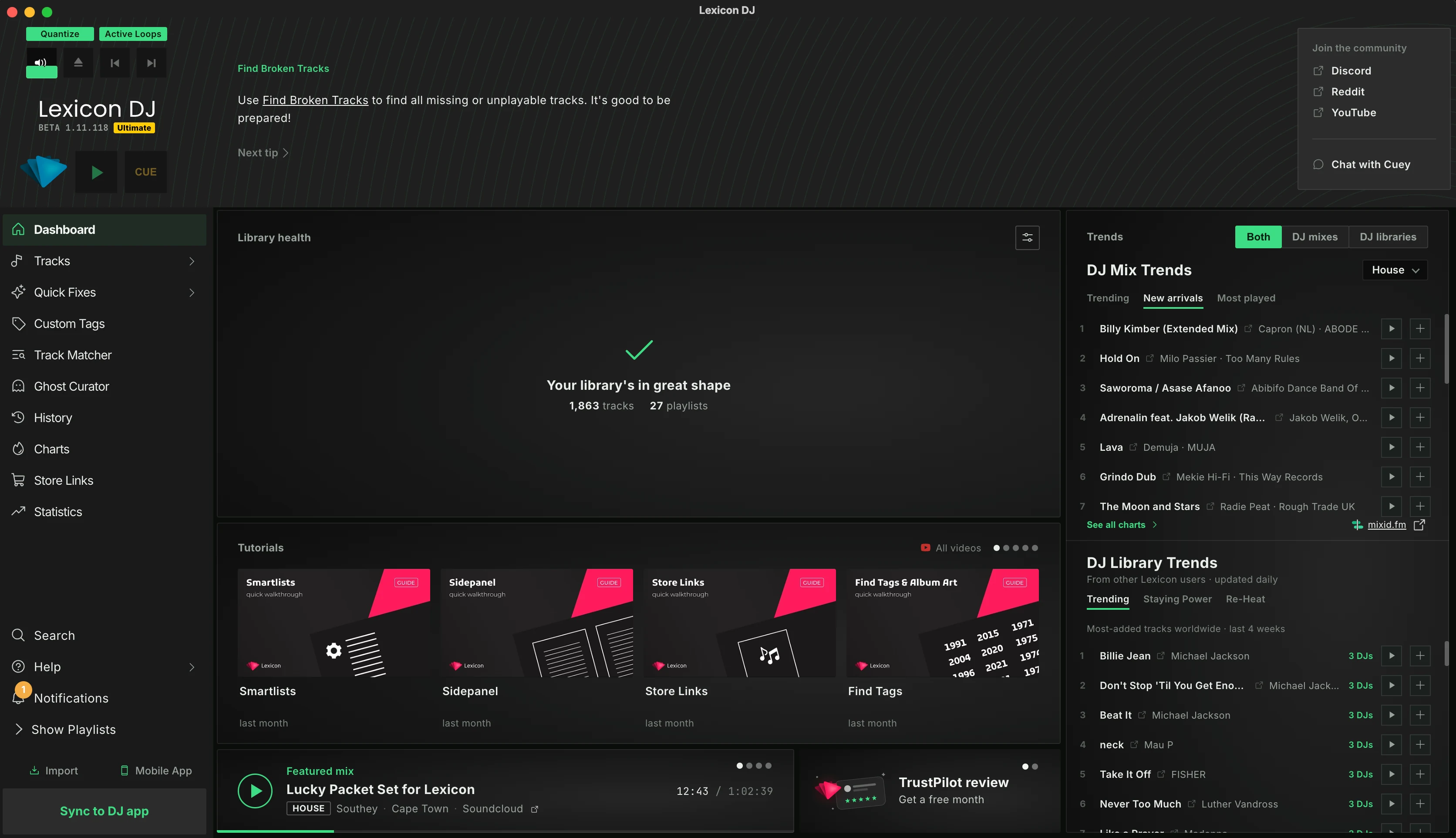
The first thing you'll notice is that Lexicon looks different. New fonts, new colors, new icons, and redesigned dialogs and controls across the whole app.
Most feature pages now also have a small guide on the side. It explains in a few steps what the page does and how to use it, with a link to the full manual. You can hide it once you know your way around.
Dashboard
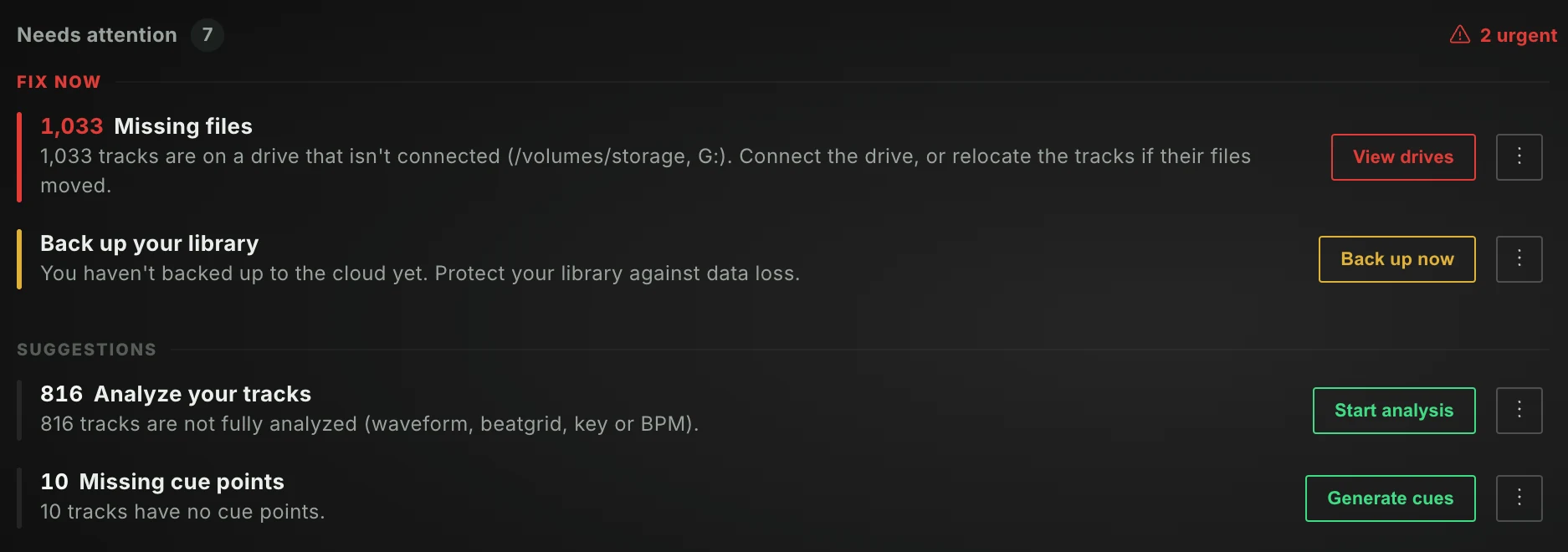
Lexicon now opens on a Dashboard. It checks your library and lists what could use your attention: tracks on a drive that isn't connected, tracks without a beatgrid or cue points, messy tags, new files in your watch folder, or a backup that is overdue. Most of them come with a one-click fix.
The Dashboard also shows what DJs are playing right now. DJ Mix Trends come from the sets on MixID, and DJ Library Trends from the libraries other Lexicon DJs share. Your data isn't shared unless you allow it.
Ghost Curator
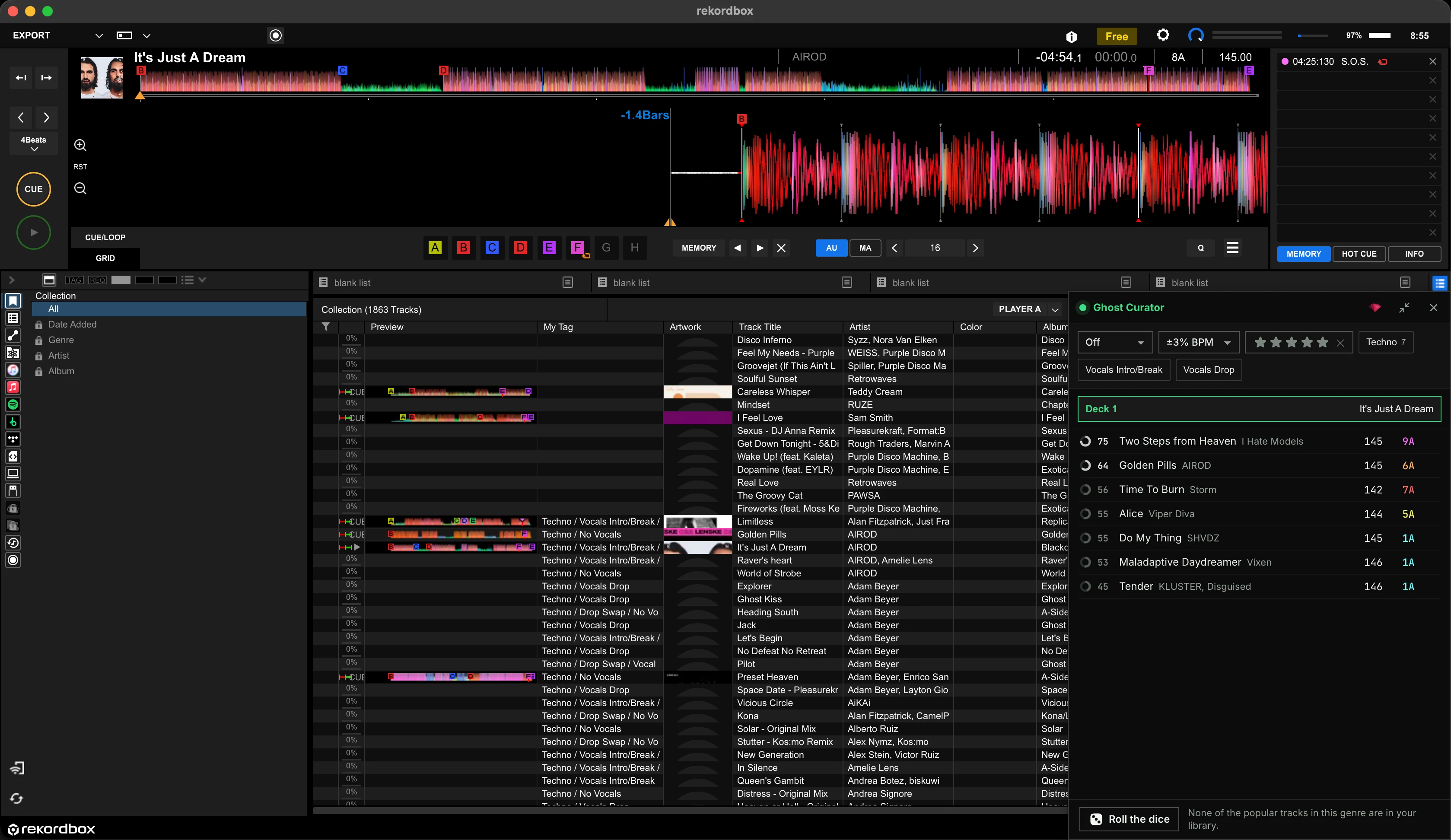
Mixable Tracks grew up and got a new name. Ghost Curator tells you what to play next. Give it the track that's playing and it ranks your library by what mixes best with it: right key, right BPM, right energy, and your own rules. Every suggestion gets a score, so you can see why it fits.
Switch to DJ picks and it also suggests the tracks other DJs actually play after that track, based on DJ sets on MixID and the playlists Lexicon DJs share.
The best part: Ghost Curator can follow your DJ app while you play. It works with Rekordbox 6 and 7, djay Pro 5 and VirtualDJ on macOS, and Serato DJ Pro on macOS and Windows. Load a track in your DJ app and the suggestions change with it. A small overlay floats on top of your DJ app, so you can drag the next track straight onto a deck without switching back to Lexicon.
- Roll the dice for a surprising pick that still fits
- Quick filters for key matching, BPM range, energy direction, rating and Custom Tags
- Use a suggestion as the next track and keep chaining
Finding mixable tracks from a track is included in Essential, following your DJ app and the overlay are part of Ultimate.
Fluid Beatgrids
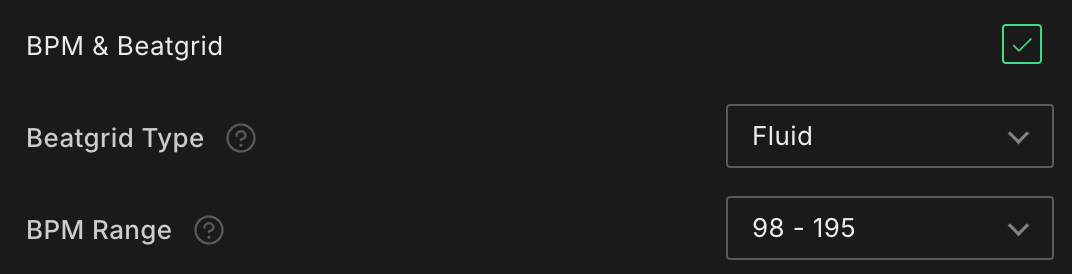
Not every track has a steady tempo. Old vinyl rips, live drummers, edits that switch from 100 to 140 BPM: a static beatgrid can't follow those. Fluid beatgrids can. They put a marker on every beat, so the grid follows tempo changes and drifting tempo exactly.
Pick the Beatgrid Type when you analyze: Static, Fluid, or Auto, which picks the right one for each track. Fluid beatgrids are also imported from and synced to the DJ apps that support them.

The overview waveform in the music player now also marks where the tempo changes in a track, so you see them before you get there.
Lexicon on Linux
Lexicon now runs on Linux. It's the full app, not a light version. There's a .deb for Ubuntu 22.04 and Debian 12 or newer, and an .rpm for Fedora, openSUSE and RHEL 10. With the .deb, new versions arrive with your normal system updates.
DJ apps don't run on Linux, but you can still sync to a Pioneer USB drive, to Engine DJ on a USB drive, and save Rekordbox or iTunes XML files. See Lexicon on Linux for the details.
Serato DJ 5
Lexicon fully supports Serato DJ Pro 5, including its new beatgrids with tempo changes and cue loops. Syncing to Serato now updates your Serato 4 and 5 library and your Serato 3 crates in one go, so you no longer have to pick one.
Multiple Libraries
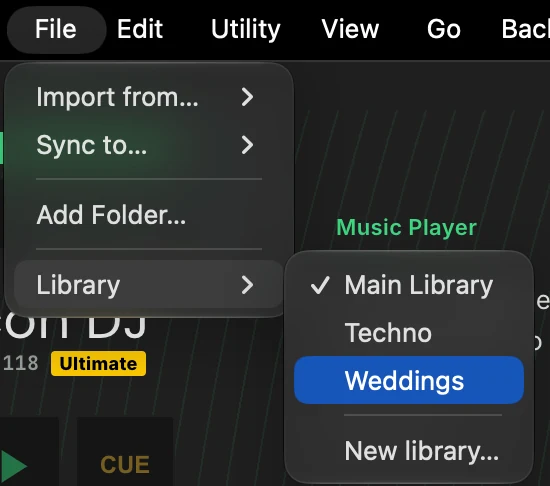
You can now keep several separate libraries and switch between them from File -> Library. Keep one per genre, one for weddings, or one to try things out without touching your real library. Your settings and hotkeys follow you. Turn it on with Multiple libraries in the settings.
DeckConnect

Direct2CDJ has a new name: DeckConnect. It still connects Lexicon to your CDJs and XDJs over the network, so you can load tracks straight onto the players without a USB drive. Your players now show up in a deck bar below the music player, where you can drag a track onto a deck. Players that can show album art now show it too. Read more on the DeckConnect page.
Sync and Import in One Window
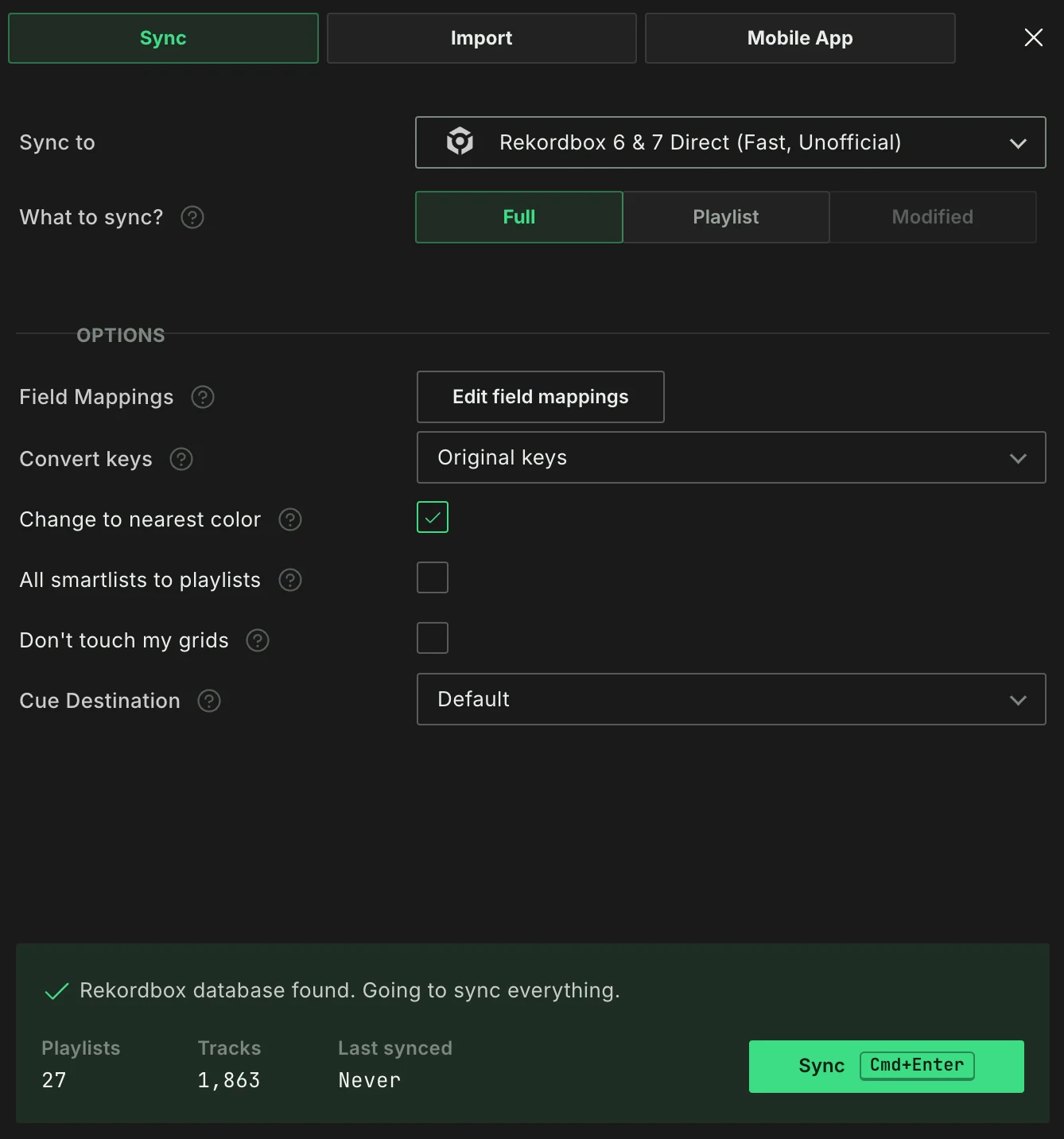
Sync, Import and the mobile app sync now live in one window with three tabs. Click Sync to DJ app at the bottom of the sidebar, pick your DJ app, and a summary card tells you exactly what's about to happen. For Pioneer USB there's a new Modified sync and import that only carries over what changed, like ratings, cues and play counts from the players.
Store Links, Rebuilt
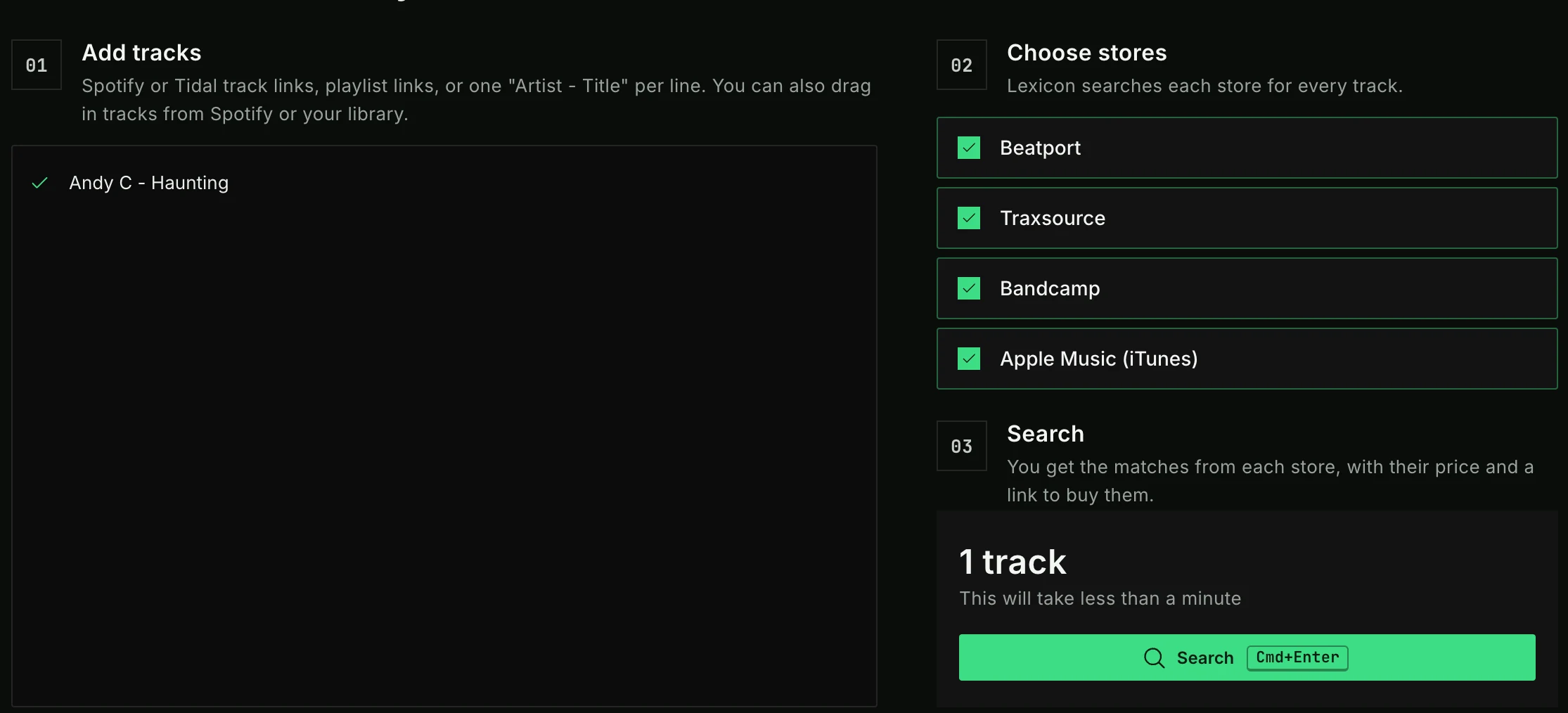
Store Links got a complete rebuild. Paste a list of tracks, or a Spotify or Tidal playlist link, pick the stores and hit search. You get the matches from every store side by side, with the cheapest price in green.
Review Your Tags Before Saving
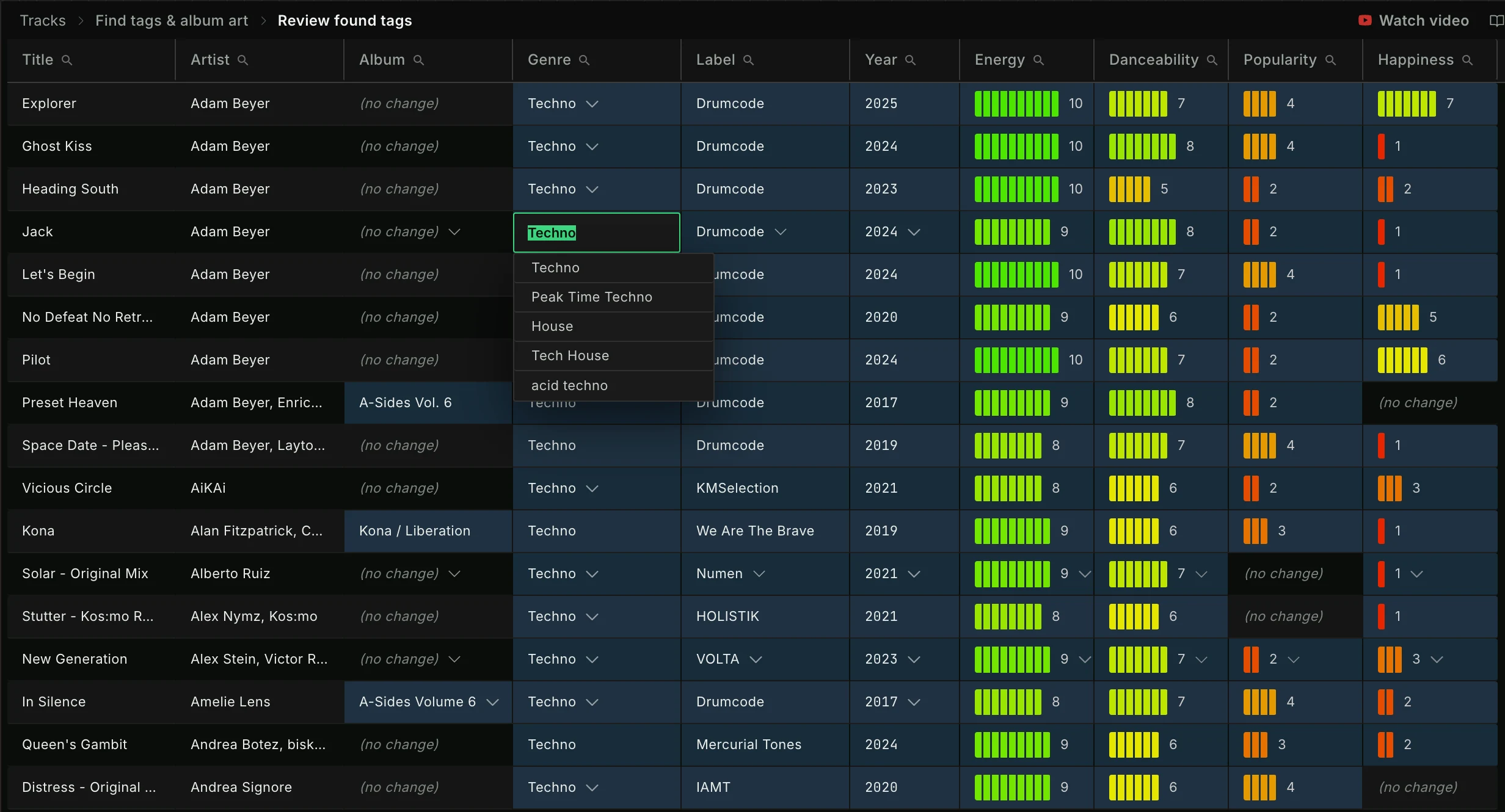
Find Tags & Album Art has a new Interactive mode. Instead of writing everything right away, it shows all the tags it found in a table. Pick a different genre, keep what you like, and only then save. You can also choose the data source now: SonoVault or Beatport.
Smarter Cleanup
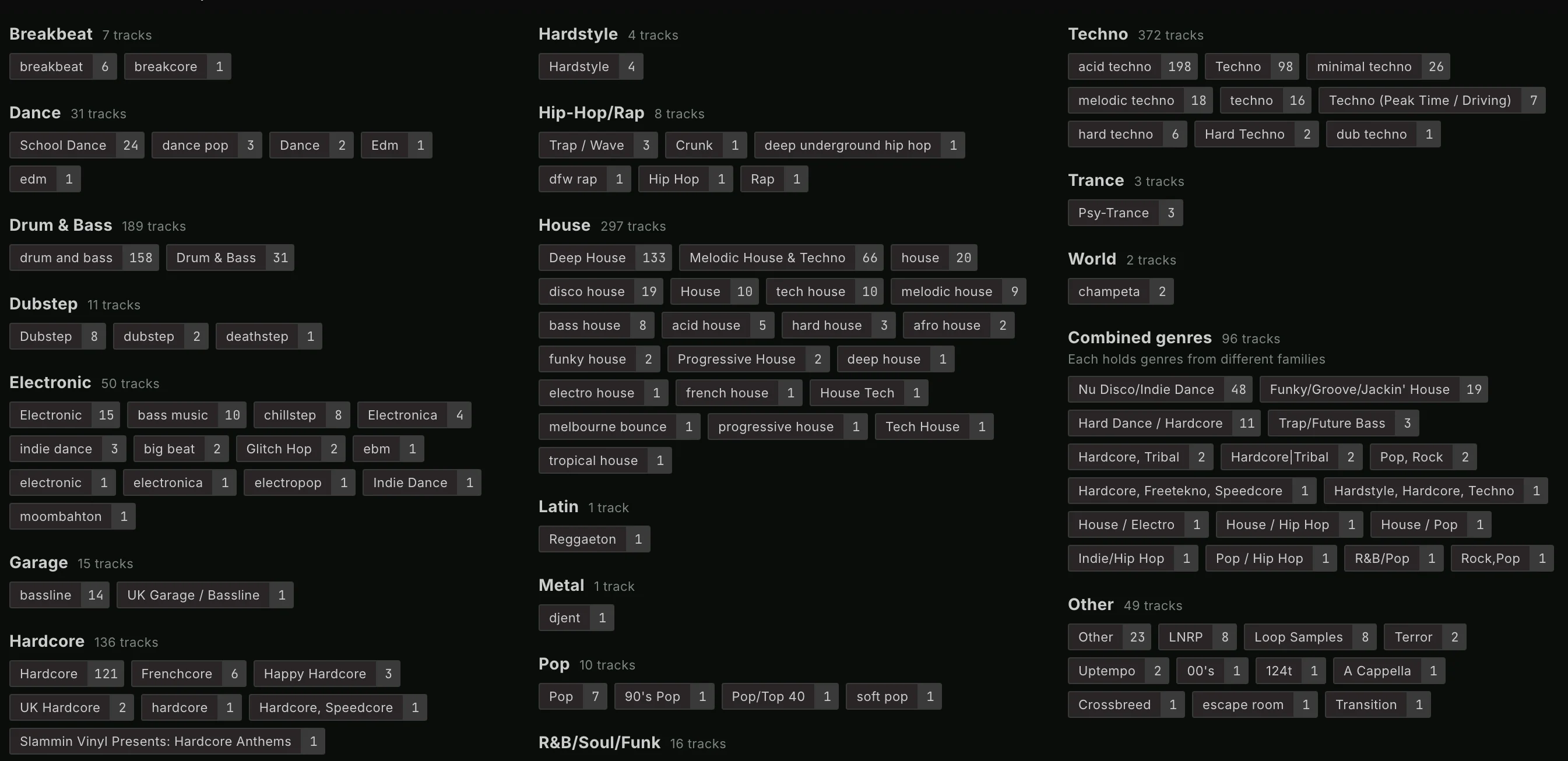
Genre Cleanup now groups your genres under their main genre, typos included, so "Tehcno" ends up under Techno. Drag genres between main genres, or set up your own.
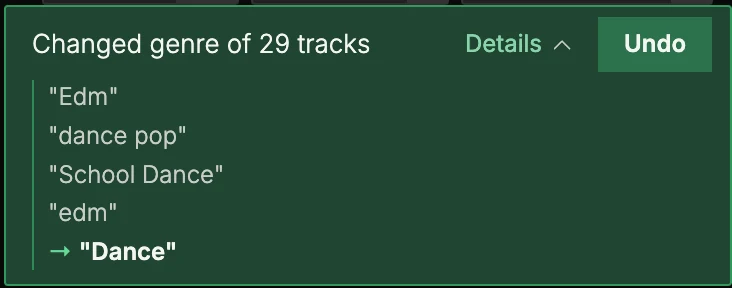
And if a cleanup didn't go the way you wanted, the notification now has an Undo button that reverts exactly that action. Open Details to see what changed. This works for Smart Fixes, Genre and Artist Cleanup, recipes, Find Tags and the Cue Point Generator.
Filter, Then Save as a Smartlist

Column filters now show in a bar above your tracks, with the matches highlighted. Found exactly the tracks you were looking for? Click Save as smartlist and your filters become smartlist rules.
And a Whole Lot More
Like every release, not everything fits its own heading. A few more things worth calling out:
- Lexicon now speaks 16 languages, with Chinese (Simplified and Traditional) added.
- Alphanumeric keys (like 8A) are the default key format for new installs.
- Hotkeys work on every plan, including Free. Changing them still needs Essential or Ultimate.
- The track timeline was rebuilt as a three-lane chart with energy, BPM and key.
- Running tasks now show at the bottom of the sidebar with their progress.
- Pioneer USB can write a lost & found file to your USB, so whoever finds it can reach you.
- MixID DJ charts in Charts: the tracks real DJs are playing in their sets, per genre.
- New Smart Fix: Extract Mix From Title moves "Extended Mix" and friends to the Mix field.
- The Local API now asks your permission before an app can control Lexicon, and has its own settings page.
- Engine DJ follows the library you used most recently, and checks for free space before a sync to a device.
- What's New and Release Notes are now in the Help menu.
- And, as always, countless smaller improvements and bugfixes.
Stream Deck
Version 2 of the Stream Deck plugin is ready. It works with the new Local API authentication so it's safer and for that reason the Stream Deck update is required. You can download it on the Stream Deck page.
What's Next
The manual has been fully updated for 1.12, and new tutorial videos are on the way.
Thoughts? Questions? Share them on the forum or chat about them on Discord.
Work on Lexicon continues, Lexicon v1.13 beta is coming soon!
