
Ghost Curator
Open Ghost Curator with the
Ghost Curatoricon in the left sidebar, or right click a track ➡Track tools➡Find mixable tracks
Ghost Curator tells you what to play next. Give it the track that is playing and it lists the tracks in your library that mix best with it, ranked from best to worst: right key, right BPM, right energy.
It can also follow the decks of your DJ app. Load a track in your DJ app and the suggestions change with it. A small overlay window floats on top of your DJ app, so you can drag the next track straight onto a deck without switching back to Lexicon.
Ghost Curator is the next step of Mixable Tracks and uses the same mix rules. The better organized your library (genres, energy, ratings, custom tags), the better the suggestions. With DJ picks it also shows what other DJs play together with the playing track, so it works well even when your library is not organized yet.
Plans
Following your decks, the overlay and DJ picks need the Ultimate plan. Starting from a track with Find mixable tracks works on the Essential plan too.
Start screen
When nothing is loaded yet, the Ghost Curator page shows a start screen. The first page explains what Ghost Curator is. Click How to start to see three steps: Two ways to start, Two kinds of suggestions and Before it can follow your DJ app. After you have seen it once, Ghost Curator opens on How to start directly.
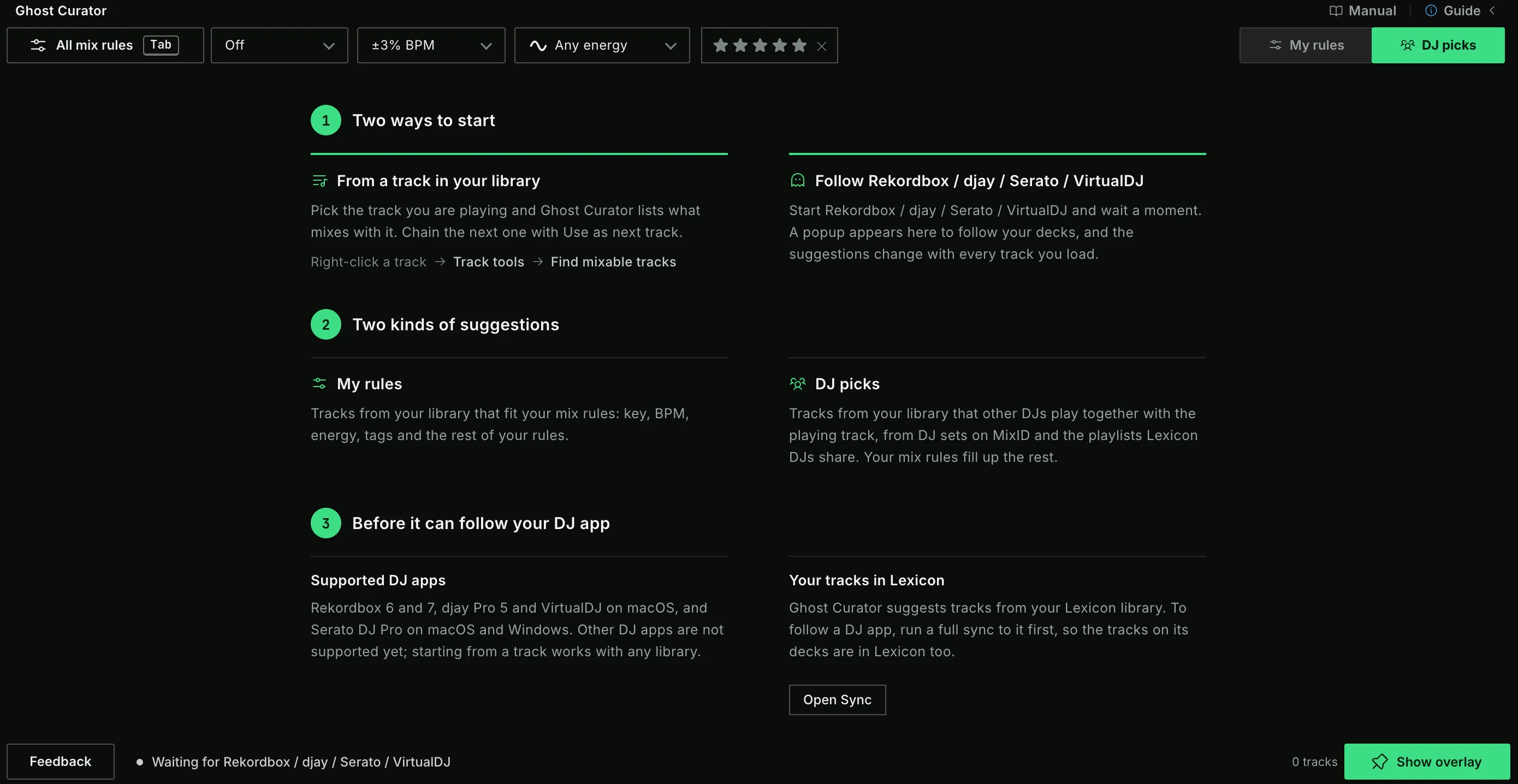
There are two ways to start:
- From a track in your library: right click a track ➡
Track tools➡Find mixable tracks. Ghost Curator opens with the list for that track, using the mix rules you used last. - Follow your DJ app: start a supported DJ app and wait a moment. A popup asks, for example,
Rekordbox is running. Follow your decks?. ClickFollow Rekordbox.
While no supported DJ app is running, the bottom left of the page, next to Feedback, says what Ghost Curator waits for, for example Waiting for Rekordbox.
Two kinds of suggestions explains My rules and DJ picks, see DJ picks. Before it can follow your DJ app lists the supported DJ apps and has an Open Sync button for the Full sync that following needs.
Ranking and the Score column
Every suggestion gets a score from 0 to 100 in the Score column. The score is built from how well the key, BPM and energy match, and from things like genre, custom tags, rating, freshness and whether you played the two tracks together before. Hover a score to see how it was built up.
The mix rules decide which tracks are allowed in the list at all; the score decides the order.
Tracks whose file is missing on disk are never suggested, on My rules and DJ picks and when you roll the dice. Ghost Curator uses what the last check of your library found, and checks the files of the listed tracks when the list is shown; a track that turns out to be missing disappears from the list. Streaming tracks have no file and are not affected.
DJ picks
The switch at the start of the toolbar on the Ghost Curator page has two modes:
My rules(sliders icon): the list comes from your mix rules only, as described above.DJ picks(people icon): the list starts with the tracks other DJs play together with the playing track. Your mix rules fill up the rest of the list.
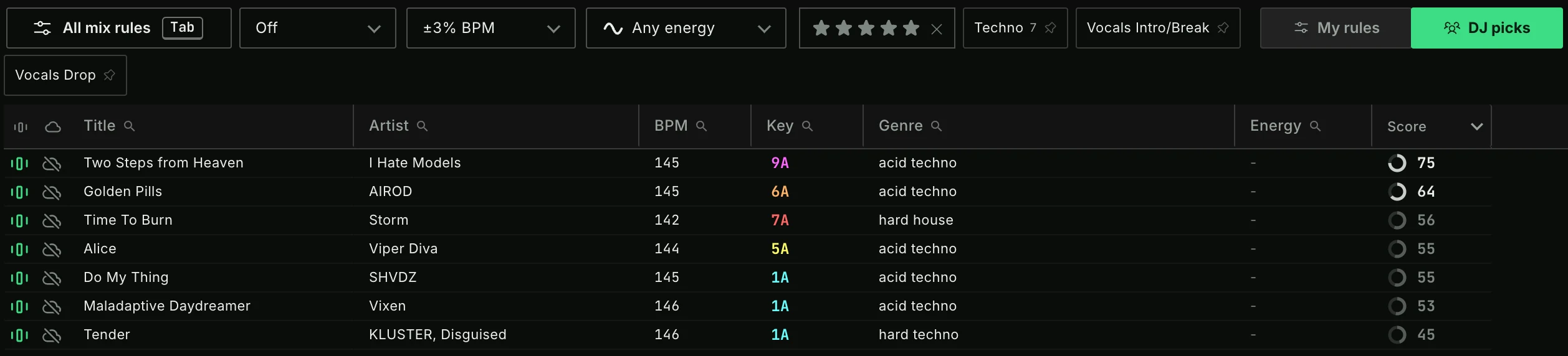
Both modes only suggest tracks from your own library. The start screen explains them side by side under Two kinds of suggestions. On My rules, a row above the list points at the other mode: click Try DJ picks to switch, or close the row with its × button. It doesn't come back once you closed it or switched DJ picks on.
DJ picks come from real DJs:
- Lexicon DJs: tracks that are in the same playlists as the playing track, and tracks DJs played right after it, from the libraries Lexicon users share.
- DJ sets on MixID: tracks played in the same DJ sets as the playing track, and tracks played back to back with it.
You only see DJ picks that are in your library. Lexicon finds them by artist and title.
DJ picks are ordered by how strongly DJs link them to the playing track. Your quick rules count for a part of the order: a DJ pick with a matching key and energy ranks higher. Of your mix rules, only the BPM range hides DJ picks, so you only see tracks you can mix in. Tracks you already played this session are left out too.
In DJ picks mode, every row in the list and in the overlay has an icon before its score:
- Green people icon: a DJ pick. Hover the score to see why, for example
Played together in 14 DJ sets,Back to back in 12 DJ setsor31 DJs played it right after this track. - Sliders icon: a suggestion from your mix rules.
When a new track comes in, the list shows a loader while Lexicon finds its DJ picks. When no DJ knows the playing track, or you are offline, the list only has the suggestions from your mix rules.
Roll the dice
Playing your usual tracks and want something different for once? In DJ picks mode, click Roll the dice (the dice icon) at the bottom of the overlay.
A roll puts ten popular tracks from your library on top of the list for the selected deck:
- Popular right now with Lexicon users and on MixID: trending in DJ sets, added by Lexicon DJs lately, in the charts, or owned by many DJs.
- In the same genre as the track on the deck. When Lexicon doesn't recognize the track, it uses the track's genre or a genre custom tag.
- In key, at any BPM. Only your
Key matchingcounts; the BPM range does not. When too few popular tracks are in key, the key is ignored; hover a score to see it. - A mix: new releases and older tracks, and tracks you hardly play next to ones you play a lot, taking turns, new releases first.
It never suggests the artist on the deck, tracks you already played this session, or more than two tracks by one artist. The rows of a roll have a dice icon; hover the score to see why a track was picked, for example Trending in 12 DJ sets lately or You never played it.
Click Roll the dice again for the next ten popular tracks. After the last ones it starts over. Load another track on that deck and the list goes back to your DJ picks. You can also give it a hotkey: Ghost Curator: roll the dice.
Sharing your library
DJ picks are built from what Lexicon DJs share, so they ask you to share too. The first time you switch to DJ picks, Lexicon asks you to share your track and playlist info, the same as for DJ Library Trends on the Dashboard. Your music files are never uploaded. Click Share & unlock to switch DJ picks on. If you don't want to share, Ghost Curator stays on My rules.
When you switch off Share library for DJ insights in the Settings later, Ghost Curator goes back to My rules.
Using it from a track
After Find mixable tracks the picked track shows as the Input track in the deck bar below the music player, and the list shows what mixes with it.
- Select a track in the list and click
Use as next track(or pressCtrl+Enter/Cmd+Enter) to get a new list based on that track. Keep doing this while you play and Ghost Curator stays with you. - Click
Save as playlistto save the whole list as a playlist, or drag selected tracks onto a playlist.
Following your DJ app
Ghost Curator can follow these DJ apps:
| DJ app | Operating system |
|---|---|
| Rekordbox 6 and 7 | macOS |
| djay Pro 5 | macOS |
| VirtualDJ | macOS |
| Serato DJ Pro 4 and 5 | macOS and Windows |
Other DJ apps (such as Traktor, Engine DJ, Serato DJ Pro 3, or Rekordbox and VirtualDJ on Windows) cannot be followed yet. Traktor, for example, does not show its decks to other apps. With those apps you can still use Ghost Curator from a track and Use as next track.
CDJs connected with DeckConnect can be followed on any operating system.
Following is never switched on by itself: Ghost Curator asks every time it finds a running DJ app. You can also use the Follow decks button in the toolbar of the Ghost Curator page when a DJ app is running. While following, the button shows Following and the name of the app, for example Following Rekordbox; click it to stop following.
Your tracks need to be in Lexicon
Ghost Curator can only suggest tracks for a deck when it recognizes the track on that deck:
- Rekordbox and djay: the decks are matched through the DJ app's own library, so run a Full sync to that DJ app first. The
Open Syncbutton on the start screen opens Sync with a Full sync ready. - Serato and VirtualDJ: the decks are matched by their files, so the tracks only need to be in your Lexicon library.
A deck with a track that is not in your library shows Not in library.
Rekordbox: Performance mode
Rekordbox needs to be in Performance mode. If it is in Export mode, Ghost Curator tells you to switch.
macOS: Accessibility permission
To read the decks of Rekordbox and djay on macOS, Lexicon needs the Accessibility permission. Serato and VirtualDJ do not need it.
When the permission is missing, the follow popup explains it and shows an Open System Settings button. Click it, switch Lexicon on under Privacy & Security ➡ Accessibility and come back. The popup checks by itself and enables the Follow button as soon as macOS allows it.
VirtualDJ: the Ghost Curator plugin
VirtualDJ does not show its decks to other apps, so Lexicon reads them through a small VirtualDJ effect, Ghost Curator (Lexicon). It leaves the sound untouched.
The first time you follow VirtualDJ, the follow popup asks you to install it. Click Install plugin, restart VirtualDJ and switch the Ghost Curator (Lexicon) effect on for any deck. VirtualDJ keeps it on from then on. The popup checks by itself and enables the Follow button as soon as the effect is on.
The deck bar
While Ghost Curator follows a DJ app, the decks appear in a bar across the window below the music player. Each deck shows the title, artist, BPM and key of the loaded track and its deck label. A green deck label means that deck holds a track right now. The track you picked with Find mixable tracks shows as an extra Input track card.
No deck is selected automatically. Click a deck to see its suggestions on the Ghost Curator page and in the overlay. Empty decks cannot be selected.
Tracks you select in the list are remembered for that deck and move to the top of its list, on the page and in the overlay. They are cleared when the deck loads another track. Press Escape to clear the selection, and press it again to deselect the deck.
The deck bar is shared with DeckConnect. While DeckConnect is connected, the bar shows the players instead, with the player model above each deck. Only one of the two can use the deck bar: DeckConnect does not connect while Ghost Curator follows another DJ app, and while the players are connected Ghost Curator can only follow DeckConnect.
Dropping a track on a deck
Drag a track from any playlist, or from the Ghost Curator list, onto a deck in the deck bar:
- For a DJ app deck, Ghost Curator selects that deck, gets the track ready in the overlay (
Ready for Deck 2), opens the overlay and brings the DJ app to the front. Then drag the track from the overlay onto the same deck in your DJ app. Rekordbox loads it with its cue points. - For a CDJ connected with DeckConnect, the track loads onto the player directly.
Streaming tracks cannot be dropped on a deck.
You can also load a track onto a deck without dragging: right click a single track in the track browser and choose Load into... and the deck, or use the numbered deck buttons in the search dialog (Search at the bottom of the sidebar). This does the same as dropping the track on that deck.
The overlay
The overlay is a small window that stays on top of your DJ app while you play. On macOS it also shows over a DJ app in fullscreen, and clicking it keeps your DJ app active.
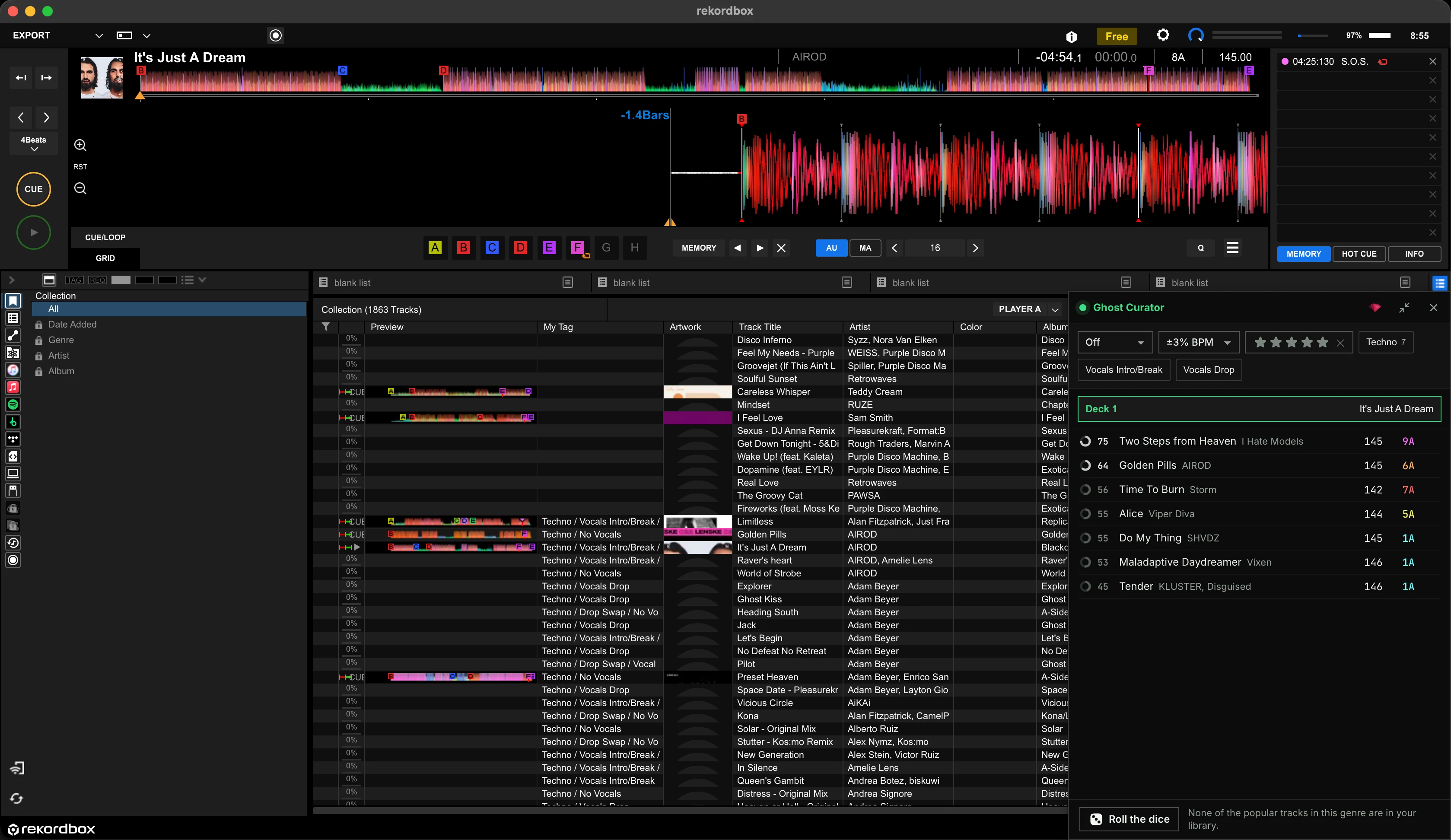
Open it with the Show overlay button at the bottom of the Ghost Curator page (the same button hides it again), or by dropping a track on a deck. It opens in the bottom right corner of your screen; drag it wherever you like.
The overlay shows:
- The decks, each with the title of the track on it. Click one to see that deck's suggestions.
Cmd+click(macOS) orCtrl+click(Windows) also brings Lexicon to the front. - The track you dropped on a deck, ready to drag into your DJ app. Click the cross to dismiss it.
- The suggestions for the selected deck, with their score, BPM and key. Drag a suggestion onto a deck in your DJ app to load it. Double click a suggestion, or press
1,2or3, to use it as the next track. - The quick rules (key matching, BPM, energy, rating and custom tags), the same as on the page. In DJ picks mode energy is left out.
- In DJ picks mode,
Roll the diceat the bottom. While a roll loads, a row with a spinner shows where its tracks will appear. See Roll the dice.
The buttons at the top right:
- Lexicon icon: brings the Lexicon window to the front.
- Compact mode: makes the overlay small, without the quick rules and with only three rows of suggestions (the list still scrolls). Click it again for the full view.
- Close: closes the overlay.
The overlay also works without a DJ app: it then shows the suggestions for the track you picked in Lexicon. When no DJ app is running, it says so.
Quick rules and filters
The toolbar at the top of the Ghost Curator page changes the list right away. The overlay has the same quick rules, without All mix rules and the pin.
| Control | Explanation |
|---|---|
My rules / DJ picks |
Where the suggestions come from, see DJ picks. Only on the page, not in the overlay. |
All mix rules |
Opens the mix rules dialog (shortcut: Tab) |
| Key matching | Harmonic, Fuzzy or Off, see below |
| BPM range | How far the BPM may be from the playing track, from Any BPM to a percentage or a number of BPM |
| Energy direction | Energy up, Same energy, Energy down or Any energy, see below |
| Rating | A box with stars, like the rating editor. Click a star to only show tracks with that rating or higher. Click the same star again, or the cross, to switch it off. It only shows when your mix rules use a rating filter. |
| Custom tags | The custom tags of the loaded tracks. Click a tag to only show tracks that have it. The number shows how many suggestions have that tag. On the page, click the pin next to a tag to keep it here even when no loaded track has it; it turns green and stays every time you open Ghost Curator. Click it again to unpin. |
| Pin | Keeps the current suggestions when the decks change |
Key matching: Harmonic allows the same key, the relative key and one step on the wheel. Fuzzy also allows one step with a mode change. Off ignores the key when filtering; it still counts in the score.
Energy direction: Energy up only shows tracks with a higher energy than the playing track, Energy down only a lower energy, and Same energy only the same energy. Any energy switches this rule off. The rule is skipped when the playing track has no energy value. See Analyzer for how to get energy values.
Every suggestion shows how far its energy is from the playing track's: +2 in green for more energy, -1 in red for less, a long dash in grey for the same. It shows after the score on the page and at the end of the row in the overlay, whatever the energy setting, and not when the playing track or the suggestion has no energy value.
Tracks you already played during this session, on a deck or as the input track, are left out of the suggestions.
Mix rules dialog
Click All mix rules to open the mix rules dialog. It opens with the rules you are using right now, including what you changed with the quick rules. Click Load to apply the rules. When you are following a DJ app, the lists of all decks are ranked again.
The dialog has the same options as Mixable Tracks, including Key matching, Energy direction and Sort by. Enable Show advanced options to see all of them. You can save your rules as a template and load it again later.
Must have custom tag has an AND / OR switch. With AND (the default), tracks need all of the chosen custom tags. With OR, one of them is enough.
The rules you use are remembered, also after a restart.
Hotkeys
You can give these actions a hotkey in the Hotkeys settings. They have no hotkey by default.
Ghost Curator: follow decksGhost Curator: show or hide the overlayGhost Curator: use suggestion 1 as next track(also 2 and 3)Ghost Curator: roll the dice
Feedback
Ghost Curator is new. Use the Feedback button at the bottom left of the Ghost Curator page to tell us how it works for you.