
Multiple Libraries
Switch libraries with
File➡Libraryin the top menu bar
Lexicon can keep several separate libraries and switch between them. Each library has its own tracks, playlists, cue points, tags and everything else you do in Lexicon. You can use this, for example, to keep a separate library per genre, or a library to try things out without touching your real one.
Turning it on
Multiple libraries is off by default. To turn it on:
- Open the settings.
- Under
Advanced, turn onMultiple libraries. - Restart Lexicon when asked.
While the setting is off, File ➡ Library only shows Enable multi database in the settings.
Creating a library
- Go to
File➡Library➡New library. - Enter a
Library name, for exampleTechno. - Click
Create library. - Lexicon asks to restart to switch to the new library. Click
Confirm.
A new library starts empty. Import or add your music to it like you would in a new installation of Lexicon.
Switching libraries
File ➡ Library lists all your libraries. The one you are using is marked. Your original library is called Main Library.
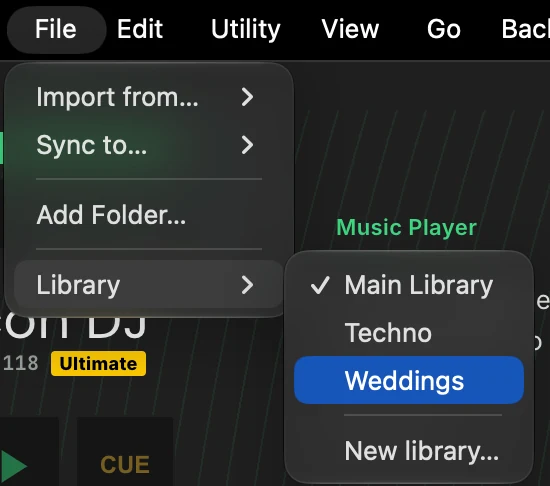
Click a library to switch to it. Lexicon restarts and opens that library. You cannot switch while a sync, import or other long operation is running.
What is shared between libraries
Your settings and hotkeys follow you. When you create a library or switch to another one, Lexicon copies the settings of the library you are leaving into the library you open.
Everything else belongs to one library: tracks, playlists, smartlists, cue points, beatgrids, custom tags, history, archive and so on. Your music files are not copied; two libraries can use the same files.
Library limit
You can have up to 5 libraries, the Main Library included, so 4 extra libraries. When you reach the limit, New library is greyed out and the menu shows Maximum of 5 libraries reached.
Renaming and deleting
Lexicon has no option to rename or delete a library.
Each extra library is a file called lexicon-<name>.db in the Lexicon app data folder. To delete a library, close Lexicon and delete its file, together with the -wal and -shm files with the same name if they are there. This also frees its place for a new library. If you delete the library you were using, Lexicon opens the Main Library the next time it starts.
Make a backup before you delete a library file.
Backups
A database backup contains all your libraries, not only the one you are using. This is true for manual backups, automatic backups and cloud database backups.
When you restore a backup, Lexicon restores every library that is in the backup. Libraries that are not in the backup are left as they are. If the library you were using is not in the backup (for example a backup made before you created it), Lexicon switches back to the Main Library.